Ranked Among Australia’s Top 20 Corporate Training Providers (2026): View Courses

SharePoint Online 2020

Your Introductory Guide To SharePoint Online

Your Introductory Guide to SharePoint Online

Brought to you by Rosy King @ Corporate Training Options
Your Guide to SharePoint Online


Your Introductory Guide to SharePoint Online

In the years the CTO team has been working with and teaching SharePoint, I’ve finally got around to writing this well overdue article and guide to SharePoint Online.

Okay so let’s dig in.

The current version is Microsoft SharePoint Online, which I’ll focus on here.

 

In a NutshellSharePoint Online in a Nutshell

SharePoint is a platform for cloud-based content management and document storage. It’s not a tool like Excel or Word, it’s a cloud-based server – an internal company directory containing all the information, resources and files you need to perform any project or task.

Previously used mainly by larger enterprises, Microsoft has now made SharePoint more accessible and simplified, as part of Microsoft 365.  If you need online document sharing and collaboration, then SharePoint is for you.


What is SharePoint Used For?

Good question.  SharePoint has been a crucial “Intranet” Microsoft platform for nearly two decades. You can collaborate and create standardised business systems with team members. Choose who you share and edit documents with, work on ad-hoc projects and record data, which increases your businesses productivity, communication and efficiency.

It allows you to store documents more effectively than saving files in traditional folder systems, so people in-house and externally can share, edit and receive files and information essential to them.


SharePoint -v- OneDrive

It would seem that SharePoint and OneDrive perform a similar role.  So what’s the difference?  Basically, SharePoint focusses on sharing files within groups or teams.  Anyone within the team has the ability to edit the files.  OneDrive is more of a personal storage option, where you can store your own files outside of the group storage facility.


Where does Microsoft Teams fit?

Teams and SharePoint are two different platforms.  SharePoint is a collaboration platform and a place for content sharing and document storage.  Basically, SharePoint is the site which holds all the content, documents and files, for your organisation.  However, it does not provide you with communication.  That’s where Teams comes in.

Microsoft Teams is a chat-based communication tool. It is a great alternative to email, allowing you to meet and chat online, share files quickly, and be part of various Teams and Channels.

Microsoft Teams and SharePoint work together with Microsoft 365 Groups.  Every Microsoft Team automatically has a SharePoint team site associated with it, where channel documents are stored.  Users don’t have to leave Teams to work on their files – they appear in the Files tab.


Some of the benefits of using Microsoft SharePSharePoint Office 365 Groupsoint

Work on documents at the same time as others

With SharePoint you can work on documents at the same time as others, using the document library.  Simply open the document library and click on the file you want to edit.  You’ll be able to see if other people are editing the file as well, in the top right-hand side of the file name.


Create and modify team sites

With Microsoft 365, you can create a site from the SharePoint home page, and it automatically creates a group. You can edit and share pages with others in your organisation or outside your business, such as a client.


Security

Within today’s modern organisations, data security is everything.  And Microsoft SharePoint Online has some of the best security functions available.

When you make the move to SharePoint Online it’s a great idea to apply SharePoint Security Groups with corresponding permissions.  It’s considered best practice to always have individuals as part of SharePoint Security groups and not individually assigned to a site.  Within Security Groups you can centralise various verticals of groups of users from within your organisation, then use these groups to maintain security on your SharePoint site.

With Microsoft 365 when you create a Group, it creates a security group tied to various Microsoft 365 apps like Planner, Teams and Outlook.  This membership group allows teams to collaborate using the various apps tied to it.

 

Security is important in IT

Some of the other great security functions in SharePoint

  • The “Check out function.” This stops other people editing your documents
  • The notifications feature, which notifies you when document edits are made or uploaded
  • You also can create workflows and automate various actions. These can include emailing files and documents and recording specific information.


Sharing Files and Sites

As long as you have permission, you can share files and sites via SharePoint. The benefit of this is that you can share sites and data files in or out of your organisation reasonably easily.


Creating Lists

Want a central location where you and your team members can add all kinds of data and fields such as text, or images that you can format?  Then be able to search and filter to find the specific data or information you need?

A list in SharePoint gives you these functions and capabilities and more. A list in SharePoint can also link people, dates and tracking history, and you can automate the entire process with Power Automate.


Three Critical Steps to Introduce Microsoft SharePoint Online into Your Organisation

 Preparation

The preparation before learning and starting to use SharePoint Online is essential. You need to determine why you need SharePoint and what tasks you and your team will be using SharePoint for.


Implementation

Getting started with the SharePoint Online software isn’t all that difficult. It’s migrating it into your business that’s the tricky part. You could seek the services of a consultant to help you with this, or your IT department if you have one.  Remember to discuss the implementation with your team.  Training is recommended after implementing SharePoint Online into your organisation.

 

SharePoint Group TrainingTraining your Team in SharePoint

Many organisations implement new software such as SharePoint Online and then fumble their way through it, learning as they go. This is time-intensive, frustrating and tedious, and in the big picture, unproductive.

To implement SharePoint Online successfully into your business, training your staff in the basics of how to use SharePoint correctly is vital.


So that’s it for now. I hope you enjoyed this Guide to SharePoint Online and learning some of the basics of using the SharePoint tools in your organisation.


What do our customers say?

The SharePoint training was extremely useful, in particular the ability to run through some of the examples and specifics that relate to our processes.

Karen, Lion Dairy & Drinks, Melbourne 


Our CTO trainer was very interactive in imparting the Microsoft SharePoint training content.  Really enjoyed it!

Rudolf, Accenture Australia


Your Guide to SharePoint Online – Introduction Training

When it comes to training in SharePoint Online, Corporate Training Options can provide you with both introductory and advanced courses, presented online or onsite at your workplace.

If you’re ready to learn the basics of SharePoint Online, or ready to upgrade your Microsoft 365 skills in other areas, contact CTO today for friendly, professional advice.

We’ll discuss your specific needs and tailor a training course to suit your requirements.


Why Choose Corporate Training Options?

  • Your Trainers are certified experts who are real-world practitioners
  • The courses are interactive, well organised and fun – making it easier for you to learn
  • Small workshop groups mean each trainee will receive individual attention and can be confident about the skills gained
  • Our complimentary trainer consultation before your training ensures your objectives will be met
  • CTO is a Business Excellence Award-winning company


Corporate Training Options


CTO training course in Microsoft 365 for Business CTO training course in Microsoft 365 for Business

Why Teams with Microsoft Office 365 have the Advantage

Want to know why teams with Microsoft Office 365 have the Advantage in the workplace?

Brought to you by: Rosy King @ Corporate Training Options


CTO training course in Microsoft 365 for Business


Why do teams with Microsoft Office 365 for Business have the advantage?


In Microsoft Office 365, Microsoft has made changes to its flagship products Word, Excel, PowerPoint and Outlook, making them more interactive and easier to use than previous versions.  But it’s the other tools available in the online version of Microsoft Office that really give you the advantage.

Organisations who have implemented Microsoft Office 365 for Business into their workplace will understand the ways it can improve productivity for them.


So how exactly are they gaining the advantage?


Collaborate, operate & communicate faster

After implementing Microsoft Office 365 for Business your internal staff, those in remote locations and teams out on the road are able to collaborate, operate and communicate faster with each other than ever before.

They can chat online and access the files and Office programs they need from any device.

They can also use OneDrive for business, to store and access their files correctly, contribute to Yammer and Groups and work productively in many other ways with Office 365 Online.

By understanding and training to use these Office 365 applications and functions correctly, organisations and their team members are saving massive amounts of time and money, irrespective of where they are.

So here’s a quick look at why your teams with Microsoft Office 365 for Business have the advantage of these and many other Office 365 features.


SharePoint Training with CTOI

Add 30 Minutes of productivity per day

With tools such as Yammer and Delve, Office 365 is brilliant.  Yammer is a social networking service, designed to help employees connect and communicate quickly with posts and messages.  Office Delve lets users search for and discover content across Office 365 based on personalised insights.

It is estimated that on average companies who have had Office 365 training and now have a good understanding of the tools available,  are saving approximately 30 minutes a day in productivity per user.

Over 12-months that’s a massive boost to your organisation’s productivity!


Work with Groups in Office 365

Groups in Office 365 connects users with colleagues, information and applications they need to get more done together. Groups are open by default to enhance discoverability and sharing, but users can also create private groups if they need to work with sensitive content.  Using Office 365 Groups you can collaborate with your team when writing documents, creating spreadsheets, working on project plans and more.


Manage your time with Calendars

With Calendars in Microsoft Office 365 for Business your team will be able to update and develop schedules for your organisation efficiently.

You can set up and work on your own individual calendar, plus work on shared calendars across your organisation.  This is great when you need to work with various teams to organise meetings, allocate resources such as boardrooms, and so forth.

With Office 365 for business, your team will have to skills to provide higher levels of customer service to staff both in-house and with those working remotely.


Communication is Key

Enhance performance, confidence & accountability

Providing your team members with Microsoft Office 365 business training gives them skills they need to be more productive, perform at higher levels, be more accountable and generally be more satisfied at work.

The tools in the software are intuitive and provide the ability to enhance performance.  They will give your team members the confidence to explore new ways of working and completing daily tasks.


Microsoft Office 365 for Business introduction training, is helpful for your team for a variety of reasons. 

These include:

  • A better understanding of the benefits of the Office 365 applications integration
  • How your organisation can apply the new Office 365 features into your day to day operations
  • Delivering Microsoft Office 365 for business introduction training will allow everyone to embrace it and maximise the new features and functions correctly.


What outcomes will you achieve with a Microsoft Office 365 for Business – Introduction training course?

At the completion of our course you should be able to:

  • Understand what Office 365 is and how it can be used
  • Understand how to start working with Office 365
  • Create, send and receive emails using Mail
  • Use Calendar to manage meetings, events and appointments
  • Understand and work with People
  • Create and join groups, post and interact with messages, and work with files using Yammer.
  • Use the Newsfeed
  • Access and navigate OneDrive
  • Start working with Office Online
  • Perform more complex email operations using Mail
  • Configure and personalise Mail settings to suit your needs


And Microsoft Office 365 business introduction training has plenty more to offer too.

For example,

  • You can use Calendar in Office 365 to manage meetings, events and appointments
  • You and your team can access, navigate and sync your teams OneDrive folder or work offline
  • You can also add comments in Word from a phone or any other device
  • You can collaborate more effectively and easier using Microsoft teams
  • And much more…


If you’re ready to upgrade your skills with Microsoft Office 365 for Business – Introduction Training, or you wish to tackle some new challenges, contact Corporate Training Options today for friendly, professional advice.


Corporate Training Options


Online training while working from home with CTO Online Courses

Tips to take Positive Action during Isolation

Here’s some tips on how to take positive action during isolation

Brought to you by: Rosy King @ Corporate Training Options


Learn new skills at home with CTO online training

All of us need some tips to take positive action during isolation, because for the time being, life as we know it has completely changed.

Our borders are closed, sporting events are cancelled, and many businesses are shut down.

But with all the bad news, there may be an opportunity for you to do something positive, if you’re able to shift your mindset and take action during isolation.

So, let’s look at this from a different angle.

This threat is very real, and quite scary for us all.  These tips are not meant to make light of the millions of people who will be negatively affected by this.

But at the same time, right now, the only thing you have control of when staying indoors and working from home, is your attitude about it.

Many of us will find this new situation difficult, and if you’re feeling angry or frustrated about it, I hope these tips will help.


Tips to take Positive Action during Isolation

Learn Office 365 from home with CTO Online training

It seems inevitable that we will have to stay indoors for weeks or perhaps months, while we try to stop this pandemic.  Many of us will be working from home, when we’ve never had to before.  Unfortunately, many more of us will be at home because we’re not working.

In these difficult times, you may be frustrated, angry and frightened.  But what you do over the next few weeks and months, could have an affect on your life for a long time to come.


You could make long-term changes to your life

Let’s say you’re forced to stay at home and wait it out.  Yes, you could spend weeks in front of the TV watching Netflix, or on the PC improving your gaming skills.

Or instead, you could think seriously about taking this opportunity to make some long-term changes to your life.  This is your chance to do all of those things you’ve never had time for.

If you’re working from home, but business is quiet due to the shutdown, why not take some time to improve your professional skills.

Maybe you’re at home because you don’t have any work, due to a business temporarily closing, or being laid off.  Now is the time you could upskill, so you become even more valuable to your employer when work begins again.

Or if you simply want to improve your life and you now have some spare time to do it, why not tick some of those items off your “One day I’ll do that” List.


Try Online Training Courses to Make Positive Changes in your Life

Here’s some ideas for you on different courses you could take to make positive changes in your life.


This is your chance to do all of those things you’ve always wanted to.  So, it’s time to shift your mindset and stop making excuses.

Yes, this whole situation is difficult, and terribly sad for so many people.  However, there’s very little any of us can do about it.  But what we can do is try to make something good come out of such a bad situation.  We can plan to make the most of being at home.


What does our future look like?

CTO tips for positive action while working from home

We don’t know what the future holds.  We don’t know when we’ll go back to work, or go on holidays again, or have a birthday party with friends and family.

But you do know that there are things you can control.

You can remain calm.  You can stay positive.

And if you put your mind to it, and learn some new skills, at the end of this crisis, you may come away with:

  • A clean and tidy house
  • New blog content ready to post
  • Improved health and fitness
  • Money skills to set you up for life
  • A better understanding of your Microsoft Office software
  • You may have even started your own business


What is happening to us all is very serious. But let’s make the most of a bad situation. Stay positive, learn new skills and gain control of new areas of your life.


Take care of you and yours.   Stay Positive.   Keep Smiling 🙂


Want to take Positive Action while you’re in Isolation?

CTO has a range of more than 400 online training courses available for you.

See our most popular online courses here – CTO Online Training Courses 


If you’re ready to upgrade your skills or to tackle some new challenges, contact CTO today for friendly, professional advice.


Corporate Training Options


Build a Winning Sales Teams

5 Benefits Corporates love about Microsoft Teams Adoption

Want to know more about the Benefits of  Microsoft Teams Adoption in your workplace?

Brought to you by: Rosy King @  Corporate Training Options


“Microsoft Teams has given every team member – even the quietest ones – a voice.”

Cherie Scholte


The Benefits of Microsoft Teams Adoption into your organisation include providing you with a powerful collaborative platform, which corporate businesses in Australia and across the world are embracing, for a number of reasons.

While you may think it is just another app, it isn’t.  It’s much more than that.  However many IT administrators, end-users and corporates are still trying to figure it all out.

So let’s have an overview.


About Microsoft Teams

Microsoft Teams helps boost team productivity, increase collaboration across departments and helps staff located both in-house or remotely, to complete tasks in a quick, efficient and professional manner.

It also supports file-sharing, real-time instant chat for effective communication, as well as live streamed events, with a single user interface that works across all devices.

Additionally, companies that connect third-party solutions such as their social media to Microsoft Teams dramatically in­­­crease their organisations’ efficiency, team involvement, culture and communication processes.


Microsoft Teams App for mobile

There is also a Microsoft Teams app compatible with iOS and Android operating systems, for use on smartphones and tablets.

This gives your team out in the field instant access to files, discussions and other tasks so communication and collaboration continue effortlessly.


So, what is a Microsoft Team?

At its core, you work in different “teams”.  Think of each team as a house. If you’re a member of that house you work together with the other members, and are included in everything that goes on within your house.


What’s a Microsoft Teams Channel?

Microsoft Teams has general “channels”, that can be likened to rooms in your house.

In these rooms, members of the team can have conversations, reply and communicate with each other.  This makes Microsoft Teams easy for your staff to show off their personality, even though team members can be separated by thousands of miles.

You can also have private channels in Microsoft Teams.  As the name implies these “channels” or rooms are only available to the select people you have chosen to have in that room.


Here are five benefits corporates love about Microsoft Teams adoption in the workplace.


Collective Collaboration with Increased Productivity Power 

When your organisation and your staff adopt  Microsoft Teams – you’re guaranteed to have coherent communication, collective collaboration and increased company productivity!

Let’s say you have a team who are currently working on a shared project, using email correspondence as the main form of communication.  In many cases, crucial project directives and information could be lost in email threads.  When dealing with large-scale teams, email threads are simply not an effective means of communication.

The beauty of Microsoft Teams lies within real-time messaging. Keep your whole team up-to-speed with direct messaging – eliminating time delays and solving problems faster.

New team members can see all the prior conversations and posts, too – so no-one is left out of the loop. This makes Microsoft Teams a much more collaborative and interactive solution for staff communication, as opposed to strictly emailing.

So when you decide to integrate this program into your organisation, training will be needed if you want to guarantee long-term program adoption.  Training will help your organisation, and your staff communication can thrive off the benefits.


Store & Record Conference Calls, Brainstorming Sessions, Audio and More

If you’ve ever had to sort through thousands of emails or notes looking for that one idea discussed, you’ll understand that it can be extremely time-consuming and frustrating.

When your organisation adopts Microsoft Teams into every-day work, you’ll soon be making up for  lost time.

Any crucial note, particular date or project idea discussions are all captured within Microsoft Teams.

With the powerful chat function and interface, you can store conference calls, ideas, and notes from brainstorming sessions. Plus, you can even find a specific conversation with a specific person on a specific day quickly and easily!


Flawless Integration with other Office 365 Applications

Another benefit for organisations adopting Microsoft Teams is being able to view and integrate other Office 365 applications. This means your team members can view and edit Excel spreadsheets, PowerPoint presentations, Word documents and other files within Office 365 collaboratively.

This flawless integration also eliminates the need to switch between programs. Team members and staff will not miss any important directives about specific projects and tasks. This allows changes, reviews and communication to happen effectively, both remotely and in-house.


Customised Third Party Integration

Microsoft Teams also allows you to integrate up to 150 third-party services, such as your business social media, into its interface.

This is extremely beneficial for many businesses – and sees many marketing departments collaborate much more effectively.

By integrating your Microsoft Teams with any number of third-party services and applications, your organisational teams will stay on top of tasks, too.


Control Mobile Work Devices with Microsoft Intune in Office 365

Another great benefit for corporates of adopting Microsoft Teams, is IT admins can have considerable control of your mobile devices using Microsoft Intune.

With Microsoft Intune your IT department can

  • Manage mobile devices and which people can access specific company data
  • Control how your team can access and share data
  • Ensure your mobile devices and applications comply with all your organisation’s IT security
  • And protect the shared and stored data on those mobile devices


All in all, there’s a plethora of fantastic benefits your organisation and your team members can experience.

However, customised training for effective adoption is imperative to take advantage of the long-term benefits of these programs.

When training is integrated as part of your Microsoft Teams rollout, you will experience the benefits within in your organisation, for your team, your customers and your suppliers.  To keep moving, growing, building and thriving – look into a Microsoft Teams Corporate Adoption Program for your organisation.


Just take a look at these statistics from Microsoft, on the impact on organisations after the Microsoft Teams 90-Day Corporate Adoption:

  • 3.2 hours of increased productivity per user per week
  • $1.4m in savings on travel costs and associated expenses
  • 88% of Teams users surveyed said real-time communication accelerates collaboration
  • This and more are all possibilities for your organisation, when you take the next step towards implementing Microsoft Teams


Want to learn more about the benefits of Microsoft Teams Adoption ?

When the best adoption practices are implemented, you will improve your operations, transform productivity, provide better customer experience and improve employee engagement.

Contact  Corporate Training Options for friendly, professional advice about our Microsoft Teams Corporate Adoption Program.

We will work with your systems integrators and business representatives to implement a 3-Phase program, resulting in highly engaged attendees, who adopt their new skills and techniques into their own business context.


Here’s what’s covered:

Phase 1 – Start

  • Customer On-boarding and Teamwork Assessment Survey
  • Teamwork Readiness Workshop for Leadership Team
  • Setup your first Teams and Channels
  • Develop your Roadmap, Action Plan & Deliverables

Phase 2 – Experiment

  • Integrate your Microsoft Applications
  • Develop your Champions Program
  • Governance QuickStart – to develop your framework of best practice
  • Onboard your HelpDesk Support Team

Phase 3 – Scale

  • Define Outcomes and Measure of Success
  • Drive Awareness of the Teams roll-out program
  • Implement Training for all end users
  • Schedule Service Health Reviews


What will you do to improve collaboration in your organisation today?


Corporate Training Options


Build a Winning Sales Teams

5 Benefits Corporates love about Microsoft Teams Adoption

Want to know more about the Benefits of  Microsoft Teams Adoption in your workplace?

Brought to you by: Rosy King @  Corporate Training Options


“Microsoft Teams has given every team member – even the quietest ones – a voice.”

Cherie Scholte


The Benefits of Microsoft Teams Adoption into your organisation include providing you with a powerful collaborative platform, which corporate businesses in Australia and across the world are embracing, for a number of reasons.

While you may think it is just another app, it isn’t.  It’s much more than that.  However many IT administrators, end-users and corporates are still trying to figure it all out.

So let’s have an overview.


About Microsoft Teams

Microsoft Teams helps boost team productivity, increase collaboration across departments and helps staff located both in-house or remotely, to complete tasks in a quick, efficient and professional manner.

It also supports file-sharing, real-time instant chat for effective communication, as well as live streamed events, with a single user interface that works across all devices.

Additionally, companies that connect third-party solutions such as their social media to Microsoft Teams dramatically in­­­crease their organisations’ efficiency, team involvement, culture and communication processes.


Microsoft Teams App for mobile

There is also a Microsoft Teams app compatible with iOS and Android operating systems, for use on smartphones and tablets.

This gives your team out in the field instant access to files, discussions and other tasks so communication and collaboration continue effortlessly.


So, what is a Microsoft Team?

At its core, you work in different “teams”.  Think of each team as a house. If you’re a member of that house you work together with the other members, and are included in everything that goes on within your house.


What’s a Microsoft Teams Channel?

Microsoft Teams has general “channels”, that can be likened to rooms in your house.

In these rooms, members of the team can have conversations, reply and communicate with each other.  This makes Microsoft Teams easy for your staff to show off their personality, even though team members can be separated by thousands of miles.

You can also have private channels in Microsoft Teams.  As the name implies these “channels” or rooms are only available to the select people you have chosen to have in that room.


Here are five benefits corporates love about Microsoft Teams adoption in the workplace.


Collective Collaboration with Increased Productivity Power 

When your organisation and your staff adopt  Microsoft Teams – you’re guaranteed to have coherent communication, collective collaboration and increased company productivity!

Let’s say you have a team who are currently working on a shared project, using email correspondence as the main form of communication.  In many cases, crucial project directives and information could be lost in email threads.  When dealing with large-scale teams, email threads are simply not an effective means of communication.

The beauty of Microsoft Teams lies within real-time messaging. Keep your whole team up-to-speed with direct messaging – eliminating time delays and solving problems faster.

New team members can see all the prior conversations and posts, too – so no-one is left out of the loop. This makes Microsoft Teams a much more collaborative and interactive solution for staff communication, as opposed to strictly emailing.

So when you decide to integrate this program into your organisation, training will be needed if you want to guarantee long-term program adoption.  Training will help your organisation, and your staff communication can thrive off the benefits.


Store & Record Conference Calls, Brainstorming Sessions, Audio and More

If you’ve ever had to sort through thousands of emails or notes looking for that one idea discussed, you’ll understand that it can be extremely time-consuming and frustrating.

When your organisation adopts Microsoft Teams into every-day work, you’ll soon be making up for  lost time.

Any crucial note, particular date or project idea discussions are all captured within Microsoft Teams.

With the powerful chat function and interface, you can store conference calls, ideas, and notes from brainstorming sessions. Plus, you can even find a specific conversation with a specific person on a specific day quickly and easily!


Flawless Integration with other Office 365 Applications

Another benefit for organisations adopting Microsoft Teams is being able to view and integrate other Office 365 applications. This means your team members can view and edit Excel spreadsheets, PowerPoint presentations, Word documents and other files within Office 365 collaboratively.

This flawless integration also eliminates the need to switch between programs. Team members and staff will not miss any important directives about specific projects and tasks. This allows changes, reviews and communication to happen effectively, both remotely and in-house.


Customised Third Party Integration

Microsoft Teams also allows you to integrate up to 150 third-party services, such as your business social media, into its interface.

This is extremely beneficial for many businesses – and sees many marketing departments collaborate much more effectively.

By integrating your Microsoft Teams with any number of third-party services and applications, your organisational teams will stay on top of tasks, too.


Control Mobile Work Devices with Microsoft Intune in Office 365

Another great benefit for corporates of adopting Microsoft Teams, is IT admins can have considerable control of your mobile devices using Microsoft Intune.

With Microsoft Intune your IT department can

  • Manage mobile devices and which people can access specific company data
  • Control how your team can access and share data
  • Ensure your mobile devices and applications comply with all your organisation’s IT security
  • And protect the shared and stored data on those mobile devices


All in all, there’s a plethora of fantastic benefits your organisation and your team members can experience.

However, customised training for effective adoption is imperative to take advantage of the long-term benefits of these programs.

When training is integrated as part of your Microsoft Teams rollout, you will experience the benefits within in your organisation, for your team, your customers and your suppliers.  To keep moving, growing, building and thriving – look into a Microsoft Teams Corporate Adoption Program for your organisation.


Just take a look at these statistics from Microsoft, on the impact on organisations after the Microsoft Teams 90-Day Corporate Adoption:

  • 3.2 hours of increased productivity per user per week
  • $1.4m in savings on travel costs and associated expenses
  • 88% of Teams users surveyed said real-time communication accelerates collaboration
  • This and more are all possibilities for your organisation, when you take the next step towards implementing Microsoft Teams


Want to learn more about the benefits of Microsoft Teams Adoption ?

When the best adoption practices are implemented, you will improve your operations, transform productivity, provide better customer experience and improve employee engagement.

Contact  Corporate Training Options for friendly, professional advice about our Microsoft Teams Corporate Adoption Program.

We will work with your systems integrators and business representatives to implement a 3-Phase program, resulting in highly engaged attendees, who adopt their new skills and techniques into their own business context.


Here’s what’s covered:

Phase 1 – Start

  • Customer On-boarding and Teamwork Assessment Survey
  • Teamwork Readiness Workshop for Leadership Team
  • Setup your first Teams and Channels
  • Develop your Roadmap, Action Plan & Deliverables

Phase 2 – Experiment

  • Integrate your Microsoft Applications
  • Develop your Champions Program
  • Governance QuickStart – to develop your framework of best practice
  • Onboard your HelpDesk Support Team

Phase 3 – Scale

  • Define Outcomes and Measure of Success
  • Drive Awareness of the Teams roll-out program
  • Implement Training for all end users
  • Schedule Service Health Reviews


What will you do to improve collaboration in your organisation today?


Corporate Training Options


Teamwork with Microsoft Teams

CTO Training Tip – Microsoft Teams

How to create a new Team in Microsoft Teams

Teamwork with Microsoft Teams

Would you like to create a new team in Microsoft Teams?

When you first begin working in Microsoft Teams you will usually be working with teams which have already been created by other people within your organisation.  However, there may be times when you want to create a new team yourself.

When you create your own team, you can add members to it, so you can collaborate with them.  You can then send them messages, share files, participate in video chats, work together on projects, and so on.


The steps to creating a Team are as follows.

  1. In the Microsoft Teams sidebar, click on Teams to display the Teams tools and options in the middle and right panes of the Teams window
  2. Next, at the bottom of the middle pane, click on Join or Create a Team
  3. Then, click on Create a Team in the right pane, which will open the next window


Image to Create a new Team in Microsoft Teams


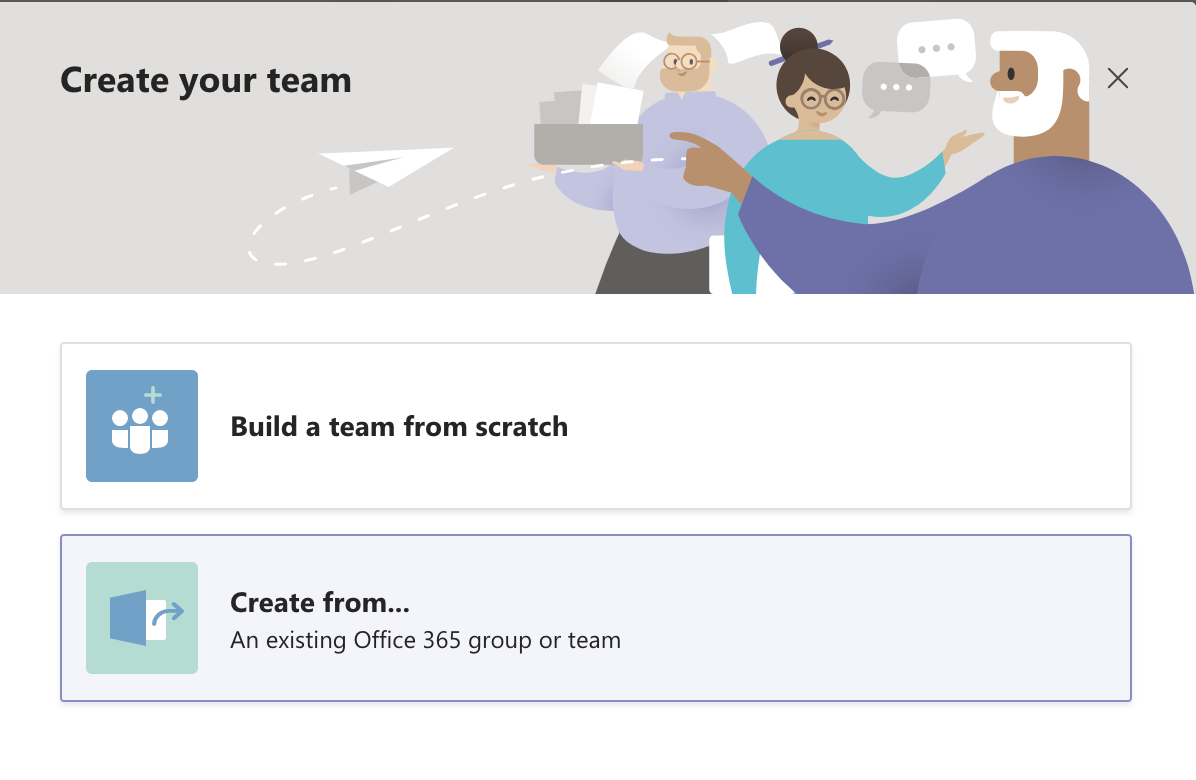
  1. In the Create your Team window, you can choose to Build a Team from scratch, or Create your new Team from an existing Office 365 group or team


Create your Team in MS Teams5. Next, choose your Team’s Privacy Level.

  • Select Private if you only want the people who are part of your team to view the team’s content.
  • Select Public if anyone in your organisation can join your team.

Set up a Private Team in Microsoft Teams

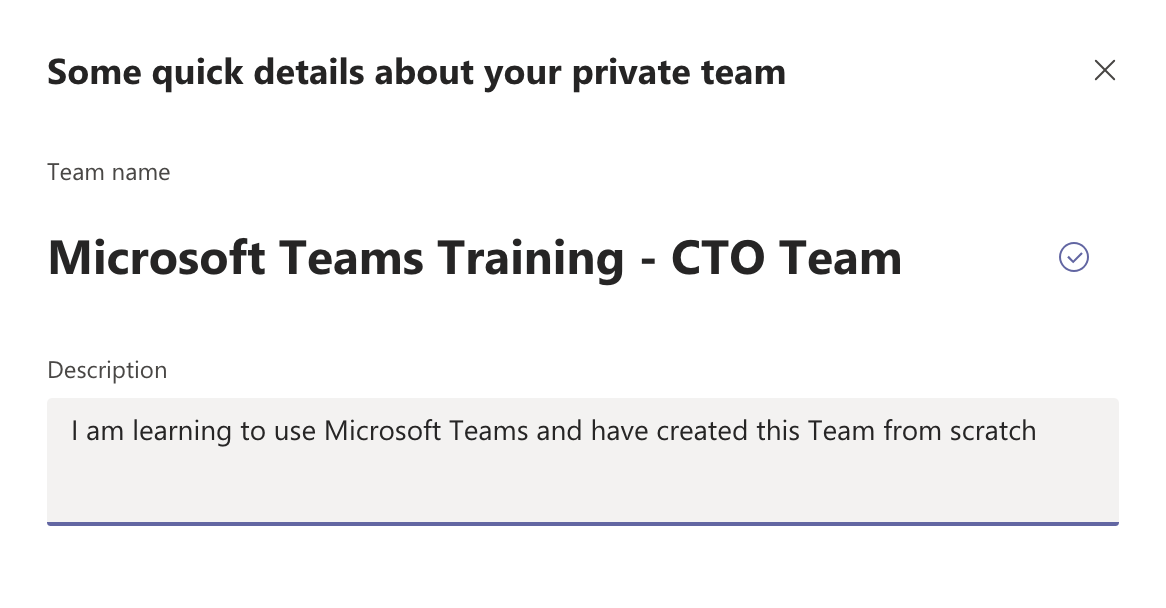
  1. Give your Team a name and complete the team details, then click on Create


CTO Training in Microsoft Teams


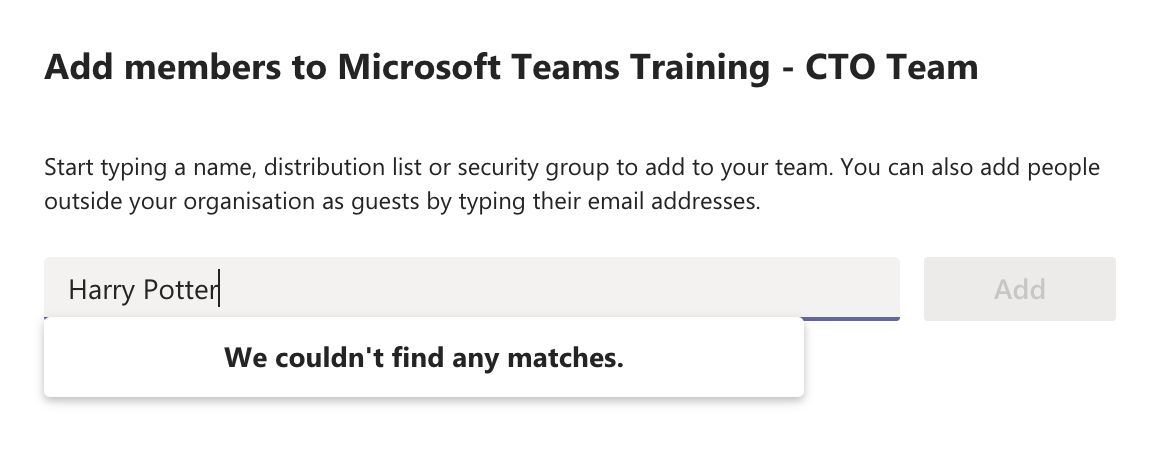
7. Next, add your team members, or skip this step if you prefer.


Add Team members to Microsoft Teams


8. Your new Team will now be created. From here, you can continue to add more people to your team or create new channels if you prefer. You can also start a new conversation from this window.


Add Channels to Microsoft Teams


If you require Microsoft Teams training in your organisation, please don’t hesitate to contact us.

We can customise your Teams training to suit your requirements and present your training on dates which suit you.

Corporate Training Options


SharePoint Training with CTOI

Powerful Productivity with SharePoint

You can have powerful productivity with SharePoint tools at your fingertips.  Here’s how to use Microsoft SharePoint to your Best Advantage

Brought to you by: Corporate Training Options


SharePoint in Office 265


More than 200,000 organisations and 190 million people worldwide have SharePoint for intranets, team sites and content management. Why you may ask?

Microsoft Sharepoint is web-based intranet software that has purposely been designed to increase the efficiency of your organisation, as well as dramatically improve teams’ collaboration and innovation.

It helps to improve your company’s processes by reorganising the administration of – and access to – data. The software is unique because it gives users access to versioning and check-in and checkout functions – with everything in one place.

And, for added convenience, it can be configured to run Internet, Intranet and Extranet sites.

SharePoint Productivity

So, could your organisation’s internal communication be more efficient?

Do you want powerful productivity with SharePoint when working on projects?

Find out more about our Microsoft SharePoint Training Courses here.


Here are the areas where you can realise powerful productivity with SharePoint.


Integrated with Office 365

SharePoint integrates with Office 365, providing you with  effective document management capacity. It makes your work processes more efficient and saves you time. This impacts your business’s bottom line.

Version Tracking

One of Microsoft SharePoint’s key features is that it tracks versions of your documents. There is a lot of information available about each file – when team members look at it, they see its entire history. Version tracking makes the whole process of reading, writing and managing files and projects easier.

SharePoint enables Staff Collaboration and Communication

Are you finding it difficult and time consuming to collaborate with team members on projects?  SharePoint allows you to share and manage content, knowledge and information quickly. It’s much more effective than emailing where documents can become lost, or emails remain unread. Any messages between your staff are merely posted on SharePoint – everyone has instant access.

SharePoint is designed around getting your staff members to work from a central point in a team environment. This is great in all types of organisations, especially where there are multiple branches and team members working offsite.

While some of your people may only interact with other staff sporadically, and others continuously work together, SharePoint has one central meeting point where everyone can collaborate.


SharePoint Group

Great for Editors

Microsoft SharePoint is ideal for editors. You can see all versions of documents and reports run in relation to the documents. You can see a history of the document and edit it as needed – looking at multiple versions if appropriate.


Ease of Use

With proper training, even your non-technical people can administer, change and update SharePoint. It’s a simple and easy to use point and click system.

Designed for Efficiency

SharePoint has been designed with efficiency in mind. Using the program, your staff can set up websites to share information with other team members, manage documents from start to finish and share reports.  This allows your managers to make better decisions regarding your projects.  SharePoint allows you to transform your business processes, using  libraries and lists, and apps such as Microsoft Flow and PowerApps

Ideal for staff in all Departments

Microsoft Sharepoint is designed for to be used by your staff in every area of your organisation. It provides dynamic team sites for every project team, division or department.  You can share files, data, resources and news effortlessly and securely.  You can work with others both inside and outside your organisation, across Macs, PC’s or mobile devices.


In Summary

SharePoint is excellent if you are working on projects where information needs to be continuously shared.  Sites for your team are managed, reports created, and documents accessed from one central spot.  SharePoint increases the efficiency within your organisation, as well as dramatically improve teams’ collaboration and innovation.

So, are you and your team making the most of this powerful productivity tool?


Corporate Training Options


At Corporate Training Options our highly skilled trainers have extensive experience in using Microsoft Sharepoint, and providing training in the software.

Our Microsoft SharePoint – Introduction course will provide you with the skills to navigate SharePoint Online, create team sites, create and use basic libraries and lists, and much more.

Enrol today or contact us for more information!


Power BI onsite or elsewhere

The Benefits of Power BI

By: Corporate Training Options, Australia

Power BI Dashboards


What are the benefits of Power BI for your business?

Business never sleeps. It never takes time off, nor slows down.

Therefore, part of your competitive advantage lies in getting the latest and most essential information instantly.  You can then analyse it and use it to make informed decisions quickly and flexibly.

For these reasons, you need the Power BI app from Microsoft as an essential part of your workplace toolkit.

Power BI does much more than provide up-to-date, raw and unrefined business information. Business leaders from CEOs of global corporations to owners of family-run small businesses will benefit from this app in a variety of ways.


What is Power BI?

Power BI from MicrosoftMicrosoft Power BI is a Business Intelligence product.  It’s a cloud based business analytics tool, which you can use to view an extensive range of data through interactive reports and dashboards.

With Power BI you can visualise, analyse and share data at a much faster and more efficient rate, allowing you to discover insights into your organisation and your industry, and to forecast trends.

Power BI provides near real time analytics at any point and you can distribute business intelligence (BI) across your organisation, working both in the office or on mobile devices.

With Power BI, you can collaborate with your team to gather useful business information and easily turn data centered reports into live dashboards with the help of cloud services

If your organisation is looking to gain a better insight into your business, competition, and customers, while keeping pace with constantly changing market conditions, Power BI is a great business intelligence solution.


How does it work?

Power BI is used to find insights within your organisation’s data.  It lets you:

  • Import data into your interface from various sources
  • Integrate and connect to various platforms
  • Transform and clean your data to provide data visualisation, making your information more understandable
  • Use your data models to analyse your data, to find patterns and help you make business decisions
  • Ask questions of your data, to get instant answers in layman’s terms


The Benefits of Microsoft Power BI

Power BI onsite or elsewherePower BI can provide executive dashboards for your managers, giving them more insight into how departments are doing.  You can use it to create reports and forecasts to aid sales and marketing reps, or provide data for team leaders on how individual employees are progressing toward their goals.

There is a portal for administrators, to help configure the implementation of Power BI, as well as monitor usage and licenses.

And one of best things about Power BI is the ease with which any individual can do these things.


Making critical and informed decisions about your business requires more than just information.  You need business intelligence. 

Power BI data analysisThe Power BI app from Microsoft  provides business information and insights on what you need, when you need it.  It connects you with data organised by category, presented with appealing and interactive visual aids.

Your Power BI app keeps you connected to members of your team and others. It can share published reports, enhance collaboration, and help you share insights, while promoting better communication.

With your mobile phone, tablet or laptop, you have access toPower BI’s business intelligence and communications tools, wherever you are.


How can you Learn to use this Essential Business Tool

While the Microsoft Power BI app has earned praise for its ease of use, taking professional courses will allow your team to get the most out of the app – and maximise the benefit for your business.


Want to Learn More about the Microsoft Power BI App?

Taking a course in Power BI is the best way to learn its qualities quickly.

Corporate Training Options’ Microsoft Power Bi course is perfect.

You and your team can learn from experts and quickly discover the value of this vital product – the best intelligence possible to help you make informed decisions for your business.

Our Microsoft Power Bi courses provide important usage information, useful tools and clever tricks, as well as answers and ideas on your real-life questions from those who know best.


Corporate Training Options


Why Choose Corporate Training Options?

Corporate Training Options (CTO) is a Business Training Company, which provides training in essential business skills, via onsite courses which are tailored to meet your requirements.

The courses provide a cost-effective way of ensuring you and your team are presenting your best image to the world.

We will address your pain points and facilitate customised, onsite training that provides you with a solution to your immediate problem, plus teaches your team valuable new skills.


For more information on the range of Business Training Courses available, please visit the CTO website – cto.com.au 

We look forward to working with you, to build your confidence, improve your efficiency and maximise your potential.


Rosy King

Corporate Training Options

Professional Training  –  Exceptional Results

training@cto.com.au

cto.noesis.chat/


CTO Training for Microsoft Teams

6 Awesome Benefits of using Microsoft Teams

By: Corporate Training Options, Australia

Teamwork with Microsoft Teams


The benefits of using Microsoft Teams are many, including allowing you to harness the changes in the business world in recent times.  We now have:

  •  greater mobility
  •  widespread internet availability
  •  rising popularity of distributed teams
  •  more flexible working options

It is now an absolute minimum requirement for organisations to have online communications and collaboration hubs.  So wherever you are, you can keep doing business, working with a laptop or smartphone.

Microsoft Teams improves collaboration

We’ve adopted Microsoft Teams in our organisation this year, and with staff located across Australia, it has become an essential tool for us to run the business. So, I’d like to share with you some of the awesome benefits of using Microsoft Teams software.


Teams is included in Office 365

Firstly, did you know that Teams is included with your Microsoft Office 365 subscription?  Many organisations are paying for applications like WebEx, Skype for Business and Slack.  As a turnkey solution, Teams can simply be ‘switched on’ in your Office 365 account, so you can start enjoying improved collaboration and productivity without the added cost.

When used to its full capabilities, you could say that Teams is like WhatsApp, and FaceTime on steroids.  In my opinion it is game-changing for your staff, and the way you interact with your customers. Have I got your interest now?  Let’s take a look.


Microsoft Teams can enhance productivity and improve communications

Have you ever worked on Trello for project management, used Gmail for email, Zoom for video meetings or Slack for group messaging and chats?  If so, you would already be familiar with the need to switch screens and log in separately to access these different platforms.

One of the benefits of using Microsoft Teams is that everything is conveniently available in a single app and interface – from online meeting records, conversations, chats, shared files, tasks, and so on.  Popular Microsoft applications like Word and Excel, as well as a wide range of third-party software, can be seamlessly integrated into the Teams workspace so you can get your work done without the need to switch apps or leave Teams.

And the good news is – IT JUST WORKS!


Teams can help people focus on their tasks and be accountable

Microsoft Teams features secure channels for one-to-one or one-to-many messaging and chats.  The channels contain conversations, document repository and even meetings relevant to each channel.  This way, you can focus on the task at hand and engage with the people in the channels where you actually work. This means up to 30% less emails – and that translates into less NOISE!


Teams improves transparency and makes it fun

Make work fun with Microsoft TeamsTeams makes it easy to keep everyone involved in a particular project in the loop, through the channels feature, which acts a “sub-team”. If you need to communicate anything to some people in the channels you work in, all you need to do is @-mention them with your message. Everyone in the channel will see it, and the people mentioned can respond.

What’s more, communication enhancement elements like GIFs, likes, emoticons, and live link previews are automatically enabled, thereby promising a richer, more expressive communication platform. And if you happen to have a multilingual workforce, automatic translations of conversations are easily switched on.


The Teams hub facilitates a smooth transition to the Cloud

Teams is a fully cloud-based app, so your organisation’s transition to a cloud-based digital workplace will be seamless. With Teams, there’s no need to carry around files and documents or storage devices.  Anywhere you are, as long as there’s internet connectivity, you can conveniently access your workspace and stay on top of everything.


Microsoft Teams can make the adjustment phase easier for new staff

CTO Training for Microsoft TeamsThe benefits of using Microsoft Teams when on-boarding new staff is that the orientation process can be shortened.  There’s no need for lengthy explanations and introductions.

All you need to do is to include new team members in the channels they’ll be working in, and give them access to the files and documents they need, so they can start being productive.


Microsoft Teams – Document Version Control

The Microsoft Teams document collaboration tools mean you can take away version control and say goodbye to emailing back and forth various versions.  How good is that!


Of course, to fully harness all the advantages that Teams offers, you must know how to use it – well!  We have seen some outstanding results with our customers that are lighting up Teams.

We have two training options for you, which are the Microsoft Teams Introduction Course and the Teams 90-Day Adoption Program .  Both offer different levels of skills outcomes and can be booked directly on our website. Alternatively, please call CTO to discuss a more tailored solution for your organisation.

Please feel free to contact us to discuss your requirements for Teams training.


Learn more about the courses

The topics covered in our Microsoft Teams 1-day Introduction Course include:

  • Introduction and overview of Microsoft Teams
  • Creating and managing Teams
  • Team Conversations and video conferencing
  • Working with Teams
  • Managing Teams
  • Team Meetings
  • Microsoft Teams Mobile App


If you would like to take advantage of our Microsoft Teams Corporate Adoption Program, we will assist you to implement a 3-Phase Rollout, as follows:

Phase 1 – Start

  • Customer On-boarding and Teamwork Assessment Survey
  • Teamwork Readiness Workshop for Leadership Team
  • Setup your first Teams and Channels
  • Develop your Roadmap, Action Plan & Deliverables

Phase 2 – Experiment

  • Integrate your Microsoft Applications
  • Develop your Champions Program
  • Governance QuickStart – to develop your framework of best practice
  • Onboard your HelpDesk Support Team

Phase 3 – Scale

  • Define Outcomes and Measure of Success
  • Drive Awareness of the Teams roll-out program
  • Implement Training for all end users
  • Schedule Service Health Reviews


Corporate Training Options


Why Choose Corporate Training Options?

We will address your pain points and facilitate customised, onsite training that provides you with a solution to your immediate problem, plus teaches your team valuable new skills.


About Corporate Training Options

Corporate Training Options (CTO) is a Business Training Company, which provides training in essential business skills, via onsite, customised courses.  Your courses are delivered by more than 300 expert facilitators, who are located around Australia and in a number of international locations.  CTO Training provides a cost-effective way of ensuring you and your team are presenting your best image to the world.

CTO onsite courses are tailored to meet your requirements and can assist you to develop your skills in a range of topics, including:

  • Customer Service
  • Leadership & Management
  • Strategic Business Planning
  • Project Management
  • Marketing & Sales
  • Business Administration
  • Finance & Accounting
  • People & Culture
  • Computer Software Training
  • Personal Development


For more information on the full range of Business Training Courses available, please visit the CTO website – cto.com.au 

We look forward to working with you, to build your confidence, improve your efficiency and maximise your potential.


Rosy King

Corporate Training Options

Professional Training  –  Exceptional Results

training@cto.com.au

cto.noesis.chat/


Office 365 helps run your organisation

Transform your Business with Microsoft Office 365

By: Corporate Training Options, Australia


Microsoft Office 365 cloud software provides productivity and communication applications essential to any team and modern organization. These applications are the benchmark of software essentials, providing you with the tools you need for effective collaboration and communication.


The Benefits of working with Office 365

With 83% of organisations worldwide using Office applications, Microsoft Office 365 is an essential tool for workplaces and teams.  It helps you in a variety of ways, including. 

  • Increase productivity, by being able to manage daily tasks faster and easier
  • Improve communication, when you connect with team members and clients through teamwork apps
  • Streamline your business functions irrespective of the size and number of employee’s your organisation has
  • Access and use applications from any device – PC, tablet, mobile phone
  • Easy to set up, with access to support as required
  • Helps protect your intellectual property, data and business operations, with Microsoft security
  • And much more


Increase Productivity with Office 365

Office 365 improves Productivity

The ultimate question is, can you do your job more easily using Office 365.  The answer is yes, because Microsoft is invested in making your experience when using Office 365 easy and simple.  If you haven’t moved to Office 365 yet, you should certainly consider the upgrade.


CTO runs Office 365 Introduction courses at your workplace, on dates that suit you.  You can see the course outline here – Introduction to Microsoft 365 Office


What’s now available in Office 365?

Microsoft Office comes in a variety of flavours. The Microsoft Office 365 suite contains all the applications we are familiar with, plus new services that make teamwork more streamlined and easier to track and manage.

There’s all our favourites – Microsoft Word, Excel, Outlook and PowerPoint.  Plus Microsoft Office 365 includes: –


Manage your warehouse with Office 365

OneNote

A digital notebook that can be shared across different devices and users.  You can get organised and sort your content across notebooks, sections and pages.  You can also revise your notes with type, highlighting or ink annotations.  Mix your media by recording audio notes, inserting online videos and adding files.

OneDrive

OneDrive allows you to store your files securely, and you can then access them from any device on the Internet.  Also, OneDrive provides you with 1TB of storage in the cloud.

This was a lifesaver for me recently, after my laptop failed and I had to get a replacement.  With all my essential files stored on OneDrive, I was able to:

  • set up my new computer
  • log into my Microsoft account and delete Office 365 from my old laptop
  • download Office 365 to my new laptop
  • download OneDrive to my desktop, and bingo – all my files appeared
SharePoint

SharePoint encourages teamwork with dynamic sites where you can share files, data, news and resources.   It’s used to host intranet websites for organisations. Permissions for each page can be changed, allowing private pages for separate divisions of your business.

Exchange

Exchange handles your email management with business class email and calendaring.  It allows you to automatically capture events from your emails such as flights and hotel bookings, and adapts to your work style over time.

 Manage your calendars in OutlookMicrosoft Teams

A workspace that gives you the ability to chat, share files, assign tasks, see calendars and run online meetings and video calls.  Microsoft Teams is the way of the future for teamwork. If you already have Office 365, it’s included.  So download it today and take a look.


Office 365 Business Premium

You also have the option of choosing Microsoft Office 365 Business Premium, which offers even more applications and services.  These include apps such as:

Outlook Customer Manager

Outlook Customer Manager is part of Office 365 Business Premium.  You can use this tool to track customer contacts and manage relationships in Outlook.  With Customer Manager you can view customer details, the history of their transactions with you, and check on current and pending tasks

Microsoft Planner

Microsoft Planner allows you to streamline your teamwork.  Easily create new project plans, organise and assign tasks and share files when you need to.  Once tasks are assigned to you, you will receive an email notification, and daily notifications of the tasks that still need to be completed.  Microsoft Planner allows you to easily keep your team updated on your progress.

Skype for Business

A video-conferencing application that allows you to conduct meetings on the go and from any location.  Please note that this app will be phased out by the end of July 2021, and the technology will be integrated into Microsoft Teams.

Microsoft Flow

This tool allows you to automate workflows and tasks across several different applications.  Flow modernises business processes through digital automation and allows all users across an organisation to easily create digital business process flows.


What’s the difference between Office 2019 and Office 365 for Business?  And which one is best for you?

Microsoft Office 365 for Business is available in a number of different versions.  These versions are available for PC, Mac and mobile devices, and all include the standard Office apps: Outlook, Word, Excel, PowerPoint, Access (PC only)

Office 2019 stores the applications on the desktop and they are only accessible on the device they are installed on. You do not have access to files on the go.  Plus, with Microsoft Office 2019 on the desktop, you will need to buy a new version of the software when you are next ready to upgrade.

Office 365 provides extra applications (Outlook, OneNote, Exchange and OneDrive) as well as cloud storage and access. This means the applications, and your files, can be accessed on any internet-connected device.

Because of Office 365’s cloud structure, applications are also regularly updated, at no extra cost. Version updates of the application are simply downloaded to your computer.

Office 365 is offered as a subscription service, with fees charged per user, depending on the size of your organisation.


 Office 365 Business includes the Office apps, plus the Services: OneDrive.

This version is best for organisations which want Office apps plus cloud storage and sharing across devices.  Business email is not included.

Office 365 Business Premium includes the Office apps, plus the Services: One Drive, Exchange, SharePoint, Teams.

Best for organisations that need Office apps, business email and other business services across devices.

Office 365 Business Essentials includes the Office apps as web and mobile versions only, plus the Services: One Drive, Exchange, SharePoint, Teams.

Best for mobile businesses, as desktop versions of the Office apps are not included.


Transform your Business Processes 

The tools in Microsoft Office 365 allow you to increase productivity by transforming your systems and processes.  It allows you to easily complete tasks that are simple and straight forward, right through to complex organisational workflows.

With access to apps like SharePoint, with its lists and libraries; Microsoft Flow to automate workflow; and Microsoft Teams to chat, share files, assign tasks, see calendars and run online meetings and video calls, Office 365 is the way of the future for teamwork.


Learn more about the course

The Introduction to Microsoft Office 365  course from CTO will teach you the functions of Microsoft 365, plus some great tips and shortcuts.  The topics covered include:

  • Introduction to Office 365
  • Getting Started in Office 365
  • Starting with Mail
  • Navigating the Calendar
  • Working with People and Contacts
  • Understanding Groups and Engaging Teams in Communication
  • Understanding the Newsfeed and Managing Posts
  • OneDrive for Business – how to Store and Access your Files
  • Understanding Office Online & the Backstage View
  • Working with Mail
  • Your Mail Options Screen
  • Setting up Automatic Mail Replies, Rules & Signatures


To see all the skills you and your team members will acquire, here is the full course outline for the Corporate Training Options course – Introduction to Microsoft 365 Office


Corporate Training Options


About Corporate Training Options

Corporate Training Options (CTO) is a Business Training Company, which provides training in essential business skills, via onsite and online professional development courses.

The courses provide a cost-effective way of ensuring you and your team are presenting your best image to the world.

CTO onsite courses are customised to meet your requirements and will assist you to develop strong skills in:

  • Customer Service
  • Leadership & Management
  • Strategic Business Planning
  • Project Management
  • Marketing & Sales
  • Business Administration
  • Finance & Accounting
  • People & Culture
  • Computer Software Training
  • Personal Development


For more information on the range of Business Training Courses available, please visit the CTO website – cto.com.au


We look forward to working with you, to build your confidence, improve your efficiency and maximise your potential.


Rosy King

Corporate Training Options

Professional Training  –  Exceptional Results

training@cto.com.au

cto.noesis.chat/