Ranked Among Australia’s Top 20 Corporate Training Providers (2026): View Courses

5 Excel Shortcuts You Probably Aren’t Using (But Should Be)

If you’re an occasional Excel user, using your mouse and clicking through menus is perfectly fine – it gets the job done.  But when you really need to work in a spreadsheet — analyse data, clean it, move fast — suddenly the mouse feels painfully slow.

Here are five underrated Excel shortcuts that will instantly make you faster and look like an absolute pro.


1. Ctrl + Arrow Keys — Jump to the Edge of Your Data

Growing up on spreadsheets without a mouse using Lotus 1-2-3, I know this and couldn’t live without it!  Skip the endless scrolling.

Use Ctrl + → / ← / ↑ / ↓ to jump straight to the edge of your data block.

Add Shift to select everything along the way.


2. F2 — Edit Cell Without Double-clicking

This seems simple, but F2 is a game changer.  And for the record, it also works in Windows File Manager when renaming a file.

Tap F2 to edit the active cell from your keyboard.  NOTE: Some keyboards may make this a little more awkward now.  On my laptop, I need to hold down the Fn key to access F2, otherwise it just makes my laptop volume softer!  😂

Once I’m editing the cell, I might then use the Home key to get the cursor back to the start of the cell, or the End key to get to the end, or Shift-Home to select everything from the cursor to the start, etc etc.


3. Ctrl + Shift + L — Toggle Filters Instantly

I used to think that once you’ve turned on Filters for a table of data, you’d leave it on – but recently I’ve found myself turning it on temporarily to quickly sort the data, or to check the values in a column in the filter area, and then turning it straight off again.

Just hit Ctrl + Shift + L and filters appear (or disappear).

Perfect for anyone who lives in data.


4. Alt Menu Magic — Use Excel Without Your Mouse

Sometimes the fastest path is straight through the Ribbon using the Alt key.

Here are two deceptively powerful Alt-sequence shortcuts that could save you hundreds of click a week:

  • Auto-fit Column Width

Alt → H → O → I

No dragging, no fiddling — just a perfectly sized column.  There are similar keys for row heights too.

  • Remove Duplicates

Alt → A → M

A must know for clean, reliable data.


5. Ctrl + ; — Insert Today’s Date Instantly

If you work with logs, trackers, or timestamps, this one’s pure gold.

Tap Ctrl + ; and Excel drops in today’s date automatically.

No typing, no formatting, no errors.


Why These Shortcuts Matter

These shortcuts aren’t the typical “Ctrl + C, Ctrl + V” everyone already knows.

They’re the high-impact, low-effort shortcuts that:

  • speed up repetitive work
  • reduce mouse usage
  • make you look faster and more confident in Excel

And yes—once you start using them, there’s no going back.

If you and your team are wanting to learn more about Microsoft Excel to help you be more efficient and effective, we are here to help. Corporate Training Options specializes in customized Microsoft Excel courses across Australia—designed to meet you where you are. 

Penned by Rhonda Garvin | Corporate Training Options

Train your Team in Outlook

5 Reasons to Train your Team in Microsoft Outlook

5 Reasons to Train your Team in Microsoft Outlook

In this Corporate Training Options article, you’ll read about some of the fantastic tools and functions in Microsoft Outlook. From the in-built security scanner to content scheduling, colour categories, Teams integration and everything in between.

Brought to you by Rosy King @ Corporate Training Options


Train your Team in Outlook


5 Reasons to Train your Team in Microsoft Outlook

Microsoft Outlook is a leading platform in personal information management and has been one of the favoured services of corporate professionals since 1997.

When you train your team in Microsoft Outlook, they can take advantage of the tools available to enhance their daily operations and improve their productivity.


A Primary Asset of any Business is Organisation

The modern workplace can be hectic. We’re all familiar with looming deadlines and chatty coworkers who pile on the pressure to get things done on time.

So when you need to get organised, Microsoft Outlook contains an array of features that will make your life easier. Calendar tools. Colour categorisation. Contact management and Teams integration.  This means organisation has never been simpler.  Here’s an overview of some of the best Outlook features available.


Outlook Calendar

Outlook Calendar

With online sharing functionality, Outlook’s calendar integration allows you to create, manage and edit not just your own schedule – but your team’s calendars too. Setting up your next meeting becomes incredibly more manageable when you can compare and contrast schedules.


Colour Categories

Besides being aesthetically pleasing, colour-coded organisation tools tend to come in handy when you want to group together multiple emails. Got a bunch of emails scattered through your inbox, all purposed for the same project?

Tag them with a flag in blue, green, orange, purple or red.  Or create your own custom colour category!


Contacts

Sometimes, you need to locate a client’s details quickly.  Microsoft Outlook’s address book navigation is clean, structured and straightforward.  Start typing in the search box to find a contact or contact list.  Select Favourites to see the contacts you’ve added as favourites.  And add a contact to your list simply and easily, directly from an email message.


Top Security Measures

Outlook Security features

In today’s Modern Workplace, the rate of cybercrime continues to increase.

We all know to never engage with an untrustworthy source. But knowing how to identify them isn’t easy. Microsoft Outlook does the work for you, with security features that defend against junk mail, phishing links and more.

A top priority will always be to protect your clients. Ensure that their data and privacy remains secure with Outlook’s automatic in-built filters and email scanners.


Junk Mail Filters

Easily disable live links and block suspicious senders. Block external content such as downloaded images and data from those dodgy looking webpages.


In-built Email Scanner

No need for manual investigation, Outlook has you covered with its automatic alert system. The moment a risky email arrives, you’ll know about it.


Use Outlook wherever and whenever you need

Use Outlook on the goForget about being chained to your desk all day. Enjoy instant access to your email accounts, contacts, calendar, and so much more, all at your fingertips.

The Microsoft Outlook Apple & Android applications are designed so users can quickly & efficiently manage their inbox, organise schedules and locate important files all from their mobile device.


Portable Planner

Transform your calendar into a mobile planner!  Eliminate the worry of running back to your desk to double-check tomorrow’s appointment time. The calendar function in Outlook synchronises to all your devices; including both Apple and Samsung phones, and their respective smartwatch devices.


Content scheduling

Schedule emails, events and others in advance. Content is made easily accessible for editing, management or later reuse.


Outlook and Microsoft Teams Integration

Outlook and Teams integrationShare to Outlook

The Share to Outlook feature lets you share a copy of a Teams conversation to an email in Outlook, without having to leave Microsoft Teams.   A handy feature if users need to share updates with others outside their immediate team or organisation.


Missed Activity Emails

Outlook also provides missed activity emails helping you to catch up on missed Teams conversations.  You can click Reply and respond directly from within Outlook.


FindTime 

FindTime for Outlook and the Teams Meeting add-in lets you schedule a Teams meeting from Outlook.

FindTime is an add-in for Outlook that helps everyone reach consensus on a meeting time. Once the meeting invitees have provided their preferred times, FindTime sends out the meeting invite on the user’s behalf. If the Online meeting option is selected in FindTime, FindTime will schedule a Microsoft Teams meeting. 


One-stop EmailOutlook 365 for Teams

Utilising trusted Internet protocols IMAP and POP3, Microsoft Outlook provides users with the ability to feed a multitude of accounts through a single main email folder.

If you’re operating multiple email channels, this feature is particularly useful in reducing your time spent flicking through each channel for the right email.

Of course, one method won’t fit all – separate folders are still an option for those who prefer to keep things isolated.  It’s all about preferences, people!


All in all, if you are looking to manage your time more effectively, reinforce communication channels with your work peers and clients, and better prepare for important meetings and projects – consider familiarising yourself with Outlook and the range of tools it offers.


Want to learn more about the benefits of using the new tools in  Microsoft Outlook ?

We have a Microsoft Outlook Advanced training course, where you’ll learn how to:

  • edit and organise messages
  • locate specific files & information
  • work with colour categories
  • learn how to use email rules
  • structure an email
  • schedule appointments, meetings & events
  • manage your contacts
  • assign and track tasks
  • work with views


CTO Training is easy for you to organise, with online quoting, online booking and online payments.  

You’ll receive Fully Customised Training Programs delivered by Expert Facilitators, providing your Team with business skills they can use Today.

So contact CTO for friendly, professional advice.  We’ll discuss your specific needs, and tailor a training program to suit your requirements.


Corporate Training Options


The Modern Workplace

CTO Technology Webinar – The Modern Workplace

The Modern Workplace

To Win in the Marketplace You must First Win in the Workplace

It’s no secret that todays workplace is ruled by technology that seems to evolve far to fast to keep up with!  Being efficient means being advanced at using every tool available to you, but there are so many tools that it sometimes feels overwhelming!

This Technology Webinar will be presented by our Special GuestJon Barrett, from Microsoft.  

As Microsoft’s Modern Workplace Expert, Jon will guide us through the ins and outs of todays Modern Workplace.

In this short presentation you will learn:

  • How Microsoft 365 powers the Modern Workplace with one bundle of products
  • The right digital tools to connect and support your team
  • Seamlessly integrated productivity apps including Microsoft Teams & Outlook

And of course how YOU can stay ahead of the rapidly changing world of today’s workplace.

Webinar Bonus:

Learn what Your Modern Workplace can look like!

View our Webinar today!

The Modern Workplace with Microsoft 365

The Modern Workplace – with Microsoft 365

 The Modern Workplace – with Microsoft 365

Brought to you by Rosy King @ Corporate Training Options

 

The Modern Workplace with Microsoft 365


How organisations are reducing complexity and breaking down the traditional boundaries of workplaces with Microsoft 365


WOW, what an interesting and evolving business world we live in.

Some of us have teams working with us on the other side of the world, serving clients without missing a beat.

Many are collaborating and video chatting using Microsoft Teams, while Microsoft SharePoint ensures teams on the go have access to the latest company information they need, on any device.

Yes, it’s exciting and innovative, but when creating the modern workplace with Microsoft 365, it’s more involved than just downloading the software and starting.


Points to Consider, to Create the Modern Workplace you Need

The Microsoft 365 Modern WorkplaceAs clients ask us consistently about how to create a modern workplace with Office 365, I thought it’s about time to explain how the modern workplace is evolving.

With the walls of the traditional business model coming down and being replaced with boundary-free work environments, a few key things remain the same.


One.

Most of us are in business to serve people, grow our businesses and evolve, so it’s important not to lose the personal touch and connection we have with our customers.

Two.

In order to serve those people and grow our businesses using Microsoft 365 and other tools, we need to be able to collaborate quickly, efficiently and cost-effectively using this technology.

Three.

We also need to heighten and increase productivity while creating a modern workplace.

Four.

If we are to create a successful modern workplace, we need to focus on the people in our teams. In business, our teams are the most valuable assets we have.

When you have team members working remotely, it’s important to engage and focus on your teams’ goals and ambitions, and their value within your organisation.  This will keep morale, professionalism and productivity high, and make your teams feel like they are contributing to and are a valued part of your organisation.


Okay, so what is a Modern Workplace exactly?

Work from home with Office 365A modern workplace is one that focuses on adapting and using innovative technology so all team members can collaborate, communicate and operate proactively and profitably, regardless of where they’re located in the world.

It’s not just about downloading software. It’s about knowing and understanding the tools in Office 365, so you and your team can boost productivity and collaboration, while continually evolving.

It’s also about creating a flexible and innovative workplace community, where your team feel valued and part of something, and can communicate and operate with or without supervision.


Another key tip to remember when you’re creating a Modern Workplace is that it’s also about evolving your organisation’s way of working.

Work anywhere with Modern Workplace technologyWith office premises being replaced with more innovative and flexible work from home environments, business practices, technology and workplace solutions need to be carefully considered.

For example, if your team used to work from your office and they are now working remotely from home, you’re going to have to spend time introducing them to your new business model.

You’re also going to have to encourage them that this is not a bad thing but a good thing.  You need to engage, support and train them in the new processes and systems that will evolve naturally with a modern workplace business model.

This is going to take patience and support from both sides of the fence, whether you’re the employer, team member or an outsourced worker or freelancer.


What does a Modern Workplace look like?

There are a few key things that make up a modern workplace.

Modern organisations are using smarter data and collection processes 

In today’s business world, smart businesses are collecting more data about their customers than ever before, using Microsoft Office 365 and other technology. And it makes sense. We all have different types of clients who spend different amounts of money, have different needs, spending habits, lifestyles and education.  And we can all buy almost anything we want, from anywhere in the world.

Take Google, for example. Traditionally they were a search engine service. However, if you look closer, you have to agree that they’ve evolved into a tracking service, collecting vast amounts of data on every one of us, tracking everything we do online.

Learning, embracing and using the tools and technology available 

Modern Workplace with Microsoft 365Cloud software such as Microsoft 365, and devices such as smartphones and tablets, are evolving every day at a feverish pace. Organisations that have a modern workplace environment and culture know that they and their people need to learn and embrace  the latest software and tools to remain relevant in a fast moving business world.

Another benefit of learning and using the latest tools, software and technology in the modern workplace is that your people are developing their skills, making them happier and more productive, which is great for the team and for your organisation.

Modern workplaces are mobile 

One of the most significant evolutions to happen in the business world is the ability to have your team mobile.

With Microsoft 365, teams can perform an array of tasks from any mobile device they have.  They can get updates instantly in their spare moments between meetings and conference calls with their team, and share files in real-time to keep the team and projects moving forward.

Collaborate in real-time 

Modern workplaces enable everyone to collaborate quickly and easily. In each department of your organisation, all operations can be completed smoothly, proactively and profitably, resulting in reduced costs and higher productivity in the long term.

Open communication 

Teamwork with Microsoft 365While email and traditional office meetings are great, both managers and teams understand that many of these functions are outdated and can waste time.

With tools such as Microsoft Teams and Yammer in Microsoft 365, you can add people to specific teams for specific projects, where everyone can contribute in real-time.  This allows  everyone to know what is going on, who is doing what and what the outcome is.

This also opens up the door for your team members to make positive contributions to projects, so their voices and ideas are heard, resulting in them feeling valued and appreciated in the project’s success.


What is the first step to creating a modern workplace?

Like everything, evolving your organisation into a modern workplace will take time to plan and execute. The best way to start is to develop a modern workplace strategy plan.  You need to consider:

  • How you work with people internally, to run effective meetings, projects and your organisation
  • How you connect with people externally, to inform and engage your customers, partners and suppliers
  • Ways to target your communications and manage your time

Begin by reviewing your workplace. Which members of your team complete which tasks, using what tools, and what are their skill levels.  Next, ascertain where you want to go and how you’re going to get your team there.
 

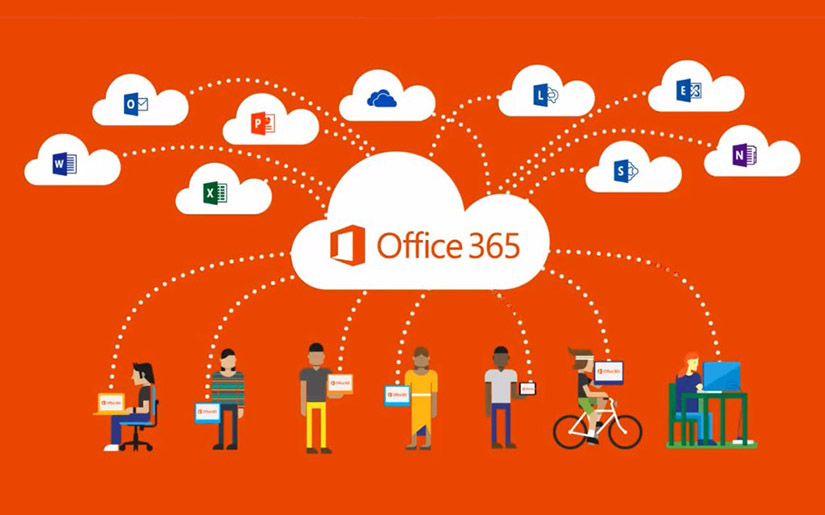
Office 365 Tools


Which Tools will I need for my Office 365 Modern Workplace?

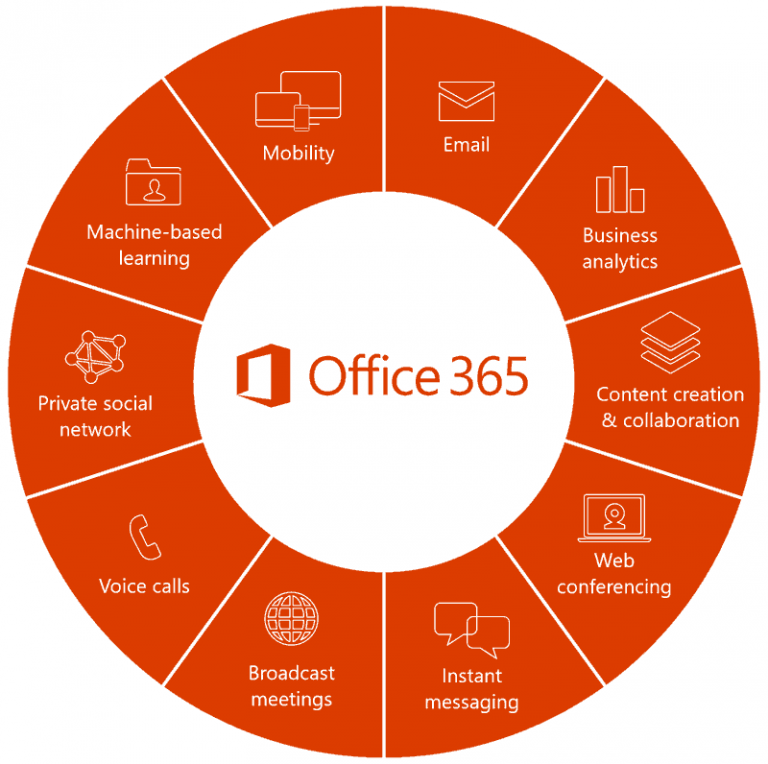
Microsoft 365 can help you transform how you collaborate, both internally and across locations.  The aim of a modern workplace is to:

  • Centralise communications and co-ordiantion
  • Connect to the people and information you need from any device
  • Securely share and protect sensitive information

The tools available in Microsoft 365 to address collaboration, which are a part of the Modern Workplace solution, include:

  • Microsof Teams
  • Outlook
  • OneNote
  • Planner
  • SharePoint
  • Yammer
  • Stream
  • Delve
  • Flow
  • PowerApps


The Microsoft 365 solution provides a total Modern Workplace framework, and a secure, intelligent and complete toolset to empower your teams.

Once you’ve started the evolution process to create a modern workplace, you’ll be taking a big step towards improved productivity and rewards for your customers, your team and your organisation.


Want to know more about creating a modern workplace with 365?

Corporate Training Options provides a number of solutions for teams who are upgrading to the Modern Workplace.

These include 1-2 day courses for your end-users, such as:


We also have 30-90 Day Corporate Adoption Programs for corporate teams, including:


If you prefer your training over a longer period, we have 6-month Technology Update Programs.  These are available for both end users, and for technical teams.


If you’re ready to learn more about creating a modern workplace or to upgrade your Microsoft Office 365 skills, contact CTO today for friendly, professional advice.

We’ll discuss your specific needs and tailor your training program to suit your requirements.


Corporate Training Options


Why Choose Corporate Training Options?

Corporate Training Options is Australia’s leading professional development training company. Incorporated in 1992, we have facilitated & run over 100,000 training courses Australia wide.


  • Your Trainers are certified experts who are real-world practitioners
  • The courses are interactive, well organised and fun – making it easier for you to learn
  • Small group workshops mean each trainee will receive individual attention and can be confident about the skills they will gain
  • Our complimentary client discovery consultation, prior to your training, ensures your objectives and desired outcomes will be met
  • CTO is a Business Excellence Award winning company


CTO Professional Development and Technology Training courses are customised to meet your requirements, and your training is provided on-site, on dates, which suit you.

The subjects we specialise in include:

  • Leadership Development
  • Strategic Business Planning
  • Project Management
  • Marketing & Sales
  • Customer Service & Relationship Management
  • Business Administration
  • Finance & Accounting
  • People & Culture
  • Computer Training
  • Personal Development


Each CTO trainer has specific areas of expertise. This enables them to provide invaluable assistance to corporations like yours, seeking to maximise your investment in your teams and your technology. 

So if you’re ready to upgrade your skills, or you wish to tackle some new challenges, contact Corporate Training Options today for friendly, professional advice. We’ll discuss your specific needs, and tailor a training course to suit your requirements.


Microsoft OneDrive Webinar

CTO Technology Webinar – Microsoft OneDrive

Do you need shared file storage, easy access to the cloud & an excellent backup solution in your Business?

Microsoft OneDrive is Microsoft’s coveted online storage service for hosting files in the cloud. OneDrive offers a simple way to store, sync and share your files across your organisation.

Why use OneDrive over other cloud services?

  • Fast access from any device, including your phone.
  • Backs up your files automatically to keep them safe even if your hard drive fails (or when you drop your phone one too many times)
  • OneDrive comes with 5GB of free storage, and up to 1 TB for each user is included in the Office 365 Essential’s package for Businesses

And, of course, OneDrive is seamlessly integrated with other Microsoft Office 365 programs.


CTO Trainer - Gordana


In this Webinar, CTO Technology Expert Gordana Marinkovic will show you how to get started using OneDrive, and the top tips for getting the most out of it!

Webinar Bonus: Learn how to sync your files with OneDrive automatically!


View our Technology Webinar below.


SharePoint Online 2020

Your Introductory Guide To SharePoint Online

Your Introductory Guide to SharePoint Online

Brought to you by Rosy King @ Corporate Training Options

Your Guide to SharePoint Online


Your Introductory Guide to SharePoint Online

In the years the CTO team has been working with and teaching SharePoint, I’ve finally got around to writing this well overdue article and guide to SharePoint Online.

Okay so let’s dig in.

The current version is Microsoft SharePoint Online, which I’ll focus on here.


In a NutshellSharePoint Online in a Nutshell

SharePoint is a platform for cloud-based content management and document storage. It’s not a tool like Excel or Word, it’s a cloud-based server – an internal company directory containing all the information, resources and files you need to perform any project or task.

Previously used mainly by larger enterprises, Microsoft has now made SharePoint more accessible and simplified, as part of Microsoft 365.  If you need online document sharing and collaboration, then SharePoint is for you.


What is SharePoint Used For?

Good question.  SharePoint has been a crucial “Intranet” Microsoft platform for nearly two decades. You can collaborate and create standardised business systems with team members. Choose who you share and edit documents with, work on ad-hoc projects and record data, which increases your businesses productivity, communication and efficiency.

It allows you to store documents more effectively than saving files in traditional folder systems, so people in-house and externally can share, edit and receive files and information essential to them.


SharePoint -v- OneDrive

It would seem that SharePoint and OneDrive perform a similar role.  So what’s the difference?  Basically, SharePoint focusses on sharing files within groups or teams.  Anyone within the team has the ability to edit the files.  OneDrive is more of a personal storage option, where you can store your own files outside of the group storage facility.


Where does Microsoft Teams fit?

Teams and SharePoint are two different platforms.  SharePoint is a collaboration platform and a place for content sharing and document storage.  Basically, SharePoint is the site which holds all the content, documents and files, for your organisation.  However, it does not provide you with communication.  That’s where Teams comes in.

Microsoft Teams is a chat-based communication tool. It is a great alternative to email, allowing you to meet and chat online, share files quickly, and be part of various Teams and Channels.

Microsoft Teams and SharePoint work together with Microsoft 365 Groups.  Every Microsoft Team automatically has a SharePoint team site associated with it, where channel documents are stored.  Users don’t have to leave Teams to work on their files – they appear in the Files tab.


Some of the benefits of using Microsoft SharePSharePoint Office 365 Groupsoint

Work on documents at the same time as others

With SharePoint you can work on documents at the same time as others, using the document library.  Simply open the document library and click on the file you want to edit.  You’ll be able to see if other people are editing the file as well, in the top right-hand side of the file name.


Create and modify team sites

With Microsoft 365, you can create a site from the SharePoint home page, and it automatically creates a group. You can edit and share pages with others in your organisation or outside your business, such as a client.


Security

Within today’s modern organisations, data security is everything.  And Microsoft SharePoint Online has some of the best security functions available.

When you make the move to SharePoint Online it’s a great idea to apply SharePoint Security Groups with corresponding permissions.  It’s considered best practice to always have individuals as part of SharePoint Security groups and not individually assigned to a site.  Within Security Groups you can centralise various verticals of groups of users from within your organisation, then use these groups to maintain security on your SharePoint site.

With Microsoft 365 when you create a Group, it creates a security group tied to various Microsoft 365 apps like Planner, Teams and Outlook.  This membership group allows teams to collaborate using the various apps tied to it.


Security is important in IT

Some of the other great security functions in SharePoint

  • The “Check out function.” This stops other people editing your documents
  • The notifications feature, which notifies you when document edits are made or uploaded
  • You also can create workflows and automate various actions. These can include emailing files and documents and recording specific information.


Sharing Files and Sites

As long as you have permission, you can share files and sites via SharePoint. The benefit of this is that you can share sites and data files in or out of your organisation reasonably easily.


Creating Lists

Want a central location where you and your team members can add all kinds of data and fields such as text, or images that you can format?  Then be able to search and filter to find the specific data or information you need?

A list in SharePoint gives you these functions and capabilities and more. A list in SharePoint can also link people, dates and tracking history, and you can automate the entire process with Power Automate.


Three Critical Steps to Introduce Microsoft SharePoint Online into Your Organisation

 Preparation

The preparation before learning and starting to use SharePoint Online is essential. You need to determine why you need SharePoint and what tasks you and your team will be using SharePoint for.


Implementation

Getting started with the SharePoint Online software isn’t all that difficult. It’s migrating it into your business that’s the tricky part. You could seek the services of a consultant to help you with this, or your IT department if you have one.  Remember to discuss the implementation with your team.  Training is recommended after implementing SharePoint Online into your organisation.


SharePoint Group TrainingTraining your Team in SharePoint

Many organisations implement new software such as SharePoint Online and then fumble their way through it, learning as they go. This is time-intensive, frustrating and tedious, and in the big picture, unproductive.

To implement SharePoint Online successfully into your business, training your staff in the basics of how to use SharePoint correctly is vital.


So that’s it for now. I hope you enjoyed this Guide to SharePoint Online and learning some of the basics of using the SharePoint tools in your organisation.


What do our customers say?

The SharePoint training was extremely useful, in particular the ability to run through some of the examples and specifics that relate to our processes.

Karen, Lion Dairy & Drinks, Melbourne 


Our CTO trainer was very interactive in imparting the Microsoft SharePoint training content.  Really enjoyed it!

Rudolf, Accenture Australia


Your Guide to SharePoint Online – Introduction Training

When it comes to training in SharePoint Online, Corporate Training Options can provide you with both introductory and advanced courses, presented online or onsite at your workplace.

If you’re ready to learn the basics of SharePoint Online, or ready to upgrade your Microsoft 365 skills in other areas, contact CTO today for friendly, professional advice.

We’ll discuss your specific needs and tailor a training course to suit your requirements.


Why Choose Corporate Training Options?

  • Your Trainers are certified experts who are real-world practitioners
  • The courses are interactive, well organised and fun – making it easier for you to learn
  • Small workshop groups mean each trainee will receive individual attention and can be confident about the skills gained
  • Our complimentary trainer consultation before your training ensures your objectives will be met
  • CTO is a Business Excellence Award-winning company


Corporate Training Options


Work anywhere, anytime with Microsoft 365 Business tools

Work Anywhere with Microsoft 365 Business Tools

Want to know how Microsoft 365 Advanced Business Tools can help you work anywhere, anytime?

Brought to you by: Rosy King @ Corporate Training Options


Microsoft 365 for Business - Advanced training from CTO


Microsoft 365 Advanced Business tools will help you enhance collaboration and provide you with new ways to work.  The tools will allow you to easily attend meetings online, share files, co-author in real time, and work from anywhere.

Today’s organisations are quickly developing their team’s skills in Microsoft 365, so they can work fast and lean, regardless of location.

Whether you need to make a presentation from across the world, or edit documents on your phone in the next room, the tools in Microsoft 365 for Business can help you.


What are the Advanced Business tools in Microsoft 365?

The Microsoft 365 Advanced Business tools include:

  • SharePoint
  • Planner
  • Delve & Office Graph
  • The Sway App
  • The Bookings App
  • Microsoft Teams

Designed to be used across all devices, Microsoft 365 provides you with modern workplace tools, so your organisation and teams can:

  • Communicate and work proactively from both local and remote locations
  • Improve your data security
  • Lower your operating costs
  • Work on many different devices
  • Collaborate individually or as a team
  • Share files and work on them in real time
  • Serve clients faster and more proactively
  • Improve productivity and profits in your business


The Microsoft 365 for Business Advanced training course from CTO, provides an introduction to this range of Microsoft 365 tools.   For more information on the course, click here.


Who needs Microsoft 365 Advanced Business Tools, and why?


Organisations with remote workers

Do you have employees working for you across Australia, or internationally?

If some members of your team live and work in another country, it means they work outside your regular office hours and time zones.  Therefore, communicating with them in real-time may not be practical.

Your team needs access to files and information no matter where they are or what time zone they’re in.


With Microsoft 365 business tools, your international and remote employees can do precisely that and more.

  • They’re able to maintain real-time contact with other team members in different regions and time zones using Microsoft Teams.
  • They’re able to access files and data directly as needed using OneDrive and SharePoint on any device, while protecting the intellectual property and data of your organisation as well.
  • And they can utilise all the applications and functions of Microsoft 365 such as Word, Excel, Outlook and other applications, using the cloud.

Employees who are on the road 

Do you have staff who travel as part of their job role?

It can be frustrating for you, your team and your travelling employees, to stay in touch and up to date with what’s going on back at head office.  At times they may not have Internet access. Other times, your employees on the road may be off the grid while travelling.

So when they’re back, the last thing they need is to spend hours of precious time calling head office for updates from numbers of different people.  It’s unproductive, time-consuming and tedious. 

The advanced Microsoft 365 for Business tools can solve these issues and more, for your employees on the road.

SharePoint allows your travelling employees to access the latest information and company files, as they need them, on any device.

Microsoft Teams can run a conference call and message team members with specific questions or updates.  Also, they can watch Teams meetings they may have missed, which were recorded.

OneDrive allows your team in the field to co-author files with other team members in real time, on any device, as if they were in the same room.


Executive Officers & senior managers

Running presentations remotely is easier with M365CEO’s and department heads want to lead by example for their teams, so they can be more productive with less downtime.

Using the Advanced tools in Microsoft 365, staff can contact them directly or schedule online meeting  using Microsoft Teams, no matter where they are in the world.

Executive Officers and managers also like knowing how they can work offline, and that any changes they make to documents, automatically update and sync once they are back online.

Many executives and managers in organisations across the world want to know how they can use the features such as OneDrive, SharePoint, Planner and Teams to be part of meetings, online presentations and other day-to-day operations. This allows them to work remotely and more productively without interruptions.


How can you benefit from Microsoft 365 for Business advanced tools?

The Microsoft 365 for Business tools are perfect for any organisation that wants to simplify processes, lower costs and learn how to work together, whether they’re in the same room or scattered across several different countries.


What’s the biggest challenge to doing training in Microsoft 365 for Business Advanced skills?

Based on our decades of experience teaching Advanced Microsoft 365 skills to organisations around Australia, we’ve learned that the reality is many people in management roles, and their teams, are wasting a large amount of time trying to fumble their way through learning the Microsoft 365 for Business software and tools for themselves.

These self-training processes mean progress is slow, tedious and frustrating, which ultimately costs organisations more time and money long term, compared to professional training in an online Advanced Microsoft 365 training course.

With professional online training in Microsoft 365 for Business, your organisation, customers, and employees will learn the skills to communicate and work proactively from any location.  Microsoft 365 tools improve security and simplify your work processes, while enhancing your productivity, profits, business and teams connectivity.


What do our customers say?

I really enjoyed getting to know Office 365, especially the Yammer and Teams apps. The course was very practical and useful and I now feel very confident in using these programs in my daily work.

Sylvia, Stockwell Group 


Our training day was great, thank you. I feel a lot more confident navigating Office 365 now. I most enjoyed the Teams, SharePoint and OneDrive topics.

Judy, Lung Foundation Australia


How do I get started with Microsoft 365 for Business Advanced training?

At Corporate Training Options we have a Microsoft 365 for Business – Advanced Training Course for you, which teaches you and your team the skills to use your Microsoft 365 software more effectively.


Our Advanced 365 for Business training covers the following topics:

  • Understand and Navigate Sites
  • Learn how to work within SharePoint
  • Understand Planner and how to work with it
  • Creating, Sorting and Filtering Tasks
  • Working with Delve and the Office Graph
  • The Sway App and Creating a Sway from a Document or Template
  • The Bookings App and Adding Business Information, Services & Reminders
  • Creating a Microsoft Team, Adding Members and working in the Teams Mobile App
  • Working with Microsoft Office for iPad
  • Understand and work with files in the Microsoft Office Mobile Apps


If you’re ready to upgrade your Microsoft 365 skills so your organisation and people are more productive, profitable and connected, our Microsoft 365 for Business – Advanced Training Course will benefit you.


Please contact CTO today for friendly, professional advice.

We’ll discuss your specific needs and tailor a training course to suit your requirements.

Corporate Training Options


Dynamics CTO

CTO Technology Webinar – Microsoft Dynamics 365

Dynamics CTO

CTO Technology Webinar – Microsoft Dynamics 365

Are you getting 100% out of every Lead and Interaction with your Customers?

Dynamics is a powerful CRM tool integrated with Office 365 programs and Enterprise Resource Planning tools, with over a dozen apps created to bring you the data you need and help you figure out what to do with it!

The top 3 reasons to Choose Microsoft Dynamics 365 for your CRM

In this short presentation, Technology Expert Gill Walker will show you:

  • How to manage any relationship from Go to Whoa
  • How you can do business anywhere
  • How to save time with Smart Processes

And many other great reasons why Dynamics should be your CRM of choice.

In this weeks Webinar, learn the basics of Microsoft Dynamics 365 and how you can start taking advantage of them today!

Webinar Bonus: Learn how you can save time with Smart Processes in Dynamics

View our latest Webinar

Power BI Webinar

CTO Technology Webinar – Microsoft Power BI

Power BI Webinar


CTO Technology Webinar – Microsoft Power BI

Everything you’ve ever wanted to know about Power BI – in Ten Minutes!

Microsoft Power BI (Business Intelligence) is a cutting edge Data Analytics tool designed to bridge the gap between data and decision making.

It aims to create amazing data experiences by allowing users to easily connect to, model & visualise data in ways that are personalised to your Organisations needs.


In this Webinar, Technology Expert Gill Walker will show you:

  • What is Microsoft Power BI?
  • Why you should use Power BI compared to other data analytics tools
  • The anatomy of Power BI

Learn the basics and how YOU should be taking advantage of Power BI in CTO’s Technology Webinar on June 11.

Webinar Bonus: Learn how to view an extensive range of data through Power BI interactive reports and dashboards.

Improve your productivity with Excel training

Improve your Processes & Productivity with Microsoft Excel

Improve your Processes, Productivity & Presentations with Microsoft Excel

Brought to you by Rosy King @ Corporate Training Options


Improve your productivity with Excel training


Feel a little anxious when you need to set up a new worksheet, create a graph or generate a report from Microsoft Excel?

These tasks and creating complex formulas and functions, working with macro’s and worksheets and extracting the information you need from Excel, are child’s play once you know how.


Let’s start with what Excel is

Microsoft Excel Intermediate level Training from CTOMicrosoft Excel is a spreadsheet program, used for storing, organising and manipulating data.

It allows you to format, organise, calculate and analyse all types of information and present it in different ways.

It’s part of the Microsoft Office suite and gives you the benefits of:

  • Creating accurate elegant worksheets to enhance productivity
  • Improving presentation and understanding of spreadsheet data
  • Saving you, your team and organisation a lot of time without cutting corners


So, what kind of skills and benefits will a level of experience in Microsoft Excel give you?


Faster data analysis, extraction, reporting and productivity

You will be able to analyse and extract large amounts of data quickly. While Excel has many benefits, one of the most powerful is being able to set up, format and create programs for the repetitive tasks and reports you need to conduct in your organisation.

By setting up your formulas and calculations in Excel for those repetitive reporting tasks or reports, you’ll free up your time.


Improve your Processes and Organise Data the way you want

Most of us know how to enter numbers in Excel and create basic formulas, but in today’s’ business world that’s not going to get you very far.

And let’s be honest. Sorting through mountains of data for the information you require for a specific purpose or report, then cutting and pasting that data and reformatting it into a new Excel worksheet because you don’t know how to organise and edit spreadsheets in Excel, is time consuming and frustrating.

Improve your skills in Excel, and you’ll be able to enter, organise, program, edit and sort the data the way you want your way.

And this is a BIG plus!  Imagine being able to organise your data better and extract only the information you want? You’ll reduce the wasted time, relieve the anxiety of setting up new worksheets, and be better able to deal with and analyse vast amounts of data. You’ll be able to present data faster and easily feature information as charts or graphs.


Reduce strain on other people and resources

Your knowledge is an asset for your organisation.  A cohesive and supportive work environment is crucial to any company, however, calling on fellow staff members for advice on how to do this or that in Excel is disruptive.

It also results in lost productivity for the person asking for the advice and the team member providing the information.

When you understand and can use Excel’s analysis tools, set up and program complex formulas, create new worksheets and edit existing ones, you’ll be reducing the strain on other people, departments and resources.


Retain employees, increase worth & reduce costs

As many of us in business know, replacing employees is time-intensive and costly. Most of us also know that happy employees who feel valued, are more productive and invested in their own goals and the success of the people and organisation they work for.

They have more pride in themselves and whom they serve.

From our decades of experience of teaching courses in Microsoft Excel, course attendees and their employers agree that training is a win-win for everyone.

Employers invest in their staff, which keeps their staff retention rates down, saving them time and money.

Their employees have an increased sense of worth because:

  • They are learning new skills
  • Their employee is investing in them and believes in them
  • Which results in them having pride in what they do and being more valuable to their employer


Adapt for the future with Excel

If you have any experience with Excel, there has probably been a time where you have set up a worksheet, and sometime later you needed to change it as circumstances have changed. Maybe you need to add a new field, add a new macro or edit the programming functions for your weekly reports or other repetitive tasks.

In today’s world, we all need to learn and have the skills to adapt quickly. This mindset and skillset also need to filter down to how we work.

Having an existing Excel worksheet and having to copy specific data from it, then copy and paste that data into a new spreadsheet and adding new fields, macros and functions based on the latest information is tedious, time-intensive and unproductive.

Yet, many still edit their Excel worksheets this way, when they do not have to.

When you know how to edit existing worksheets, use a range of features so you can collect, organise and present large amounts of data in charts and graphs, and have more accurate data using Microsoft Excel, you’ll save time, energy and money.

You’ll also increase productivity, and your reporting will be more accurate.


Improve your Processes with a Microsoft Excel Intermediate course

Continually expanding the skills available to your workforce is an important task, and a  Microsoft Excel course could be the perfect gateway to improving your organisation’s capabilities.

Many times, when working in spreadsheets, you may identify a problem but be unsure of the appropriate solution.

With assistance from Corporate Training Options, you and your team can enhance your Excel skills with ease.


The benefits of Intermediate Excel Training from Corporate Training Options are many.

  • You have the opportunity to develop the core skills and understanding of the software necessary to take full advantage of what Excel can enable you to accomplish.


  • You can create more elegant worksheets and will enhance productivity, improve presentability, and save time on urgent tasks without cutting corners. Even today, Excel is an industry leader for a reason: its versatility is virtually unmatched.


  • You also have the flexibility of receiving one-on-one training for a mission-critical team member, or large-scale training to develop better skills across a more significant part of your corporate workforce.


  • We do not offer a “one size fits all” approach to training, as we understand that different employees will have varying levels of skills. Not everyone will need the same training on the same subjects. Based on your specific needs, we adapt your Excel workshops to best suit your requirements.


  • Corporate Training Options offers on-site training courses at your workplace or online courses that fit in with your busy schedule in Microsoft Excel 365


  • Our flexibility extends beyond the necessary training coursework and into the delivery method, too. Rather than requiring off-site attendance at a training facility, we bring our training to you. On-site training has the distinct advantage of creating learning opportunities in the workplace where your trainees will apply their new skills.


What do our customers say?

Our CTO trainer was very clear and concise with his instructions and explained everything in Excel very well.  Thanks.

Luke, Accenture 


I was interested in learning efficiencies in Excel, and this course was Great!  It will save me hours and free me up to concentrate on other projects.

Adem, Corinthian Doors


I can't live without Excel
Improve your Excel skills with CTO Training

 Want to know more about our Excel Intermediate Course for you or your team?

The skills and knowledge acquired in the Microsoft Excel Intermediate course will enable you to expand your knowledge and learn how to create more productive workbooks. It covers formulas and function techniques, advanced formatting and charting features and data manipulation tools like goal seeking.

When you complete this course, you will have achieved several learning outcomes.

The course topics include:

  • Filling Data
  • Worksheet Techniques
  • Page Setup
  • Applying Borders
  • Essential Functions
  • Complex Formulas
  • Defined Names
  • Number formatting Techniques
  • Conditional Formatting
  • Goal Seeking
  • The Quick Analysis Tools
  • Worksheet Tables
  • Chart Elements
  • Chart Object Formatting


Ready to upgrade your skills with a Microsoft Excel – Intermediate online training courses?

 If you’re ready to upgrade your Excel skills to save time, money and energy on data formatting, analysis and presentation using Microsoft Excel, or you wish to tackle some new challenges, contact CTO today for friendly, professional advice.


And remember, Microsoft Office 365 is the most downloaded Business Software package in the entire world, and for good reason!


Corporate Training Options