Ranked Among Australia’s Top 20 Corporate Training Providers (2026): View Courses

Deliver Winning Projects with Microsoft Project 2016

By: Corporate Training Options, Australia


Many organisations use Microsoft Project for their Project management teams. Developing practical skills with Microsoft Project training will allow you to easily create new projects, manage multiple tasks and resources, and be able to schedule, track and manage costs and budgets for your projects.

If you and your team are becoming overrun by various projects, or need solutions to increase efficiency, Microsoft Project is without a doubt a must-have for your staff and organisation. 

At its core, Microsoft Project is innovative project management software. Its power is in streamlining time consuming tasks involved with any project.  

From the conception of an idea to the final creation and action, Microsoft Project allows you to follow a structured outline of your project, step by step. And with its highly effective collaborative interface, all updates from each team member come together harmoniously. 

If you’re looking for real-world practical skills and training to take your project management and team productivity to the next level, the Corporate Training Options Microsoft Project Introduction Course will benefit you. 

Some of the time consuming tasks Microsoft Project can reduce in your organisation:

  • Entering tasks into a project file
  • Creating and monitoring team member involvement and specific tasks for each project
  • Printing effective project information
  • Managing a budget
  • Adding resources, including labour, materials and equipment to your projects
  • Creating schedules for your tasks or projects

Microsoft Project is an extremely flexible, powerful, all-inclusive solution for the daily tasks your project management involves. From the progression of specific functions to team members hours, supplier costs and project budgets, there’s plenty of benefits to using Microsoft Project for you, your team and your organisation.

Tips to work more successfully with Microsoft Project

Simplify Project Planning

The planning and steps to be taken with any new project are undoubtedly most important. Sometimes it can be difficult to ensure everyone is clear on the plan and the steps required for each schedule or project your team has on the go.

With Microsoft Project you can simplify project planning for you and your team, and you can adjust accordingly as your project evolves. 

Information required for your projects can be laid out in a simple view, so your project planning falls into place with ease, allowing you to:

  • Easily assign tasks to individual team members and teams
  • Plan project completion dates
  • Schedule each team members involvement and contribution to each project 
  • Ensure collaborators are on the same page for your project plan, goals and outcomes.

Plus, when team members can view which tasks need to be executed, when and by whom, motivation and communication in your team, and productivity, increase dramatically

Update Critical Changes and add Milestones with a click of your mouse 

When working on both large and small-scale projects, critical changes, milestones and updates can occur during any stage. 

Microsoft Project 2016 keeps all your team members up to date by setting any newly added constraints, deadlines, over-allocated resources, change of schedule and other data and tasks in a single sheet view, or Gantt chart.

Bonus Tip: A Gantt chart is an excellent tool that equips you with the ability to oversee each element of the project and actively track its progress, such as critical changes and milestones. This is must-have information for project managers and their teams. 

Plus, by being able to update critical changes and add milestones when required, communication is vastly improved for everyone involved, which keeps your project on track and reduces confusion. 

Track Costs to avoid expenses overrun  

Undoubtedly, all organisations strive for projects that are completed on time and within budget.

Microsoft Project 2016 allows your team to assign resource project costs collaboratively to create accurate cash flow projection. By creating sheet files and Gantt charts, newly imported data and expenses can be easily updated and accessed by those allocated to the data. 

Microsoft Project allows for a high-level estimate of resources required for a particular project. Essentially, this is an excellent tool to help you stay on budget and identify cost or resource blowouts. 

Monitor Individual Team Member Progress 

Another powerful feature and benefit of Microsoft Project 2016 is the team planner tool. This feature allows you to have access to an overview of the project in progress, while monitoring how each team member is progressing with his or her tasks. 

With the added team planner tool, you’re able to keep up with the work status of your team members and oversee their percentage of completion. 

Other key features and benefits of the Microsoft Project team planner tool are:

  • Increased team efficiency
  • Each team member has accountability 
  • You can easily update and reassign tasks to specific team members if required 
  • Ability to amend your project in real time for everyone to see, which keeps your project on track 

These functions can be carried out in one core collaborative worksheet within the team planner tab so everyone can access, view and adjust current or reassigned tasks.  

Manage Multiple Projects with ease with Microsoft Project’s Priority Review Tab

Are you managing more than one project in your organisation? Most of us are, and subject to your current project management processes, having multiple projects on the go can be stressful. For small organisations, or others beginning to operate on a larger scale, it’s essential to ensure that each project is scheduled, managed and prioritised accordingly. 

Microsoft Project’s priority review tab can help you track, monitor and maintain the overall progress of multiple projects at any one time. 

Using the priority review tab, you’re able to see the top-to-bottom prioritisation scores of each project, including overall budget and constraints, and other critical areas of your projects.

In Summary

We hope you’ve found these Microsoft Project tips beneficial. Of course, this is merely a snapshot of how Microsoft Project training can benefit you, your team and your organisation.

It’s also why we’re seeing more and more organisations coming to Corporate Training Options for Microsoft Project training

Project Managers realise it is a must-have for their organisation’s productivity, if they are to manage their teams, expenses and their projects, so they deliver a positive return on investment in time and money.


Upon the completion of the CTO Introduction to Microsoft Project course, you will be able to: 

  • Start Microsoft Project and identify how it works
  • Explain some of the key concepts associated with project management
  • Enter tasks into a project file
  • Create relationships between tasks in a project
  • Understand and use resource assignment calculations
  • Allocate resources to tasks using a number of different methods
  • Use various techniques for levelling over allocation of resources
  • Assign material resources in a project
  • Track costs within a project
  • Apply constraints and deadlines to tasks in a project
  • Monitor the progress of a project
  • Print various aspects of your projects

To discover more about the Microsoft Project Introduction course at Corporate Training Options, please view the course outline here.

Alternatively, please contact us by email at training@cto.com.au for the latest Microsoft Project training packages.

Like these Strategies on Microsoft Projects 2016? 

Please feel to share them with people you know will benefit from them.

The Benefits of completing your Microsoft Project training with CTO include:

  • We focus your training on the outcomes you require for your team
  • Your training is presented on the dates which suit you
  • Training can be provided for many trainees for the same daily rate
  • You can choose topics from different course levels, and your trainer will tailor your sessions around these requirements
  • Our facilitators are available to present your training within two weeks of your booking date.

 Why Choose Corporate Training Options ?

  • Your Trainers are certified experts who are also real-world practitioners
  • The courses are interactive, well organised and fun – making it easier for you to learn
  • Small group training sessions mean each trainee will receive individual attention and can be confident about the skills gained
  • Our complimentary trainer consultation prior to your training ensures your objectives will be met
  • CTO is a Business Excellence Award winning company

__________________________________________________

About Corporate Training Options

Corporate Training Options is Australia’s leading professional development training company, incorporated in 1992. In that time, CTO has facilitated  thousands of business training courses Australia wide.

CTO training provides a cost-effective way of ensuring you and your staff are presenting your best image to the world.   Your Professional Development and IT Training courses are customised to meet your requirements, and your training is provided on-site, on dates, which suit you.

The courses will assist you to develop strong skills in: 

  • Customer Service 
  • Leadership & Management
  • Strategic Business Planning
  • Project Management
  • Marketing & Sales
  • Business Administration
  • Finance & Accounting
  • People & Culture 
  • Computer Training
  • Personal Development

Each CTO trainer has specific areas of expertise. This enables them to provide invaluable assistance to organisations like yours, seeking to maximise your investment in your teams and your technology.

So if you’re ready to upgrade your skills, or you wish to tackle some new challenges, contact Corporate Training Options today. We’ll meet your specific needs with a tailored training course to suit your requirements.

We look forward to working with you, to build your confidence, improve your efficiency and maximise your potential.

Rosy King

Corporate Training Options

Professional Training  –  Exceptional Results

training@cto.com.au

cto.noesis.chat/

Microsoft Excel Intermediate level Training from CTO

5 Tips to Improve your Skills in Microsoft Excel

By: Corporate Training Options, Australia

Want to improve your skills in Microsoft Excel?  Here are some features and concepts you can learn which will evolve your knowledge and take your Excel skills to the next level.  

 A lot of these features are designed to be user friendly and were created to let the program do the heavy lifting for you. So, with that said let’s jump right in. 


Excel Formulas 

One way to improve your skills in Microsoft Excel is to use and understand Formulas.   Excel Formulas allow you to quickly perform mathematical equations within a worksheet.

They are used to provide answers to a mathematical question.

For example:

  • The cell A1 contains the number – 3 
  • Cell B1 contains the number – 6
  • In the cell A2, we have created the simple formula:  =A1*B1
  • This formula provides the answer to simple equation – what is 3 x 6
  • The answer equals – 18, and will be shown when we press the “Enter” key

This simple example is an introduction to the formulas Excel can perform. Many complex mathematical equations using a variety of different values can be created using formulas in Excel. So, it’s a good investment of your time to learn the formulas in Excel which are there to do the work for you. 


Excel Functions

Excel Functions contain formulas and can be used instead of a formula that would be too long to enter manually (say you wanted to add 1000 cells together). 

You can think of a function as something that performs a formula for you. They can simplify the work done by a formula even further and are a powerful tool that should be harnessed by  Excel users. 

Advanced users can even begin to create their own functions using VBA (Visual Basic for Applications) which is a programming language used in Microsoft Office Applications.

There are many different built-in functions in Excel, but the most basic ones allow you to add numbers, calculate averages and perform logical tests for a True or False value (Boolean value). 


Excel Formatting

Layout and presentation are an important aspect of working in Excel. When your workbooks are going to be used and shared with other people it is essential to put some weight on ‘readability’, which is a crucial part of any form of visual communication. 

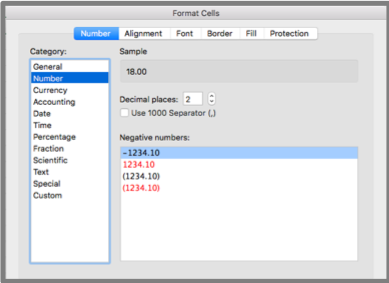
Excel gives its users many tools which they can use to format data and present it clearly in nearly any way imaginable. To see some of the formatting available in Excel, highlight a cell or a grouping of cells in a worksheet, then right click to select ‘Format Cells’. 

From here a popup will appear with many different menus and settings. You can spend some time going over these options and seeing how they affect the text in the cells.

Among other things, you can use these options to quickly convert a series of numbers to different currency, convert different time and date formats, turn whole numbers into fractions, percentages and vice versa. Imagine having to manually insert a ‘$’ symbol into 30 different cells or having to convert the date 3/07/2019 to Wednesday, 3 July 2019 and repeat it for 50 other dates. 

Now all of this repetitive formatting work can be done with a few clicks and keystrokes. 

From wrapping text to adding borders, colours and patterns to cells, do it all easily from within Excel and produce worksheets exactly how you want them to look with maximum readability. 


Excel Quick Analysis Tools

To improve your skills in Microsoft Excel, you should take advantage of the quick analysis tools. This feature of Excel can help you quickly analyse sets of data and produce either the result of an equation or a visual representation of the data in the form of a chart, table or one of the many other options available. 

To use the Quick Analysis feature:

  • Highlight a range of cells with data in them
  • After you have made the selection, a button will appear in the bottom right of the selection
  • Click on this button to access the options you can use to resolve or compare your data 
  • From here you can create charts or tables and calculate totals, among other things

This feature is useful for quickly producing visual representations of your spreadsheet data and can help you understand the numbers at a glance. 

Note: This feature is not currently present in the Mac version of Excel 2016.


Excel Page Layouts & Printing

While workbooks are normally viewed in a digital workspace, there may be times when you need to print out the work you’ve done in Excel. 

To the novice this can be a nightmare; most users are not aware of the level of control they have over their printing and page layout options.

Select which worksheets out of the workbook you wish to print. Sometimes everything in the file is not relevant to what you want to print out. 

You can select active sheets by clicking and highlighting the desired sheets while holding the ‘Ctrl’ button (Command on Mac). 

Then in the print menu be sure to set the “print” option to “selection”. 

You can set a static printing parameter by using the Print Area option. This allows you to work within a defined printing parameter within a specified worksheet. 

Margins will also impact your printable area and can be set precisely how you want them. Either use the pre-sets available or dive in and set your own.  


Excel Printing Options

Consider whether you want to print your work in portrait or landscape mode, keeping in mind how much relevant information you will be able to fit on the page with either option. 

Portrait mode will allow you to include more rows on your page, whereas landscape will give you more column space to work with. You can change the orientation under the “Page Layout” tab. 

Scaling options allow you to fit elements to the page, however, it can be at the cost of readability of those elements. There’s no point having everything on the one page if your printout is then so small that nobody can read it. So, use these tools with that in mind. Ensuring your data is readable is our primary goal. 

Print Titles can be used to keep the same headings present at the beginning of every new page. This makes your printed workbook much easier to read if the same table spans over multiple pages. This option is also found under the “Page Layout” tab. 

Once you have everything set out the way you want, you’ll be able to hit ‘print’ with confidence. 


Excel Training – Take the Next Step

We have only touched on a few of the features present in Excel. It is a powerful program, and anyone with the skills to wield it will be highly valued in any workplace environment. 


Excel Training Courses to fit your requirements

If you are looking to improve your skills in Microsoft Excel and boost your Excel know how, then our Intermediate Excel course is perfect for you. 

To gain an understanding of the topics you can cover in the course, click to see the course outline for our intermediate Excel course.

Becoming familiar with and mastering these skills will save time and increase productivity. Investing in the performance of your workforce can save hours of wasted time and frustration down the track. 

These skills are only a click away. 


Upon completion of the Corporate Training Options Intermediate Excel course you will be able to:

  • use filling techniques 
  • use a range of techniques to work with worksheets 
  • apply a variety of page setup techniques 
  • apply borders to cells and ranges in a worksheet 
  • use common worksheet functions 
  • create more complex formulas and functions 
  • create and use defined names in a workbook 
  • apply a range of number formatting techniques to worksheet cells 
  • apply conditional formatting to ranges in a worksheet 
  • use goal seeking to determine the values required to reach a desired result 
  • understand and use Excel’s Quick Analysis tools 
  • create and work with tables 
  • use a range of elements and features to enhance charts
  • select and change the format of objects in a chart

You can also take advantage of our courses for beginner and advanced users of Excel.  We also have courses available for you in Microsoft Excel Functions and VBA for Excel

Enrol online today

Alternatively, for further information, please email us at:  training@cto.com.au.


About Corporate Training Options

Corporate Training Options (CTO) provides you with training in essential business skills, via onsite and online business and professional development courses.

Your courses are customised to meet your requirements and provide a cost-effective way of ensuring you and your team are presenting your best image to the world. 

For more information on the range of Business Training Courses available, please visit the CTO website – cto.com.au

We look forward to working with you, to build your confidence, improve your efficiency and maximise your potential.


Rosy King


Corporate Training Options

Professional Training  –  Exceptional Results

training@cto.com.au

cto.noesis.chat/

Collaborate with Microsoft Office 365

Work Faster & Smarter with these Office 365 Success Tips

By: Corporate Training Options, Australia

7 Tips for Success Using Microsoft Office 365

Collaborate with Microsoft Office 365
Collaborate efficiently with Microsoft Office 365

If you and your organisation have embraced Cloud applications, Microsoft Office 365 may be an untapped mine of productive potential. 

Programs you may already be accustomed to – such as Word, Excel, PowerPoint and Outlook – can be conveniently installed on different smart devices as well as computers, but that’s not where Office 365’s utility ends. 

Here are seven tips you can use to work faster and smarter, using Microsoft Office 365.

Up your Email Game

Everyday communicating can be fraught with hazards – from sifting through mass emails, the lingering threat of malicious viruses, and of course, human error. Office 365 helps you engage your email efficiently and proficiently.

1. Colour Coded Email Security

With Office 365, incoming messages are colour coded so you can make better choices about which to open and which to avoid. 

CTO Office 365 Training
Learn the powerful tools in Microsoft Office 365

Suspicious emails – messages that have failed sender authentication or have been flagged as a potential phishing attempt – are red and should be deleted. 

Unknown emails, or “spam,” are yellow, but if mistakenly identified by the Exchange Online program as spam, can be manually unflagged and moved to your inbox.

Green emails are trustedemails that come from a domain Microsoft considers safe. 

Safe emails are grey, They have either been marked as safe by your organisation; were once spam but you’ve moved it to your inbox and unflagged it; or come from a contact on your “safe sender” list.

2. Marie Kondo your Inbox

Be proactive and use the “Clutter” feature to keep your inbox free of spam. Mark unwanted messages as “clutter”, and Office 365 will keep them and less important emails in their own folder. You can read, delete, or otherwise deal with them at another time.

3. Free Yourself from “Reply All” Chains

Nothing clogs up your inbox like a mass email to which a few people hit “reply all” when they respond. With Office 365, you simply go into the message, click the “Home” button, go into the “Delete” group, and happily click “Ignore”. It’s like muting the conversation. 

Office 365 will pull the message stream out of your inbox and flip it into the trash. If you ever need to restore the message, you can find the “More” option and click “Stop ignoring”.

4. Take Back that Email Before it’s Read 

If you’ve accidentally:

  • sent an email before you had finished it, or 
  • sent it to the wrong person, or 
  • hit “Reply All” when you meant to respond only to the sender

You can undo the mistake by opening the sent message in a new window. In the “Move” section, click on the “Actions” button and click “Recall This Message”. 

You can opt to “Delete unread copies of this message” to remove the item from unintended recipient’s inbox. If it’s just a matter of making edits, choose “Delete unread copies and replace with a new message”. 

You can also opt to receive a notification confirming whether your email was successfully recalled or if it was opened before you could recall it. You can’t recall a message that has already been read, and you and the recipient must be on the same Exchange and using Outlook Desktop. 

If you have MailTips implemented in your Office 365, it can warn you of common mistakes, such as forgetting to actually add an attachment, before you hit “send”.

Collaborate More Efficiently and Effectively

Microsoft Office 365 has made it easier to work as a group, streamlining many of the processes that tend to result in lots of back and forth between people working on the same project.

5. Chat with Co-Authors while you’re all on the Same Page

Work as a Team with Office 365
Teamwork with Office 365

Sharing documents, so that people can add their input and make edits, is a great collaborative tool. But wouldn’t it be great if you could chat about changes before making them, or whilemaking them? 

With Office 365, team members can discuss a shared document stored on SharePoint Online or OneDrive for Business, in real time, making the editing process faster and smarter. 

Participants need only click the chat icon at the top right of their screens while they are viewing the shared document and a chat box will pop up.

You can also minimize the chat box if you find it distracting. It will become a chat bar, that changes colour when there is a new message, so you can stay in the loop.

6. Request Input from Others using @Mention  

If you want someone’s input on a work file, you can get their attention promptly with the @Mention function. Open a document in a SharePoint library or OneDrive for Business, and add a new comment. 

When you type “@” and the first few letters of their name (first or last), you’ll see some auto-filled options. Choose the correct person’s name. This will automatically send a notification to their email that they have been mentioned in a comment, along with a link to the document. When they respond, you’ll get a similar notification.

This will only work if you have given this person permission to open the file. If you haven’t already, you will be asked to do so when you use @Mention. 

7. Manage Aspects of your Work and Life

Manage your Calendars with Office 365

Not only does Office 365 let you sync your Calendars between all your devices, but you can use your browser or online apps to access your Calendars. 

You get instant access to all your calendars – and group calendars if you are in one or more groups.

You can even create special calendars to track Birthdays, Holidays, and “Interesting” events or topics.

For example, if you’re a sports fan, you can create a calendar with all the upcoming sporting events – whether you are playing, attending, or watching.

In Summary

Utilise the power of Microsoft Office 365 for your team

Most of us use less than 20% of the features available in Microsoft Office 365. It’s truly powerful software, which you and your team can use to work smarter and faster. Learning how to use features in Office 365 – including OneDrive, Newsfeeds, email management tools, shared files and @Mention – will allow you to take advantage of the clever design features of Office 365.

Corporate Training Options can assist, with both introduction and advanced training courses in Microsoft Office 365, plus individual courses in software such as Microsoft Yammer, Microsoft Teams and SharePoint.


Need Microsoft Office 365 Training?

Corporate Training Options can train you and your team to take advantage of the awesome tools available for you in Microsoft Office 365. Our Microsoft Office 365 Introduction Course is suitable for staff of all levels, from reception, administration and support staff, through to senior management.

And if you are already competent With Microsoft Office 365, our Microsoft Office 365 Advanced course is perfect for you.

Upon successful completion of the Corporate Training Options Introduction to MS Office 365 course, you’ll be able to: 

  • understand what Office 365 is and how it can be used 
  • understand how to start working with Office 365 
  • create, send and receive emails using Mail 
  • use Calendar to manage meetings, events and appointments 
  • understand and work with People 
  • create and join groups, post and interact with messages, and work with files using Yammer
  • use the Newsfeed
  • access and navigate OneDrive 
  • start working withOffice Online 
  • perform more complex email operations using Mail 
  • configure and personalise Mail settings to suit your needs 


Enrol online or get a quote today, from Corporate Training Options. for your Microsoft Office 365 course.

Alternatively, please contact us by emailing training@cto.com.audirectly.


About Corporate Training Options

Corporate Training Options (CTO) is a Business Training Company, which provides you with training in essential business skills, via onsite and online business and professional development courses.

The courses provide a cost-effective way of ensuring you and your team develop strong skills in:

  • Leadership & Management
  • Strategic Business Planning
  • Project Management
  • Marketing & Sales
  • Customer Service & Relationship Management
  • Business Administration
  • Finance & Accounting
  • People & Culture 
  • Computer Software Training
  • Personal Development


We look forward to working with you, to build your confidence, improve your efficiency and maximise your potential.

For more information on the range of Business Training Courses available, please visit the CTO website – cto.com.au

Rosy King

Corporate Training Options

Professional Training  –  Exceptional Results

training@cto.com.au

cto.noesis.chat/

Online Training with CTO

Online Training – Learn the Skills you need to improve your Business

Online Training from CTO provides you with a range of courses you can take anytime, anywhere – to improve your life, your relationships and your business, and have fun doing it!

By: Corporate Training Options, Australia

Online Training with CTO
Learn new skills online – anytime, anywhere

Learning new skills improves our lives, across all areas. As we gain knowledge, we have the ability to earn more and enjoy a more satisfying career.  We become more interesting people, as we make new connections between what we are learning, and the existing knowledge we already have. We improve our quality of life, our relationships, and our business, as we can adapt quickly to change and feel more confident in ourselves and our ability to take on new tasks.

And learning is fun. There are so many exciting courses available, providing us with a way to learn fascinating new skills and talents. It’s also a social activity, with online discussion forums available with our peers and expert instructors, where we can ask questions, reinforce our learning and get feedback.

Why not give it go today?  You can see some of the most popular online Business Training courses here.


“Education is the most powerful weapon which you can use to change the world”  –  Nelson Mandela


What are the benefits of learning new skills?

Learning new skills enhances the quality of our life, providing us with knowledge when we need it and reducing stress.  It breaks us out of our usual patterns and changes our brain chemisty.  

As we learn, our learning speed increases and we gain confidence.  We are more able to tackle new tasks and our mental well being improves as we set new goals and targets. and then reach them.  This sense of achievement is an important part of feeling we are doing well.  Learning new skills also fights boredom and allows us to adapt better to change.

We learn to understand ourselves, our strengths and weaknesses.  To learn the art of life.  And to master the techniques of adjusting and accommodating to changes in our surroundings and life situations.

Why learning is so important for success

Learning new skills is really important for our future success.  It shows we have the drive and commitment to learn and apply new information, ideas and theories, to achieve a variety of tasks and goals.

Knowledge has allowed us to make amazing advances in science and technology.  As they say, knowledge is power and one of the important reasons to learn something new is we gain power when we do.  It makes us far more capable and it helps us get ahead in the workplace and in everyday life.  We can communicate our ideas more clearly, and reason and think for ourselves.

How can online training help us in the workplace?

CTO Online Business Training
CTO Online Business Training – Anytime, Anywhere


Learning new skills fortifies and rounds out the skills we need to excel in the workplace, improve our resumes and move to a better paying or more desired position.  Training allows us to keep on top of our industry and learn new skills that become necessary as technology progresses.

Learning new skills can also help us decide what we want to do with our life and makes us more confident when approaching a new role and interacting with other people.

Online training gives us the opportunity to learn basic business principles.  These days, it’s important that we have an understanding of how the entire organisation operates.  If we’re acquainted with the basic functions of all departments, we can be a better business leader, and a significantly more attractive candidate for new roles.

A willingness to learn is a compelling characteristic when putting ourselves forward for new positions.  We should always be taking steps to improve and gain new skills, stay on top of industry trends, and step outside our comfort zones.

Discover some of the most popular online Business and Professional Development courses here.


How can we learn new skills quickly?

We can learn new skills more quickly by interacting with the available information.  As well as completing an online course, we should also gather information from videos, blogs and podcasts.

Make learning more meaningful by connecting it to our own life and experiences, and seeing how it fits into our personal scheme of things.  Consider how can we put what we have learned into practice and use it to our advantage?  When we can do this, we will grasp new concepts much more quickly.

Learn by doing, and build new habits to enforce our skills. For instance, if we are learning Excel, build spreadsheets and practice with new formulas and functions, which will provide us with the data we need in our business or workplace.  Also, regularly compare our work with that of experts in our field.  We will then notice areas where we can improve.

You can see a sample of the most popular online training Computer Training courses here.

Spend time practicing things we find difficult, until they become easy, because in order to excel in a skill, we need to push ourselves out of our comfort zone.  Over time, we will achieve a higher level of efficiency in this skill.

Why is learning new things good for our brain?

Research suggests that continued cognitive activity has a positive effect on braincells and helps promote mental sharpness.  Learning new skills stimulates neurons in our brains, which forms more neural pathways and allows electrical impulses to travel faster across them.  This helps us learn better, and to learn things more quickly over time.  

Using our brains more allows us to find a way to work through frustrations and achieve competence.  Leaning new business or career skills is important for surviving and thriving in the workplace.  Learning new skills is essential for building the career or business you love.

Why knowledge is important in our life

Lifelong learning is important.  The voluntary decision to enrol in courses and learn new skills keeps us motivated, with the desire for more knowledge and self-improvement.

We need knowledge to be successful in life.  To grow in our careers, gaining as much knowledge as possible is important.  Knowledge allows us to shape our personality, improve our behaviour, deal with people and situations more easily. 

Which skills are important in 2019 and beyond?

Many of the skills we are learning today will be quite different from the skills we will need in as little as a decade.  Technology is changing our world so quickly, that new jobs and business opportunities are arising every day. 

Below are some of the skills which are highly desirable in 2019.  Who knows how these may change over the next 10 years, but they are certainly a starting point for today. 

Personal Skills

  • Thinking skills, for problem solving and decision making
  • Creativity
  • Resilience
  • A passion for learning
  • Good communication 
  • Self-management
  • A positive attitude
  • Curiosity and imagination

Professional Skills

  • Good business sense
  • Agility and Adaptability
  • Initiative and Entrepreneurship
  • Collaboration across networks and leading by influence
  • Public Speaking
  • Willingness to learn
  • Teamwork
  • Critical thinking and problem solving
  • Effective oral and written communication
  • Assessing and Analysing information

Technical Skills

  • Social Media literacy
  • Coding
  • Excel – one of the most desired skills in today’s workplace
  • Web development
  • Business Writing & copywriting
  • Project Management
  • Google Analytics
  • Digital marketing
  • Data analysis


Our quest for knowledge doesn’t have to end when we finish school or university.  Education can be a part of our adult lives too and we can reap the professional and person benefits of lifelong learning.  It’s never too late to start.  Making ongoing learning and development a part of our lives is vital for all of us, keeping us motivated and interested in the world we live in.  


The CTO Online Training Courses are ideal for those wanting to upgrade their business and professional skills.

For more information on the range of Online Training Courses available, please visit the CTO website – cto.com.au


Enrol online today !


About Corporate Training Options

Corporate Training Options is a Business Training Company, which provides you with training in essential business skills via online business and professional development courses.

The courses provide a cost-effective way of ensuring you and your team develop strong skills in:

  • Leadership & Management
  • Strategic Business Planning
  • Project Management
  • Marketing & Sales
  • Customer Service & Relationship Management
  • Business Administration
  • Finance & Accounting
  • People & Culture 
  • Computer Training
  • Personal Development

CTO provides Online Training courses to organisations world-wide.  Covering Professional Development, Business Skills and Computer Software, your online training is designed to ensure your team development outcomes are achieved.

We look forward to working with you, to build your confidence, improve your efficiency and maximise your potential.

For more information on the range of Online Business Training Courses available, please visit the CTO website – cto.com.au

Rosy King

Corporate Training Options

Professional Training  –  Exceptional Results
training@cto.com.au

cto.noesis.chat/

CRM Systems Training with CTO

How a CRM System can Power your Customer Relationships

A CRM System will Power your Customer Engagement & Lifetime Value

By: Corporate Training Options, Australia


CRM Systems Training with CTO
Increase Customer Engagement with CRM Systems Training from CTO

A CRM System is a Customer Relationship Management tool that every organisation needs.

Why?

Because a CRM system tracks your customer interactions, manages their accounts, stores their details and allows you to improve customer engagement and the lifetime value of your customers.


7 Ways a CRM System can Power your Customer Relationships

Customer relationships are the cornerstone of your organisation, so you need to do  everything possible to manage them well.  The more positive your customer relationships are, the more successful your business will be. A CRM System that controls the everyday issues of managing customers and potential customers is vital to the success of your organisation.

A customer relationship management system (CRM) provides you with the tools to learn more about your customers’ needs and behaviours and allows you to communicate with them more effectively.

It is a central place for storing customer data, that is accessible both in the office and remotely. CRM systems are ideal for managers, sales staff and administration teams to track customer interactions.


Here are 7  ways that a CRM System can improve your organisation and enhance your customer relationships.


  1. Identify Customer Needs

Using a CRM System allows you to:

– track your customer’s purchasing habits

– understand your customer’s specific requirements

– have in-depth information about your customers on hand at all times

– easily access customer and sales reports


  1. Improve Your Customer Service

CRM Training with CTO
Improve your Customer Satisfaction & Loyalty with a CRM System

Being able to manage your customer’s jobs effectively while having an integrated overview of your customer, enables you to assess your customer’s needs and provide them with outstanding customer service.

When you are trained in the use of a CRM system, it is easier to manage your customer relationships, build rapport with your customers and answer any questions they may have, on the go.  This leads to more satisfied customers and more effective and productive staff.

It’s a win-win.


  1. Target your Marketing

CRM software allows you to easily see which products and services are popular with your customers, and which are not. Your marketing can then be targeted to your customer’s exact wants and needs.

  • It allows you to use a personal approach
  • You can introduce different product lines to best meet customer requirements
  • A CRM saves you time and money on your marketing efforts
  • Many CRM systems have marketing tools built in, so you can market directly from your customer files


  1. Increase your Sales & Revenue

With a host of in-depth information and reports available, you can focus your sales efforts on those areas that you can see are working well.

You can also identify which customers are the most profitable and focus more of your efforts on these customers.

CRM systems allow you to increase your bottom line, with less effort.


  1. Improve Your Internal Communications

With online notes kept for every client, it is easy for you to see, for instance, when a colleague has last had contact with a potential customer.

Likewise, if you are stepping in to cover someone, all of the information you need about your customers is right there at your fingertips. You can quickly come up to speed on a customer file, and be more organised and proactive.


  1. Convert More Leads into Sales

If your sales funnels are working well and you have lots of leads, it is much easier for you to track, follow up and convert leads using a CRM system.

Working with a good CRM system will allow you to prioritise your leads and action them quickly and efficiently. You are less likely to lose potential customers as you can answer customer questions as they arise, and follow up automatically, using templates set up within your CRM.


  1. Track Your Resources

With a CRM system you can track the progress of your sales. You can see the time your team members spend on each job, know the number of sales they have made, look at the leads they are working on and more. It is easy to see how your team is performing, and if they are meeting their KPIs.

As data can be entered from mobile devices on the go, you can see and act on this information immediately if you need to – from anywhere.


In Summary

A CRM system allows you to track and evaluate all communications that you have with your customers and potential customers. It allows you to best serve your customers, take your business to the next level, and remain competitive in your industry,  So, can you afford not to be using a CRM system?


Need more help and advice on CRM systems?

Contact us at Corporate Training Options for more information about our CRM system software training today. Our full range of courses is available on our website at cto.com.au.


About Corporate Training Options

Corporate Training Options is an Australian Professional Development and IT Training Company.  CTO provides onsite, customised training courses around Australia and in a number of international locations. The courses provide a cost-effective way of ensuring you and your team are making the most of your software applications.

We look forward to working with you, to build your confidence in using your computer software.


For more information on the range of Computer Training Courses available, please visit the CTO website – cto.com.au


Rosy King

Corporate Training Options

Professional Training  –  Exceptional Results

training@cto.com.au

cto.noesis.chat/


Adobe InDesign Tips for Marketing Pieces that Shine

11 Adobe InDesign Tips to make the most of your Software


By: Corporate Training Options, Australia

Adobe InDesign Tips and Trick can help you create awesome marketing materials.

Adobe InDesign Tips give you new ways to make the most of your software.  InDesign is fantastic for making posters, flyers, brochures, presentations e-books, and more. It is functional, easy to use and with a little training and know-how, gives you professional results every time. There are some great little-known features in InDesign. Here are some Adobe InDesign tips you can use today.


  1. Use the Find / Change Feature

The find/change feature in InDesign works the same way as find and replace does in word processing. The command can be found under the Edit menu.

Using the buttons on the right-hand side of the tool allows you to navigate your document and make changes to the text while the tool is open. You can even find and change the formatting of your document.


  1. Balance Ragged Lines 

This tool can make your paragraphs shorter and easier to read. It can be toggled on and off.


  1. Page Numbering System

When you add automatic page numbering to your master page, it appears on each page of your document.


  1. Flow Text Boxes

You can flow text boxes throughout all pages of your InDesign document. If the amount of text in the text box is larger than the size of your box a red plus sign appears in the text box.

To add a new text box, click on the plus sign, draw a new box and the text will fill this new box.


  1. Place images

To place images, you can use File > Place in InDesign or drag and drop images into your InDesign document. Add single images or bring in multiple images at once.


  1. Compound Path Frames

With compound path frames you can place a single image in multiple frames for a visual effect.

Select the Ellipse, Polygon or rectangular frame tool and create two or more frames.

Choose the selection tool and shift-click on each frame.

Choose objects > paths > make compound paths.

Go to file, place and select your chosen image and then click on open. Adobe InDesign automatically places the image inside your new frames.


  1. The Eyedropper

The eyedropper colour theme in InDesign has an extra feature that allows you to select a complete colour group rather than selecting a single colour.

Click anywhere on your InDesign document and the program will recognise close colours and create a palette of five colours.


  1. Shading Paragraphs

Paragraph shading is new to InDesign. A solid colour box is placed behind a text box and the selection is treated as a single unit. Alternatively, you can create a shape and place it behind your text.


  1. Link Files to Your Document

Linking external files means you can add images into your InDesign pages, while the file still remains separate. The shortcut for placing files is Command D.


  1. Copy Effects to a Separate Object

When you have created effects on an object and want to create the same effects on a different type of object, use the Effects Tool.

Select the object that you want to copy then open the effects panel.

Click and drag the object effects icon (shown as fx) onto your new object.


  1. Customise Your Links Panel

The links panel shows you not only more information about your links but also the exact information that you wish to see.

Click the links panels flyout menu and then panel options.

Apply checkboxes to the information that you want to see and press on OK to apply changes.


Want to know more about learning or mastering Adobe InDesign?


At Corporate Training Options our Adobe InDesign courses will teach you how to create professional looking documents for your company whether you are a novice or already have a high level of experience in the program. We have both introduction and advanced courses. You can get a quote for your training or to book with us today, directly from the CTO website.

Click here for a quote.

Click here to book.


About Corporate Training Options

Corporate Training Options is an Australian Professional Development and IT Training Company, which provides customised training courses Australia-wide. The courses provide a cost effective way of ensuring you and your staff are making the most of your software applications.

CTO’s Computer Training courses are customised to meet your requirements, and your training is provided on-site, on dates which suit you.

We look forward to working with you, to build your confidence in using your computer software.


For more information on the range of Computer Training Courses available, please visit the CTO website – cto.com.au


Rosy King

Corporate Training Options

Professional Training  –  Exceptional Results

training@cto.com.au

cto.noesis.chat/


Prepare for your CTO Computer Training

Your 5-Point Computer Training Plan

You 5-Point Computer Training Plan – when you need training for your team.

By: Corporate Training Options, Australia

A Computer Training Plan is important for all of us.   Especially if you have recently installed new software, or upgraded to a new version of your software.

If you’re in charge of organising workplace training sessions for your team, then this 5-Point Computer Training Plan will help you prepare for it.


Successful Training is planned in advance

Training your staff effectively is critical to your teams’ ongoing education, their job satisfaction, and their ability to achieve in their role. It’s also a strategic investment in the long-term success of your organisation.

CTO Computer Training Plan

The most effective training sessions are well-planned and prepared in advanced.  Once you have booked you computer training course with CTO, you can then work with your trainer to plan your course to suit your requirements.

The points covered in this training preparation plan will help you arrange an effective computer training session. It will also ensure your training runs smoothly, to deliver the best return on your investment.


  1. Advise us of your specific needs

The benefit of booking in-house computer training with CTO, is that the training can be customised to suit the specific needs of your organisation. It therefore will be beneficial if you can fully brief CTO on your requirements, prior to your training session.

Produce a list of key topics that need to be covered.  You can create this list by discussing the matter with the trainees attending the course, their manager, or someone in your organisation who already has the skills the attendees are looking to acquire.

Send examples of your work to CTO before the training.  This will give your trainer a good idea of the kind of documents your staff will need to create or edit. We can then incorporate your documents into practical exercises for your course.

For example, if your staff are learning how to create corporate brochures, the trainer could assist them to create pages from some of your typical brochures during the training.  This will allow your trainer to check that your trainees are mastering the relevant techniques.


  1. Plan your training area

CTO Computer Training Room setupSet up a suitable area where you can conduct your computer training session.   This needs to be an environment where the trainees can concentrate on learning without interruption or distraction.

If your organisation does not have a training room, then a meeting room can be adapted for the purpose. Delegates should be able to comfortably see the trainer from their seats.

Each trainee should have the use of their own workstation or laptop for the duration of the course and enough space to use it.

A computer connected to a data projector for the trainer is extremely useful. A group of 1-3 trainees can easily gather around a shared computer screen.  However, groups of 4 or more will find a data projector necessary.  A whiteboard and pens are also helpful.


  1. Your Training Software

The correct version of the software should be loaded on each person’s computer and, ideally, everyone should be using the same version of the software. For example, running a course on Microsoft Excel where some delegates have Excel 2013 and others Excel 2016 could be challenging, since there are differences between the two versions.

However, rest assured that if you do have different versions of the software in your business, your CTO Trainer does know both versions, and will be able to manage the training for your team, pointing out the version differences during the course.


  1. Brief your training delegates

For your computer training to be effective, delegates must be available for the duration of the course.  They should ideally be off-limits to other members of staff. One way to achieve this is that they should be treated as absent from the office, until their course ends.

Equally, they should be motivated to do the training and agree that it will benefit them.  They need to believe that acquiring the new skills provided by the training will help them to work more effectively.

It’s not a good idea to add a few extra bodies to a training session just to make up the numbers. It is far better to include just those delegates for whom the training will be relevant and useful.  More focussed, smaller groups also allows your trainees to receive more personal attention from the trainer.


  1. Timing

Finally, to be effective, in-house computer training should be timely. Computer users should attend a course at a time when they are about to start using the software or using it in some new or more advanced manner. Immediately following their training, they should also have the opportunity to implement what they have learned.

They should have the software available on their own computers and there should be a requirement for them to use it as part of their daily routine.

If they don’t actually use the software for weeks or months after attending a course, the benefits of the training can be almost entirely lost.  This may lead to them needing to repeat the training session.


You can improve your computer skills with CTO’s extensive range of computer training courses, covering software that is used in business organisations around the world.

For more information on the Computer Training Courses available, please visit the CTO website – cto.com.au

With just a little advance planning, you can achieve a great return on your investment in training for your team.


About Corporate Training Options

Corporate Training Options (CTO) is an Australian Professional Development and IT Training Company, which provides customised, workplace training courses Australia-wide.

The courses provide a cost-effective way of ensuring you and your staff are making the most of your software applications.

CTO’s Computer Training courses are tailored to meet your requirements, and your training is provided on-site, on dates which suit you.

We look forward to working with you, to increase your productivity and  build your confidence in using your computer software.


For more information on the range of Computer Training Courses available, please visit the CTO website – cto.com.au


Rosy King

Corporate Training Options

Professional Training  –  Exceptional Results

training@cto.com.au

cto.noesis.chat/


Facebook Ads Training

2.2 Billion Reasons why you need Facebook Ads

Ramp up your Facebook Ads results with the CTO Facebook Ads Checklist

By: Corporate Training Options, Australia


Trust me – you need Facebook ads for your organisation.  Facebook is without a doubt one of the most effective forms of advertising and marketing. Worldwide, there are over 2.2 billion monthly active Facebook users, making it the most successful and popular form of social media advertising.

Facebook Ads Training
CTO’s Facebook Ads for Business Training improves the ROI on your Facebook campaigns

People spend, on average, 30% of their online time on social media, with the average time being spent on Facebook nearing an hour each day. With a market such as this at your disposal, can you really afford not to use it?

Content is fire. Social Media is gasoline.– Jay Baer, Founder of LinkedIn


Plan your Facebook Ads Campaign

CTO has now created a Facebook Ads Checklist to make sure you get your important Facebook marketing tasks done. Facebook can be distracting and you need to remember when you are on Facebook, that you are there to market your organisation.

Use our Facebook Ads Checklist as a guide to keep you focused

There are now a wide range of options available when it comes to Facebook advertising campaigns, so you need to decide on your goals before you start your campaigns. What are you looking to achieve? It may be clicks to your website, conversions, likes, content exposure or brand awareness. Keep the end result in mind when you plan your campaign.

Ensure you keep it Mobile Friendly

A huge 90% of people using Facebook use a hand-held device such as a mobile phone or tablet.  So be sure to keep your content mobile friendly.

So here it is.

The CTO Facebook Ads Campaign Checklist

Follow this checklist to bring a percentage of the huge amount of traffic that is on Facebook every day, to your site.


  • Brainstorm 3-5 things that are unique selling points for your company

What makes you stand out?  What makes you different?  Why should customers buy your product or service?

  • What is the goal of your campaign?

Is it clear and measurable?

  • Choose engaging images for your Facebook advertising
  • Write your titles with clear calls to action
  • Write the content of your advertising

Consider your message. Is there a clear message that you want to get through to your audience? Does this message stand out in your ad? Who is your message for?

  • Name your campaign something meaningful so that you will remember it in the future

You can save each of your advertising campaigns in Facebook, so it’s wise to use a campaign name which explains at a glance what is is.  Use the month and the year in the filename. For example: Book sales – July 2018.

  • Create unique advertising combinations

Combine your text in different ways and test the ads to find out which type of ads get the most likes, clicks and sales.

  • Define your target audience

Test your Facebook ads in different age groups, locations, and interest groups.

  • Choose an ad type that meets your goals

There are many different types of Facebook ads, so it’s important to use the right ad type to match your desired campaign goals.

  • Set an advertising budget for your compaign

Ensure that your advertising budget is made clear to your team members who are involved in the campaign. Take the cost of the testing phase into account.

Decide how much you will pay per click. The higher the price the more clicks you will receive. Choose from cost per click (CPC) and cost per thousand impressions (CPM).

  • Define your ad set names

Divide every ad set into different audiences messages and pricing structures. All names on your ad sets need to be different and they should define the content. Make sure that the content is written to best suit your target audiences.

  • Check the ad sizes and optimal settings before you upload your ad

Facebook changes ad settings periodically, so ensure you have checked them before you upload your ad.

  • Test the campaign
  • Use the best results from your tests for your campaigns
  • Set dates for your Facebook Ads campaign


To gain a slice of the market of more than 2.2 billion users who are on Facebook every month, ensure you cover all 15 points on the Facebook Ads checklist each time you plan a new campaign.

You can also improve your current Facebook marketing skills with CTO’s Facebook Ads for Business Training.

To book your training today:

  • Click here to see the topics covered in the hands-on training, and receive a quote
  • Click here to book your onsite, customised training – and have an ad campaign up by the end of the day!


About Corporate Training Options


Corporate Training Options is a Business Education Training Company, which provides customised Professional Development & Business Technology courses Australia-wide.

The courses provide a cost-effective way of ensuring you and your staff are presenting your best image to the world.

CTO’s Facebook Ads for Business training course is customised to meet your requirements, and your training is provided on-site, on dates which suit you.

We look forward to working with you, to build your confidence, improve your efficiency and maximise your potential.


For more information on the range of Corporate Training Courses available, please visit the CTO website – cto.com.au


Rosy King

Corporate Training Options

Professional Training  –  Exceptional Results


E: training@cto.com.au

W: cto.noesis.chat/


EOFY Business Checklist

Here’s the only EOFY Business Checklist you’ll need

Make the end of your financial year easier using our EOFY Business Checklist

The end of the financial year is approaching, so an EOFY Business Checklist is essential.  If you’re like a lot of our business clients, chances are you have plenty to do in the next few weeks. So, I’d like to share with you our top tips to help you and your finance team streamline your EOFY processes and get through the end of financial year period with a minimum amount of stress.


EOFY Business Checklist – Year End Task Guide 

EOFY Business Checklist
Your EOFY Business Checklist is an essential tool to prepare for 30 June.

Compile Your Records

Ensure you have these important business records up to date and ready to present to your accountant

  • Your income, expenses, GST and income tax records
  • Bank files such as statements for bank accounts and credit card accounts
  • Details of payments to employees and contractors, including PAYG reports


Complete a Stocktake

If your business carries inventory, you stocktake needs to be completed prior to 30 June.  A stocktake can be time consuming and arduous, so being prepared is very important.  Ensure you brief your team on the process and advise your customers that stock will be temporarily unavailable for purchase or collection.  If you are closed on the weekend, then this is a good time to complete your stocktake.  Work quickly in teams of two or more to complete the stocktake of your inventory.


Review your Assets

Review assets you’ve purchased during the year and also ensure you have recorded any money spent on improving your business assets throughout the year.  Compile an asset list of current plant and equipment, vehicles and other fixed assets such as buildings.


Prepare your Expense & Deductions Reports

Ensure all your business expenses for the year have been recorded.  You may be eligible to claim for expenses such as work vehicles, clothes and travel costs, plus business capital purchases such as machinery and equipment.  If you are unsure about what to claim, check with your accountant.


Reconcile your accounts

Ensure all business accounts and credit cards have been reconciled to year end – 30th June.  Make sure your BAS reports have been lodged and that your Super Guarantee Contributions (SGC) are accurate and up-to-date.


Learn about Single Touch Payroll, if you have employees

Single Touch Payroll began on 1 July, 2018.  It works by sending tax and super information from your STP-enabled accounting software to the ATO, each time you pay your employees.

To find out more about Single Touch Payroll, click the link to the ATO below.


Protect Your Business from EOFY Tax Return Scams

Sadly, the end of the financial year seems to attract a number of tax return conmen and scams that target businesses.  Here are some the tax time business scams you need to be aware of.

Underpaid Taxes

Scammers will say you have underpaid your taxes and request you pay the amount owing immediately. They’ll say to avoid any further penalty you can pay the amount you owe with a debit or credit card or money transfer.  Don’t fall for it.

Overpaid Taxes

Other end of financial year tax scammers will say you’ve overpaid your taxes and they want to refund the money to you. Of course, to receive your refund you have to pay an administration or processing fee.  Don’t fall for this either.


Celebrate Your Business Success

You and your team have worked hard all year to reach your goals and achieve success in your business.  So, it’s time to celebrate.  Focus on the things you have done well, and how much you have grown on a personal and professional level over the past year.  Open a nice bottle of red or bubbles if that’s your thing.  Or take your team to dinner in a nice restaurant. Whichever way you choose to celebrate, focus on your achievements, your growth and your successes.

Then get ready to prepare for next year.


EOFY Business Checklist – Plan for next Financial Year


EOFY Business Checklist - Prepare for next year
Use your EOFY Business Checklist to prepare for next financial year with ease

Examine Your Business Performance

Take time to examine your business performance during the year.  Using this data, you can then make plans for ways to increase sales, reduce costs, improve customer service and grow your business year on year, to achieve your business goals for next year.


Update your Budgets

Update your Profit and Loss and Cash Flow budgets for the next 12 months.  Compare your actual performance for this year to your original budget.  Check where you can work smarter in the year ahead.


Review your Insurances

Review your business insurances to ensure you have adequate levels of cover for your business, and for your key personnel.  Ensure you also have the correct Workers Compensation insurance for your company.


Staff Requirements

Review staff salaries and awards conditions.  Ensure they are in line with relevant awards and meet any other statutory requirements.


Tax Changes

Keep up to date with tax changes starting in the new financial year.  In FY2018/19 this includes the introduction of the Single Touch Payroll system.


Business Finances

Sit down with your bookkeeper or accountant and review your finances.  Look at where you met your targets and what you can do differently next financial year.

Create a cash flow forecast to manage any potential shortfalls and ensure you can still pay your staff and suppliers on time.


Business Savings Account

If you don’t already have one, set up a Super and BAS savings account for your business.  Ensure you deposit funds into this account each time you receive income, or run your payroll.  Then when your Super and BAS payments are due, you will always have the funds available to pay them.


Set Goals

Remind yourself of your goals and priorities for your business.  Assess whether your current strategies are working and implement changes where necessary.


Business Plan

Update your business plan and set your business goals for the next 2-5 years.  This may include developing a business succession plan if you are in business with other people or planning to retire in the near future.


Final Thoughts

When you’re in businesses it’s imperative you keep up to date with tax compliance throughout the year, not just at the end of the financial year.

So, keep your tax receipts and records up-to-date, speak with your registered tax agent or Accountant as required and be proactive in regard to your businesses record keeping and tax obligations.  This will alleviate a lot of stress and help you operate a stronger business throughout the year, while also improving your financial intelligence, and your understanding of your business performance.


EOFY Business Checklist – Download Your Free Checklist

The CTO Team have compiled a number of EOFY Business Checklist for our clients.  These include EOFY Checklists for users of Xero, MYOB and QuickBooks Online.

If you’d like a FREE copy of our End of Financial Year checklist, simply complete the download form at the end of this post.

Your EOFY Business Checklist will help you streamline your EOFY processes and get through the end of financial year period with a minimum amount of stress.

Remember, the checklists are available for our clients using:

  • QuickBooks Online (QBO)
  • Xero
  • MYOB Account Right (online)


Need to Arrange Accounting Software Training for Your Finance Team?

Organising training for your accounting software with Corporate Training Options before June 30 will get your team ready for this busy time of year.

Corporate Training Options Xero, MYOB and QuickBooks courses can teach you and your finance team how to easily use the updated functions in the software and prepare for the EOFY with accuracy and ease.


__

About Corporate Training Options

Corporate Training Options is an Australian Professional Development Training Company, incorporated in 1992.

Our customised Professional Development courses are available Australia-wide, for business executives and corporate teams, and provide a cost-effective way of ensuring you and your staff are presenting your best image to the world.

CTO Professional Development Training courses are customised to meet your requirements, and your training is provided on-site, on dates which suit you.


For more information on the range of Corporate Training Courses available, please visit the CTO website here


Rosy King

Corporate Training Options

Professional Training  –  Exceptional Results

 

E: training@cto.com.au

W: cto.noesis.chat/


__


Over to you!

What are your thoughts or experiences about preparing for the EOFY?

We’d love to hear about your experience or answer any questions you have, so please contact the Corporate Training Options team today.


To download your EOFY Business Checklist, complete the form below.


Oops! We could not locate your form.


Xero Training for Super payments

Need Xero Training to Automate your Super?

Need Xero Training to Automate your Super?

Xero Training for Super payments
CTO Training will teach you to manage your Super payments

If you need Xero Training to automate your Superannuation payments, then this article will assist you.  Xero’s Automated Super allows you to manage your superannuation obligations easily and efficiently.

About a week before your superannuation payments are due, a message icon will appear on the top right of Xero your screen.  This is one of the benefits of Xero.  It’s programmed to manage Australian businesses, and keeps us informed of when due dates are approaching.

That’s clever technology.


Get setup to manage your Superannuation

If you are not already setup to track and make Superannuation payments from your Xero software, it’s a fairly straight forward process, using Automated Super.

Auto Super is only available in the Xero Premium package, which is currently $60 per month.  It is not available in Xero’s lower priced packages.

If you are not already registered for Auto Super, just follow the instructions below.


Register for Auto Super

  1. In the Payroll menu, select Superannuation.
  1. Click Get Started to check your ABN and Legal/Trading Name are correct. If they are not correct, you can update these details in your Organisation Settings (Settings > General Settings > Organisation Settings)
  2. Select an authoriser and enter their name, phone, and email, then click Next.
  3. Select the bank account you will use to make direct debit payments for super for your employees, then click Next.
  4. Review the terms and conditions.
  1. Select the confirmation checkbox to agree to them.
  2. Click Register, and you’ve finished registering for auto super.


It may take a few days for your auto super to be activated, so ensure you do this prior to your Super payment due date


Manage your Super payments from the Payroll Admin Role

You will need to be a Payroll Admin user to manage auto super payments in Xero.  The Payroll Admin user role has full payroll access and can manage employee details and payroll settings, plus complete pay runs and run payroll and super reports.

The Xero subscriber for your business has the Payroll admin role by default.  Access can also be given to other users, who either have the Standard role, or are an employee of your business.

To give a user the Payroll Admin role:

  1. In the Settings menu, select General Settings.
  2. Click Users, then select the user’s name. Their existing role and permissions are shown.
  3. Under Payroll select the Payroll admin checkbox, then save.


Ensure all employees have a Super Fund allocated on their file

When a new staff member is added to your Xero accounts, part of the setup process is to ensure they have a superannuation fund allocated.  If this is your first time paying superannuation for your employees, you should check that everyone’s super details are recorded in Xero.

To check if all employees have their Superannuation details entered:

  1. In the Payroll menu, select Employees.
  2. Select each employee from the list by clicking on their name.
  3. When the employee file opens, click the Employment tab.
  4. Under Superannuation Memberships their Super Fund details should be listed.


If super details are not on an employees’ record, you will need to do two things.  Firstly, add their super fund to your Xero file.  Secondly, allocate their super membership in their fund from the employee record.


Add a Super fund to Xero

Add the super fund for your employee in Xero.

  1. In the Settings menu, select General Settings.
  2. Under Features, click Payroll Settings.
  3. Click the Superannuation tab.
  4. Click Add Superannuation Fund.
  5. From Type, select Regulated Superannuation Fund.
  6. From Name, start typing the fund name or USI and select the fund from the list that appears.
  7. If you have an employer number, enter it in the Employer Number field.
  8. Click Save.


Enter Super membership for employees

After you’ve added super funds to your payroll settings, add fund information to new employees or existing employees who aren’t already making super payments.

  1. In thePayroll menu, select Employees.
  1. Click the employee’s name to open their details.
  2. From the Employment tab, click Add a super membership.
  3. Select the employee’s super fund from the Fund list.
  1. Enter the employee’s membership number.

If you don’t know the employee’s fund yet, leave the employee’s membership details blank. Xero allocates any accruals to Fund Details Pending. They move to the new fund when you update the super details later.

  1. Click OK, then click Save.


Create your Super payment

You are now ready to make your superannuation payment.

  1. In thePayroll menu, select Superannuation.
  1. Click Add Super Payment.
  1. From the payment details page, choose the lines to pay from the list of posted pay runs.

You can filter this list by employee, super fund, employee group or payment due date by clicking on the column headings.

  1. Once you’ve selected your lines for inclusion in the payment, click Submit for Approval.

You will be redirected to the superannuation home screen where the payment will appear as ‘Pending authorisation’.

If you are the nominated payroll admin authoriser, you will receive a text from Xero with the authorisation code, which is valid for 24 hours. Xero will also send an email letting you know the SMS has been sent.


Authorise your Super payment

Once you’ve received your SMS with the code to approve your super payment, you can go ahead and make the payment.

  1. In the Xero Payroll menu, select Superannuation.
  2. Click on the payment which shows as ‘Pending Approval’.
  3. Review the list of super payments included in the batch.
  4. Click Approve & Submit, then enter the authorisation code you received in the SMS.

Once you’ve authorised the payment, it will appear as ‘Approved, pending processing’.

The payment details are then sent off to Xero’s third-party superannuation clearing house. They will direct debit your authorised bank account with the total amount payable and distribute the payments to your employees’ super funds. Once accepted, the status will change to ‘Processed’.


Reconcile Super payments

After you’ve made your super payments, the transactions will show on your bank statement. Rather than reconciling to a bill, allocate the payments directly to your payables account, which will reduce the balance outstanding.

  1. Go to the Dashboard.
  2. Choose the bank account your super payments were paid from and click Reconcile Items.
  1. Find the statement line for your super payment.
  2. On theCreate tab on the right-hand side:
    • In theWho field, enter the name of the super fund.
    • From theWhat dropdown, select your superannuation payable account.
    • In theWhy field, add a description.
    • Click OK to reconcile.

A super accrual amount is included within your payroll bill, allocated to your super payables account.


The benefits of Xero training to manage your Super payments

When you undertake Xero training with CTO, your expert Xero trainer can answer all the questions you may have in relation to the setup and management of your superannuation accounts.  Your training will also ensure that you soon reap the benefits of understanding and using your Xero business accounts more effectively.

Xero gives you simple tools to easily manage your payroll and super payments.  Training in Xero can also teach you how quick and easy it is to reconcile your bank accounts and credit cards each day, how to handle inventory with ease, manage your BAS payments, access your business financial statements, and more.

Xero training ensures you are always on top of your business accounts, and have a better understanding of the direction your business is heading.

How will you be using Xero today?


When you are ready for Xero Training, CTO can provide you with onsite training, customised to suit your requirements.

The courses are available one-on-one or for a group of trainees, and cover a range of skill levels, including:

–  Introduction to Xero

–  Advanced Xero

–  Xero Payroll training


Click here to view the Xero courses available from Corporate Training Options.


About Corporate Training Options

Corporate Training Options is an Australian Professional Development Training Company, incorporated in 1992.

Our customised Professional Development courses are available Australia-wide, for business executives and corporate teams, and provide a cost-effective way of ensuring you and your staff are presenting your best image to the world.

CTO Professional Development Training courses are customised to meet your requirements, and your training is provided on-site, on dates which suit you.


For more information on the range of Corporate Training Courses available, please visit the CTO website here


Rosy King

Corporate Training Options

Professional Training  –  Exceptional Results


E: training@cto.com.au

W: cto.noesis.chat/