Ranked Among Australia’s Top 20 Corporate Training Providers (2026): View Courses

CTO Training for Microsoft Teams

6 Awesome Benefits of using Microsoft Teams

By: Corporate Training Options, Australia

Teamwork with Microsoft Teams


The benefits of using Microsoft Teams are many, including allowing you to harness the changes in the business world in recent times.  We now have:

  •  greater mobility
  •  widespread internet availability
  •  rising popularity of distributed teams
  •  more flexible working options

It is now an absolute minimum requirement for organisations to have online communications and collaboration hubs.  So wherever you are, you can keep doing business, working with a laptop or smartphone.

Microsoft Teams improves collaboration

We’ve adopted Microsoft Teams in our organisation this year, and with staff located across Australia, it has become an essential tool for us to run the business. So, I’d like to share with you some of the awesome benefits of using Microsoft Teams software.


Teams is included in Office 365

Firstly, did you know that Teams is included with your Microsoft Office 365 subscription?  Many organisations are paying for applications like WebEx, Skype for Business and Slack.  As a turnkey solution, Teams can simply be ‘switched on’ in your Office 365 account, so you can start enjoying improved collaboration and productivity without the added cost.

When used to its full capabilities, you could say that Teams is like WhatsApp, and FaceTime on steroids.  In my opinion it is game-changing for your staff, and the way you interact with your customers. Have I got your interest now?  Let’s take a look.


Microsoft Teams can enhance productivity and improve communications

Have you ever worked on Trello for project management, used Gmail for email, Zoom for video meetings or Slack for group messaging and chats?  If so, you would already be familiar with the need to switch screens and log in separately to access these different platforms.

One of the benefits of using Microsoft Teams is that everything is conveniently available in a single app and interface – from online meeting records, conversations, chats, shared files, tasks, and so on.  Popular Microsoft applications like Word and Excel, as well as a wide range of third-party software, can be seamlessly integrated into the Teams workspace so you can get your work done without the need to switch apps or leave Teams.

And the good news is – IT JUST WORKS!


Teams can help people focus on their tasks and be accountable

Microsoft Teams features secure channels for one-to-one or one-to-many messaging and chats.  The channels contain conversations, document repository and even meetings relevant to each channel.  This way, you can focus on the task at hand and engage with the people in the channels where you actually work. This means up to 30% less emails – and that translates into less NOISE!


Teams improves transparency and makes it fun

Make work fun with Microsoft TeamsTeams makes it easy to keep everyone involved in a particular project in the loop, through the channels feature, which acts a “sub-team”. If you need to communicate anything to some people in the channels you work in, all you need to do is @-mention them with your message. Everyone in the channel will see it, and the people mentioned can respond.

What’s more, communication enhancement elements like GIFs, likes, emoticons, and live link previews are automatically enabled, thereby promising a richer, more expressive communication platform. And if you happen to have a multilingual workforce, automatic translations of conversations are easily switched on.


The Teams hub facilitates a smooth transition to the Cloud

Teams is a fully cloud-based app, so your organisation’s transition to a cloud-based digital workplace will be seamless. With Teams, there’s no need to carry around files and documents or storage devices.  Anywhere you are, as long as there’s internet connectivity, you can conveniently access your workspace and stay on top of everything.


Microsoft Teams can make the adjustment phase easier for new staff

CTO Training for Microsoft TeamsThe benefits of using Microsoft Teams when on-boarding new staff is that the orientation process can be shortened.  There’s no need for lengthy explanations and introductions.

All you need to do is to include new team members in the channels they’ll be working in, and give them access to the files and documents they need, so they can start being productive.


Microsoft Teams – Document Version Control

The Microsoft Teams document collaboration tools mean you can take away version control and say goodbye to emailing back and forth various versions.  How good is that!


Of course, to fully harness all the advantages that Teams offers, you must know how to use it – well!  We have seen some outstanding results with our customers that are lighting up Teams.

We have two training options for you, which are the Microsoft Teams Introduction Course and the Teams 90-Day Adoption Program .  Both offer different levels of skills outcomes and can be booked directly on our website. Alternatively, please call CTO to discuss a more tailored solution for your organisation.

Please feel free to contact us to discuss your requirements for Teams training.


Learn more about the courses

The topics covered in our Microsoft Teams 1-day Introduction Course include:

  • Introduction and overview of Microsoft Teams
  • Creating and managing Teams
  • Team Conversations and video conferencing
  • Working with Teams
  • Managing Teams
  • Team Meetings
  • Microsoft Teams Mobile App


If you would like to take advantage of our Microsoft Teams Corporate Adoption Program, we will assist you to implement a 3-Phase Rollout, as follows:

Phase 1 – Start

  • Customer On-boarding and Teamwork Assessment Survey
  • Teamwork Readiness Workshop for Leadership Team
  • Setup your first Teams and Channels
  • Develop your Roadmap, Action Plan & Deliverables

Phase 2 – Experiment

  • Integrate your Microsoft Applications
  • Develop your Champions Program
  • Governance QuickStart – to develop your framework of best practice
  • Onboard your HelpDesk Support Team

Phase 3 – Scale

  • Define Outcomes and Measure of Success
  • Drive Awareness of the Teams roll-out program
  • Implement Training for all end users
  • Schedule Service Health Reviews


Corporate Training Options


Why Choose Corporate Training Options?

We will address your pain points and facilitate customised, onsite training that provides you with a solution to your immediate problem, plus teaches your team valuable new skills.


About Corporate Training Options

Corporate Training Options (CTO) is a Business Training Company, which provides training in essential business skills, via onsite, customised courses.  Your courses are delivered by more than 300 expert facilitators, who are located around Australia and in a number of international locations.  CTO Training provides a cost-effective way of ensuring you and your team are presenting your best image to the world.

CTO onsite courses are tailored to meet your requirements and can assist you to develop your skills in a range of topics, including:

  • Customer Service
  • Leadership & Management
  • Strategic Business Planning
  • Project Management
  • Marketing & Sales
  • Business Administration
  • Finance & Accounting
  • People & Culture
  • Computer Software Training
  • Personal Development


For more information on the full range of Business Training Courses available, please visit the CTO website – cto.com.au 

We look forward to working with you, to build your confidence, improve your efficiency and maximise your potential.


Rosy King

Corporate Training Options

Professional Training  –  Exceptional Results

training@cto.com.au

cto.noesis.chat/


Office 365 helps run your organisation

Transform your Business with Microsoft Office 365

By: Corporate Training Options, Australia


Microsoft Office 365 cloud software provides productivity and communication applications essential to any team and modern organization. These applications are the benchmark of software essentials, providing you with the tools you need for effective collaboration and communication.


The Benefits of working with Office 365

With 83% of organisations worldwide using Office applications, Microsoft Office 365 is an essential tool for workplaces and teams.  It helps you in a variety of ways, including. 

  • Increase productivity, by being able to manage daily tasks faster and easier
  • Improve communication, when you connect with team members and clients through teamwork apps
  • Streamline your business functions irrespective of the size and number of employee’s your organisation has
  • Access and use applications from any device – PC, tablet, mobile phone
  • Easy to set up, with access to support as required
  • Helps protect your intellectual property, data and business operations, with Microsoft security
  • And much more


Increase Productivity with Office 365

Office 365 improves Productivity

The ultimate question is, can you do your job more easily using Office 365.  The answer is yes, because Microsoft is invested in making your experience when using Office 365 easy and simple.  If you haven’t moved to Office 365 yet, you should certainly consider the upgrade.


CTO runs Office 365 Introduction courses at your workplace, on dates that suit you.  You can see the course outline here – Introduction to Microsoft 365 Office


What’s now available in Office 365?

Microsoft Office comes in a variety of flavours. The Microsoft Office 365 suite contains all the applications we are familiar with, plus new services that make teamwork more streamlined and easier to track and manage.

There’s all our favourites – Microsoft Word, Excel, Outlook and PowerPoint.  Plus Microsoft Office 365 includes: –


Manage your warehouse with Office 365

OneNote

A digital notebook that can be shared across different devices and users.  You can get organised and sort your content across notebooks, sections and pages.  You can also revise your notes with type, highlighting or ink annotations.  Mix your media by recording audio notes, inserting online videos and adding files.

OneDrive

OneDrive allows you to store your files securely, and you can then access them from any device on the Internet.  Also, OneDrive provides you with 1TB of storage in the cloud.

This was a lifesaver for me recently, after my laptop failed and I had to get a replacement.  With all my essential files stored on OneDrive, I was able to:

  • set up my new computer
  • log into my Microsoft account and delete Office 365 from my old laptop
  • download Office 365 to my new laptop
  • download OneDrive to my desktop, and bingo – all my files appeared
SharePoint

SharePoint encourages teamwork with dynamic sites where you can share files, data, news and resources.   It’s used to host intranet websites for organisations. Permissions for each page can be changed, allowing private pages for separate divisions of your business.

Exchange

Exchange handles your email management with business class email and calendaring.  It allows you to automatically capture events from your emails such as flights and hotel bookings, and adapts to your work style over time.

 Manage your calendars in OutlookMicrosoft Teams

A workspace that gives you the ability to chat, share files, assign tasks, see calendars and run online meetings and video calls.  Microsoft Teams is the way of the future for teamwork. If you already have Office 365, it’s included.  So download it today and take a look.


Office 365 Business Premium

You also have the option of choosing Microsoft Office 365 Business Premium, which offers even more applications and services.  These include apps such as:

Outlook Customer Manager

Outlook Customer Manager is part of Office 365 Business Premium.  You can use this tool to track customer contacts and manage relationships in Outlook.  With Customer Manager you can view customer details, the history of their transactions with you, and check on current and pending tasks

Microsoft Planner

Microsoft Planner allows you to streamline your teamwork.  Easily create new project plans, organise and assign tasks and share files when you need to.  Once tasks are assigned to you, you will receive an email notification, and daily notifications of the tasks that still need to be completed.  Microsoft Planner allows you to easily keep your team updated on your progress.

Skype for Business

A video-conferencing application that allows you to conduct meetings on the go and from any location.  Please note that this app will be phased out by the end of July 2021, and the technology will be integrated into Microsoft Teams.

Microsoft Flow

This tool allows you to automate workflows and tasks across several different applications.  Flow modernises business processes through digital automation and allows all users across an organisation to easily create digital business process flows.


What’s the difference between Office 2019 and Office 365 for Business?  And which one is best for you?

Microsoft Office 365 for Business is available in a number of different versions.  These versions are available for PC, Mac and mobile devices, and all include the standard Office apps: Outlook, Word, Excel, PowerPoint, Access (PC only)

Office 2019 stores the applications on the desktop and they are only accessible on the device they are installed on. You do not have access to files on the go.  Plus, with Microsoft Office 2019 on the desktop, you will need to buy a new version of the software when you are next ready to upgrade.

Office 365 provides extra applications (Outlook, OneNote, Exchange and OneDrive) as well as cloud storage and access. This means the applications, and your files, can be accessed on any internet-connected device.

Because of Office 365’s cloud structure, applications are also regularly updated, at no extra cost. Version updates of the application are simply downloaded to your computer.

Office 365 is offered as a subscription service, with fees charged per user, depending on the size of your organisation.


 Office 365 Business includes the Office apps, plus the Services: OneDrive.

This version is best for organisations which want Office apps plus cloud storage and sharing across devices.  Business email is not included.

Office 365 Business Premium includes the Office apps, plus the Services: One Drive, Exchange, SharePoint, Teams.

Best for organisations that need Office apps, business email and other business services across devices.

Office 365 Business Essentials includes the Office apps as web and mobile versions only, plus the Services: One Drive, Exchange, SharePoint, Teams.

Best for mobile businesses, as desktop versions of the Office apps are not included.


Transform your Business Processes 

The tools in Microsoft Office 365 allow you to increase productivity by transforming your systems and processes.  It allows you to easily complete tasks that are simple and straight forward, right through to complex organisational workflows.

With access to apps like SharePoint, with its lists and libraries; Microsoft Flow to automate workflow; and Microsoft Teams to chat, share files, assign tasks, see calendars and run online meetings and video calls, Office 365 is the way of the future for teamwork.


Learn more about the course

The Introduction to Microsoft Office 365  course from CTO will teach you the functions of Microsoft 365, plus some great tips and shortcuts.  The topics covered include:

  • Introduction to Office 365
  • Getting Started in Office 365
  • Starting with Mail
  • Navigating the Calendar
  • Working with People and Contacts
  • Understanding Groups and Engaging Teams in Communication
  • Understanding the Newsfeed and Managing Posts
  • OneDrive for Business – how to Store and Access your Files
  • Understanding Office Online & the Backstage View
  • Working with Mail
  • Your Mail Options Screen
  • Setting up Automatic Mail Replies, Rules & Signatures


To see all the skills you and your team members will acquire, here is the full course outline for the Corporate Training Options course – Introduction to Microsoft 365 Office


Corporate Training Options


About Corporate Training Options

Corporate Training Options (CTO) is a Business Training Company, which provides training in essential business skills, via onsite and online professional development courses.

The courses provide a cost-effective way of ensuring you and your team are presenting your best image to the world.

CTO onsite courses are customised to meet your requirements and will assist you to develop strong skills in:

  • Customer Service
  • Leadership & Management
  • Strategic Business Planning
  • Project Management
  • Marketing & Sales
  • Business Administration
  • Finance & Accounting
  • People & Culture
  • Computer Software Training
  • Personal Development


For more information on the range of Business Training Courses available, please visit the CTO website – cto.com.au


We look forward to working with you, to build your confidence, improve your efficiency and maximise your potential.


Rosy King

Corporate Training Options

Professional Training  –  Exceptional Results

training@cto.com.au

cto.noesis.chat/


Deliver Winning Projects with Microsoft Project 2016

By: Corporate Training Options, Australia


Many organisations use Microsoft Project for their Project management teams. Developing practical skills with Microsoft Project training will allow you to easily create new projects, manage multiple tasks and resources, and be able to schedule, track and manage costs and budgets for your projects.

If you and your team are becoming overrun by various projects, or need solutions to increase efficiency, Microsoft Project is without a doubt a must-have for your staff and organisation. 

At its core, Microsoft Project is innovative project management software. Its power is in streamlining time consuming tasks involved with any project.  

From the conception of an idea to the final creation and action, Microsoft Project allows you to follow a structured outline of your project, step by step. And with its highly effective collaborative interface, all updates from each team member come together harmoniously. 

If you’re looking for real-world practical skills and training to take your project management and team productivity to the next level, the Corporate Training Options Microsoft Project Introduction Course will benefit you. 

Some of the time consuming tasks Microsoft Project can reduce in your organisation:

  • Entering tasks into a project file
  • Creating and monitoring team member involvement and specific tasks for each project
  • Printing effective project information
  • Managing a budget
  • Adding resources, including labour, materials and equipment to your projects
  • Creating schedules for your tasks or projects

Microsoft Project is an extremely flexible, powerful, all-inclusive solution for the daily tasks your project management involves. From the progression of specific functions to team members hours, supplier costs and project budgets, there’s plenty of benefits to using Microsoft Project for you, your team and your organisation.

Tips to work more successfully with Microsoft Project

Simplify Project Planning

The planning and steps to be taken with any new project are undoubtedly most important. Sometimes it can be difficult to ensure everyone is clear on the plan and the steps required for each schedule or project your team has on the go.

With Microsoft Project you can simplify project planning for you and your team, and you can adjust accordingly as your project evolves. 

Information required for your projects can be laid out in a simple view, so your project planning falls into place with ease, allowing you to:

  • Easily assign tasks to individual team members and teams
  • Plan project completion dates
  • Schedule each team members involvement and contribution to each project 
  • Ensure collaborators are on the same page for your project plan, goals and outcomes.

Plus, when team members can view which tasks need to be executed, when and by whom, motivation and communication in your team, and productivity, increase dramatically

Update Critical Changes and add Milestones with a click of your mouse 

When working on both large and small-scale projects, critical changes, milestones and updates can occur during any stage. 

Microsoft Project 2016 keeps all your team members up to date by setting any newly added constraints, deadlines, over-allocated resources, change of schedule and other data and tasks in a single sheet view, or Gantt chart.

Bonus Tip: A Gantt chart is an excellent tool that equips you with the ability to oversee each element of the project and actively track its progress, such as critical changes and milestones. This is must-have information for project managers and their teams. 

Plus, by being able to update critical changes and add milestones when required, communication is vastly improved for everyone involved, which keeps your project on track and reduces confusion. 

Track Costs to avoid expenses overrun  

Undoubtedly, all organisations strive for projects that are completed on time and within budget.

Microsoft Project 2016 allows your team to assign resource project costs collaboratively to create accurate cash flow projection. By creating sheet files and Gantt charts, newly imported data and expenses can be easily updated and accessed by those allocated to the data. 

Microsoft Project allows for a high-level estimate of resources required for a particular project. Essentially, this is an excellent tool to help you stay on budget and identify cost or resource blowouts. 

Monitor Individual Team Member Progress 

Another powerful feature and benefit of Microsoft Project 2016 is the team planner tool. This feature allows you to have access to an overview of the project in progress, while monitoring how each team member is progressing with his or her tasks. 

With the added team planner tool, you’re able to keep up with the work status of your team members and oversee their percentage of completion. 

Other key features and benefits of the Microsoft Project team planner tool are:

  • Increased team efficiency
  • Each team member has accountability 
  • You can easily update and reassign tasks to specific team members if required 
  • Ability to amend your project in real time for everyone to see, which keeps your project on track 

These functions can be carried out in one core collaborative worksheet within the team planner tab so everyone can access, view and adjust current or reassigned tasks.  

Manage Multiple Projects with ease with Microsoft Project’s Priority Review Tab

Are you managing more than one project in your organisation? Most of us are, and subject to your current project management processes, having multiple projects on the go can be stressful. For small organisations, or others beginning to operate on a larger scale, it’s essential to ensure that each project is scheduled, managed and prioritised accordingly. 

Microsoft Project’s priority review tab can help you track, monitor and maintain the overall progress of multiple projects at any one time. 

Using the priority review tab, you’re able to see the top-to-bottom prioritisation scores of each project, including overall budget and constraints, and other critical areas of your projects.

In Summary

We hope you’ve found these Microsoft Project tips beneficial. Of course, this is merely a snapshot of how Microsoft Project training can benefit you, your team and your organisation.

It’s also why we’re seeing more and more organisations coming to Corporate Training Options for Microsoft Project training

Project Managers realise it is a must-have for their organisation’s productivity, if they are to manage their teams, expenses and their projects, so they deliver a positive return on investment in time and money.


Upon the completion of the CTO Introduction to Microsoft Project course, you will be able to: 

  • Start Microsoft Project and identify how it works
  • Explain some of the key concepts associated with project management
  • Enter tasks into a project file
  • Create relationships between tasks in a project
  • Understand and use resource assignment calculations
  • Allocate resources to tasks using a number of different methods
  • Use various techniques for levelling over allocation of resources
  • Assign material resources in a project
  • Track costs within a project
  • Apply constraints and deadlines to tasks in a project
  • Monitor the progress of a project
  • Print various aspects of your projects

To discover more about the Microsoft Project Introduction course at Corporate Training Options, please view the course outline here.

Alternatively, please contact us by email at training@cto.com.au for the latest Microsoft Project training packages.

Like these Strategies on Microsoft Projects 2016? 

Please feel to share them with people you know will benefit from them.

The Benefits of completing your Microsoft Project training with CTO include:

  • We focus your training on the outcomes you require for your team
  • Your training is presented on the dates which suit you
  • Training can be provided for many trainees for the same daily rate
  • You can choose topics from different course levels, and your trainer will tailor your sessions around these requirements
  • Our facilitators are available to present your training within two weeks of your booking date.

 Why Choose Corporate Training Options ?

  • Your Trainers are certified experts who are also real-world practitioners
  • The courses are interactive, well organised and fun – making it easier for you to learn
  • Small group training sessions mean each trainee will receive individual attention and can be confident about the skills gained
  • Our complimentary trainer consultation prior to your training ensures your objectives will be met
  • CTO is a Business Excellence Award winning company

__________________________________________________

About Corporate Training Options

Corporate Training Options is Australia’s leading professional development training company, incorporated in 1992. In that time, CTO has facilitated  thousands of business training courses Australia wide.

CTO training provides a cost-effective way of ensuring you and your staff are presenting your best image to the world.   Your Professional Development and IT Training courses are customised to meet your requirements, and your training is provided on-site, on dates, which suit you.

The courses will assist you to develop strong skills in: 

  • Customer Service 
  • Leadership & Management
  • Strategic Business Planning
  • Project Management
  • Marketing & Sales
  • Business Administration
  • Finance & Accounting
  • People & Culture 
  • Computer Training
  • Personal Development

Each CTO trainer has specific areas of expertise. This enables them to provide invaluable assistance to organisations like yours, seeking to maximise your investment in your teams and your technology.

So if you’re ready to upgrade your skills, or you wish to tackle some new challenges, contact Corporate Training Options today. We’ll meet your specific needs with a tailored training course to suit your requirements.

We look forward to working with you, to build your confidence, improve your efficiency and maximise your potential.

Rosy King

Corporate Training Options

Professional Training  –  Exceptional Results

training@cto.com.au

cto.noesis.chat/

Microsoft Excel Intermediate level Training from CTO

5 Tips to Improve your Skills in Microsoft Excel

By: Corporate Training Options, Australia

Want to improve your skills in Microsoft Excel?  Here are some features and concepts you can learn which will evolve your knowledge and take your Excel skills to the next level.  

 A lot of these features are designed to be user friendly and were created to let the program do the heavy lifting for you. So, with that said let’s jump right in. 


Excel Formulas 

One way to improve your skills in Microsoft Excel is to use and understand Formulas.   Excel Formulas allow you to quickly perform mathematical equations within a worksheet.

They are used to provide answers to a mathematical question.

For example:

  • The cell A1 contains the number – 3 
  • Cell B1 contains the number – 6
  • In the cell A2, we have created the simple formula:  =A1*B1
  • This formula provides the answer to simple equation – what is 3 x 6
  • The answer equals – 18, and will be shown when we press the “Enter” key

This simple example is an introduction to the formulas Excel can perform. Many complex mathematical equations using a variety of different values can be created using formulas in Excel. So, it’s a good investment of your time to learn the formulas in Excel which are there to do the work for you. 


Excel Functions

Excel Functions contain formulas and can be used instead of a formula that would be too long to enter manually (say you wanted to add 1000 cells together). 

You can think of a function as something that performs a formula for you. They can simplify the work done by a formula even further and are a powerful tool that should be harnessed by  Excel users. 

Advanced users can even begin to create their own functions using VBA (Visual Basic for Applications) which is a programming language used in Microsoft Office Applications.

There are many different built-in functions in Excel, but the most basic ones allow you to add numbers, calculate averages and perform logical tests for a True or False value (Boolean value). 


Excel Formatting

Layout and presentation are an important aspect of working in Excel. When your workbooks are going to be used and shared with other people it is essential to put some weight on ‘readability’, which is a crucial part of any form of visual communication. 

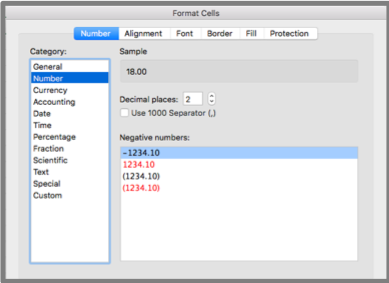
Excel gives its users many tools which they can use to format data and present it clearly in nearly any way imaginable. To see some of the formatting available in Excel, highlight a cell or a grouping of cells in a worksheet, then right click to select ‘Format Cells’. 

From here a popup will appear with many different menus and settings. You can spend some time going over these options and seeing how they affect the text in the cells.

Among other things, you can use these options to quickly convert a series of numbers to different currency, convert different time and date formats, turn whole numbers into fractions, percentages and vice versa. Imagine having to manually insert a ‘$’ symbol into 30 different cells or having to convert the date 3/07/2019 to Wednesday, 3 July 2019 and repeat it for 50 other dates. 

Now all of this repetitive formatting work can be done with a few clicks and keystrokes. 

From wrapping text to adding borders, colours and patterns to cells, do it all easily from within Excel and produce worksheets exactly how you want them to look with maximum readability. 


Excel Quick Analysis Tools

To improve your skills in Microsoft Excel, you should take advantage of the quick analysis tools. This feature of Excel can help you quickly analyse sets of data and produce either the result of an equation or a visual representation of the data in the form of a chart, table or one of the many other options available. 

To use the Quick Analysis feature:

  • Highlight a range of cells with data in them
  • After you have made the selection, a button will appear in the bottom right of the selection
  • Click on this button to access the options you can use to resolve or compare your data 
  • From here you can create charts or tables and calculate totals, among other things

This feature is useful for quickly producing visual representations of your spreadsheet data and can help you understand the numbers at a glance. 

Note: This feature is not currently present in the Mac version of Excel 2016.


Excel Page Layouts & Printing

While workbooks are normally viewed in a digital workspace, there may be times when you need to print out the work you’ve done in Excel. 

To the novice this can be a nightmare; most users are not aware of the level of control they have over their printing and page layout options.

Select which worksheets out of the workbook you wish to print. Sometimes everything in the file is not relevant to what you want to print out. 

You can select active sheets by clicking and highlighting the desired sheets while holding the ‘Ctrl’ button (Command on Mac). 

Then in the print menu be sure to set the “print” option to “selection”. 

You can set a static printing parameter by using the Print Area option. This allows you to work within a defined printing parameter within a specified worksheet. 

Margins will also impact your printable area and can be set precisely how you want them. Either use the pre-sets available or dive in and set your own.  


Excel Printing Options

Consider whether you want to print your work in portrait or landscape mode, keeping in mind how much relevant information you will be able to fit on the page with either option. 

Portrait mode will allow you to include more rows on your page, whereas landscape will give you more column space to work with. You can change the orientation under the “Page Layout” tab. 

Scaling options allow you to fit elements to the page, however, it can be at the cost of readability of those elements. There’s no point having everything on the one page if your printout is then so small that nobody can read it. So, use these tools with that in mind. Ensuring your data is readable is our primary goal. 

Print Titles can be used to keep the same headings present at the beginning of every new page. This makes your printed workbook much easier to read if the same table spans over multiple pages. This option is also found under the “Page Layout” tab. 

Once you have everything set out the way you want, you’ll be able to hit ‘print’ with confidence. 


Excel Training – Take the Next Step

We have only touched on a few of the features present in Excel. It is a powerful program, and anyone with the skills to wield it will be highly valued in any workplace environment. 


Excel Training Courses to fit your requirements

If you are looking to improve your skills in Microsoft Excel and boost your Excel know how, then our Intermediate Excel course is perfect for you. 

To gain an understanding of the topics you can cover in the course, click to see the course outline for our intermediate Excel course.

Becoming familiar with and mastering these skills will save time and increase productivity. Investing in the performance of your workforce can save hours of wasted time and frustration down the track. 

These skills are only a click away. 


Upon completion of the Corporate Training Options Intermediate Excel course you will be able to:

  • use filling techniques 
  • use a range of techniques to work with worksheets 
  • apply a variety of page setup techniques 
  • apply borders to cells and ranges in a worksheet 
  • use common worksheet functions 
  • create more complex formulas and functions 
  • create and use defined names in a workbook 
  • apply a range of number formatting techniques to worksheet cells 
  • apply conditional formatting to ranges in a worksheet 
  • use goal seeking to determine the values required to reach a desired result 
  • understand and use Excel’s Quick Analysis tools 
  • create and work with tables 
  • use a range of elements and features to enhance charts
  • select and change the format of objects in a chart

You can also take advantage of our courses for beginner and advanced users of Excel.  We also have courses available for you in Microsoft Excel Functions and VBA for Excel

Enrol online today

Alternatively, for further information, please email us at:  training@cto.com.au.


About Corporate Training Options

Corporate Training Options (CTO) provides you with training in essential business skills, via onsite and online business and professional development courses.

Your courses are customised to meet your requirements and provide a cost-effective way of ensuring you and your team are presenting your best image to the world. 

For more information on the range of Business Training Courses available, please visit the CTO website – cto.com.au

We look forward to working with you, to build your confidence, improve your efficiency and maximise your potential.


Rosy King


Corporate Training Options

Professional Training  –  Exceptional Results

training@cto.com.au

cto.noesis.chat/

Collaborate with Microsoft Office 365

Work Faster & Smarter with these Office 365 Success Tips

By: Corporate Training Options, Australia

7 Tips for Success Using Microsoft Office 365

Collaborate with Microsoft Office 365
Collaborate efficiently with Microsoft Office 365

If you and your organisation have embraced Cloud applications, Microsoft Office 365 may be an untapped mine of productive potential. 

Programs you may already be accustomed to – such as Word, Excel, PowerPoint and Outlook – can be conveniently installed on different smart devices as well as computers, but that’s not where Office 365’s utility ends. 

Here are seven tips you can use to work faster and smarter, using Microsoft Office 365.

Up your Email Game

Everyday communicating can be fraught with hazards – from sifting through mass emails, the lingering threat of malicious viruses, and of course, human error. Office 365 helps you engage your email efficiently and proficiently.

1. Colour Coded Email Security

With Office 365, incoming messages are colour coded so you can make better choices about which to open and which to avoid. 

CTO Office 365 Training
Learn the powerful tools in Microsoft Office 365

Suspicious emails – messages that have failed sender authentication or have been flagged as a potential phishing attempt – are red and should be deleted. 

Unknown emails, or “spam,” are yellow, but if mistakenly identified by the Exchange Online program as spam, can be manually unflagged and moved to your inbox.

Green emails are trustedemails that come from a domain Microsoft considers safe. 

Safe emails are grey, They have either been marked as safe by your organisation; were once spam but you’ve moved it to your inbox and unflagged it; or come from a contact on your “safe sender” list.

2. Marie Kondo your Inbox

Be proactive and use the “Clutter” feature to keep your inbox free of spam. Mark unwanted messages as “clutter”, and Office 365 will keep them and less important emails in their own folder. You can read, delete, or otherwise deal with them at another time.

3. Free Yourself from “Reply All” Chains

Nothing clogs up your inbox like a mass email to which a few people hit “reply all” when they respond. With Office 365, you simply go into the message, click the “Home” button, go into the “Delete” group, and happily click “Ignore”. It’s like muting the conversation. 

Office 365 will pull the message stream out of your inbox and flip it into the trash. If you ever need to restore the message, you can find the “More” option and click “Stop ignoring”.

4. Take Back that Email Before it’s Read 

If you’ve accidentally:

  • sent an email before you had finished it, or 
  • sent it to the wrong person, or 
  • hit “Reply All” when you meant to respond only to the sender

You can undo the mistake by opening the sent message in a new window. In the “Move” section, click on the “Actions” button and click “Recall This Message”. 

You can opt to “Delete unread copies of this message” to remove the item from unintended recipient’s inbox. If it’s just a matter of making edits, choose “Delete unread copies and replace with a new message”. 

You can also opt to receive a notification confirming whether your email was successfully recalled or if it was opened before you could recall it. You can’t recall a message that has already been read, and you and the recipient must be on the same Exchange and using Outlook Desktop. 

If you have MailTips implemented in your Office 365, it can warn you of common mistakes, such as forgetting to actually add an attachment, before you hit “send”.

Collaborate More Efficiently and Effectively

Microsoft Office 365 has made it easier to work as a group, streamlining many of the processes that tend to result in lots of back and forth between people working on the same project.

5. Chat with Co-Authors while you’re all on the Same Page

Work as a Team with Office 365
Teamwork with Office 365

Sharing documents, so that people can add their input and make edits, is a great collaborative tool. But wouldn’t it be great if you could chat about changes before making them, or whilemaking them? 

With Office 365, team members can discuss a shared document stored on SharePoint Online or OneDrive for Business, in real time, making the editing process faster and smarter. 

Participants need only click the chat icon at the top right of their screens while they are viewing the shared document and a chat box will pop up.

You can also minimize the chat box if you find it distracting. It will become a chat bar, that changes colour when there is a new message, so you can stay in the loop.

6. Request Input from Others using @Mention  

If you want someone’s input on a work file, you can get their attention promptly with the @Mention function. Open a document in a SharePoint library or OneDrive for Business, and add a new comment. 

When you type “@” and the first few letters of their name (first or last), you’ll see some auto-filled options. Choose the correct person’s name. This will automatically send a notification to their email that they have been mentioned in a comment, along with a link to the document. When they respond, you’ll get a similar notification.

This will only work if you have given this person permission to open the file. If you haven’t already, you will be asked to do so when you use @Mention. 

7. Manage Aspects of your Work and Life

Manage your Calendars with Office 365

Not only does Office 365 let you sync your Calendars between all your devices, but you can use your browser or online apps to access your Calendars. 

You get instant access to all your calendars – and group calendars if you are in one or more groups.

You can even create special calendars to track Birthdays, Holidays, and “Interesting” events or topics.

For example, if you’re a sports fan, you can create a calendar with all the upcoming sporting events – whether you are playing, attending, or watching.

In Summary

Utilise the power of Microsoft Office 365 for your team

Most of us use less than 20% of the features available in Microsoft Office 365. It’s truly powerful software, which you and your team can use to work smarter and faster. Learning how to use features in Office 365 – including OneDrive, Newsfeeds, email management tools, shared files and @Mention – will allow you to take advantage of the clever design features of Office 365.

Corporate Training Options can assist, with both introduction and advanced training courses in Microsoft Office 365, plus individual courses in software such as Microsoft Yammer, Microsoft Teams and SharePoint.


Need Microsoft Office 365 Training?

Corporate Training Options can train you and your team to take advantage of the awesome tools available for you in Microsoft Office 365. Our Microsoft Office 365 Introduction Course is suitable for staff of all levels, from reception, administration and support staff, through to senior management.

And if you are already competent With Microsoft Office 365, our Microsoft Office 365 Advanced course is perfect for you.

Upon successful completion of the Corporate Training Options Introduction to MS Office 365 course, you’ll be able to: 

  • understand what Office 365 is and how it can be used 
  • understand how to start working with Office 365 
  • create, send and receive emails using Mail 
  • use Calendar to manage meetings, events and appointments 
  • understand and work with People 
  • create and join groups, post and interact with messages, and work with files using Yammer
  • use the Newsfeed
  • access and navigate OneDrive 
  • start working withOffice Online 
  • perform more complex email operations using Mail 
  • configure and personalise Mail settings to suit your needs 


Enrol online or get a quote today, from Corporate Training Options. for your Microsoft Office 365 course.

Alternatively, please contact us by emailing training@cto.com.audirectly.


About Corporate Training Options

Corporate Training Options (CTO) is a Business Training Company, which provides you with training in essential business skills, via onsite and online business and professional development courses.

The courses provide a cost-effective way of ensuring you and your team develop strong skills in:

  • Leadership & Management
  • Strategic Business Planning
  • Project Management
  • Marketing & Sales
  • Customer Service & Relationship Management
  • Business Administration
  • Finance & Accounting
  • People & Culture 
  • Computer Software Training
  • Personal Development


We look forward to working with you, to build your confidence, improve your efficiency and maximise your potential.

For more information on the range of Business Training Courses available, please visit the CTO website – cto.com.au

Rosy King

Corporate Training Options

Professional Training  –  Exceptional Results

training@cto.com.au

cto.noesis.chat/

Online Training with CTO

Online Training – Learn the Skills you need to improve your Business

Online Training from CTO provides you with a range of courses you can take anytime, anywhere – to improve your life, your relationships and your business, and have fun doing it!

By: Corporate Training Options, Australia

Online Training with CTO
Learn new skills online – anytime, anywhere

Learning new skills improves our lives, across all areas. As we gain knowledge, we have the ability to earn more and enjoy a more satisfying career.  We become more interesting people, as we make new connections between what we are learning, and the existing knowledge we already have. We improve our quality of life, our relationships, and our business, as we can adapt quickly to change and feel more confident in ourselves and our ability to take on new tasks.

And learning is fun. There are so many exciting courses available, providing us with a way to learn fascinating new skills and talents. It’s also a social activity, with online discussion forums available with our peers and expert instructors, where we can ask questions, reinforce our learning and get feedback.

Why not give it go today?  You can see some of the most popular online Business Training courses here.


“Education is the most powerful weapon which you can use to change the world”  –  Nelson Mandela


What are the benefits of learning new skills?

Learning new skills enhances the quality of our life, providing us with knowledge when we need it and reducing stress.  It breaks us out of our usual patterns and changes our brain chemisty.  

As we learn, our learning speed increases and we gain confidence.  We are more able to tackle new tasks and our mental well being improves as we set new goals and targets. and then reach them.  This sense of achievement is an important part of feeling we are doing well.  Learning new skills also fights boredom and allows us to adapt better to change.

We learn to understand ourselves, our strengths and weaknesses.  To learn the art of life.  And to master the techniques of adjusting and accommodating to changes in our surroundings and life situations.

Why learning is so important for success

Learning new skills is really important for our future success.  It shows we have the drive and commitment to learn and apply new information, ideas and theories, to achieve a variety of tasks and goals.

Knowledge has allowed us to make amazing advances in science and technology.  As they say, knowledge is power and one of the important reasons to learn something new is we gain power when we do.  It makes us far more capable and it helps us get ahead in the workplace and in everyday life.  We can communicate our ideas more clearly, and reason and think for ourselves.

How can online training help us in the workplace?

CTO Online Business Training
CTO Online Business Training – Anytime, Anywhere


Learning new skills fortifies and rounds out the skills we need to excel in the workplace, improve our resumes and move to a better paying or more desired position.  Training allows us to keep on top of our industry and learn new skills that become necessary as technology progresses.

Learning new skills can also help us decide what we want to do with our life and makes us more confident when approaching a new role and interacting with other people.

Online training gives us the opportunity to learn basic business principles.  These days, it’s important that we have an understanding of how the entire organisation operates.  If we’re acquainted with the basic functions of all departments, we can be a better business leader, and a significantly more attractive candidate for new roles.

A willingness to learn is a compelling characteristic when putting ourselves forward for new positions.  We should always be taking steps to improve and gain new skills, stay on top of industry trends, and step outside our comfort zones.

Discover some of the most popular online Business and Professional Development courses here.


How can we learn new skills quickly?

We can learn new skills more quickly by interacting with the available information.  As well as completing an online course, we should also gather information from videos, blogs and podcasts.

Make learning more meaningful by connecting it to our own life and experiences, and seeing how it fits into our personal scheme of things.  Consider how can we put what we have learned into practice and use it to our advantage?  When we can do this, we will grasp new concepts much more quickly.

Learn by doing, and build new habits to enforce our skills. For instance, if we are learning Excel, build spreadsheets and practice with new formulas and functions, which will provide us with the data we need in our business or workplace.  Also, regularly compare our work with that of experts in our field.  We will then notice areas where we can improve.

You can see a sample of the most popular online training Computer Training courses here.

Spend time practicing things we find difficult, until they become easy, because in order to excel in a skill, we need to push ourselves out of our comfort zone.  Over time, we will achieve a higher level of efficiency in this skill.

Why is learning new things good for our brain?

Research suggests that continued cognitive activity has a positive effect on braincells and helps promote mental sharpness.  Learning new skills stimulates neurons in our brains, which forms more neural pathways and allows electrical impulses to travel faster across them.  This helps us learn better, and to learn things more quickly over time.  

Using our brains more allows us to find a way to work through frustrations and achieve competence.  Leaning new business or career skills is important for surviving and thriving in the workplace.  Learning new skills is essential for building the career or business you love.

Why knowledge is important in our life

Lifelong learning is important.  The voluntary decision to enrol in courses and learn new skills keeps us motivated, with the desire for more knowledge and self-improvement.

We need knowledge to be successful in life.  To grow in our careers, gaining as much knowledge as possible is important.  Knowledge allows us to shape our personality, improve our behaviour, deal with people and situations more easily. 

Which skills are important in 2019 and beyond?

Many of the skills we are learning today will be quite different from the skills we will need in as little as a decade.  Technology is changing our world so quickly, that new jobs and business opportunities are arising every day. 

Below are some of the skills which are highly desirable in 2019.  Who knows how these may change over the next 10 years, but they are certainly a starting point for today. 

Personal Skills

  • Thinking skills, for problem solving and decision making
  • Creativity
  • Resilience
  • A passion for learning
  • Good communication 
  • Self-management
  • A positive attitude
  • Curiosity and imagination

Professional Skills

  • Good business sense
  • Agility and Adaptability
  • Initiative and Entrepreneurship
  • Collaboration across networks and leading by influence
  • Public Speaking
  • Willingness to learn
  • Teamwork
  • Critical thinking and problem solving
  • Effective oral and written communication
  • Assessing and Analysing information

Technical Skills

  • Social Media literacy
  • Coding
  • Excel – one of the most desired skills in today’s workplace
  • Web development
  • Business Writing & copywriting
  • Project Management
  • Google Analytics
  • Digital marketing
  • Data analysis


Our quest for knowledge doesn’t have to end when we finish school or university.  Education can be a part of our adult lives too and we can reap the professional and person benefits of lifelong learning.  It’s never too late to start.  Making ongoing learning and development a part of our lives is vital for all of us, keeping us motivated and interested in the world we live in.  


The CTO Online Training Courses are ideal for those wanting to upgrade their business and professional skills.

For more information on the range of Online Training Courses available, please visit the CTO website – cto.com.au


Enrol online today !


About Corporate Training Options

Corporate Training Options is a Business Training Company, which provides you with training in essential business skills via online business and professional development courses.

The courses provide a cost-effective way of ensuring you and your team develop strong skills in:

  • Leadership & Management
  • Strategic Business Planning
  • Project Management
  • Marketing & Sales
  • Customer Service & Relationship Management
  • Business Administration
  • Finance & Accounting
  • People & Culture 
  • Computer Training
  • Personal Development

CTO provides Online Training courses to organisations world-wide.  Covering Professional Development, Business Skills and Computer Software, your online training is designed to ensure your team development outcomes are achieved.

We look forward to working with you, to build your confidence, improve your efficiency and maximise your potential.

For more information on the range of Online Business Training Courses available, please visit the CTO website – cto.com.au

Rosy King

Corporate Training Options

Professional Training  –  Exceptional Results

training@cto.com.au

cto.noesis.chat/

I can't live without Excel

Why I can’t live without Excel

Why I can’t live without Excel

Improve your Excel skills with CTO Training

I realised the other day that I can’t live without Excel. That’s because I use Microsoft Excel every day.  So, what do I use Excel for?  For so many things.  Household budgets, tracking holidays, jobs to be completed, marketing plans for the business, task lists, assignments, client lists.


Excel What-If Comparisons

What-if comparisons are a big one.  What if I change my superannuation to a new fund.  Will it give me better returns?  What if I change my mortgage interest rate.  How much difference will it make to my repayments?  What if I increase sales by 5%.  How much will that improve my profit?

What if I can create a budget that allows me to save 20% of my income each month.  How many years will it take until I can cut back on work and start living on the income from my investments?


How many Excel files do I have?

If I had to search my personal computer for Excel files, I would find dozens of them.  They are in every folder, holding important information on my life.  If I search for Excel files on my desktop computer at work, there are hundreds of them.

I’ve been using Excel since it was first released back in the 1980’s.  I’ve been training friends, family, colleagues and clients on how to use Excel, ever since.  Even the most basic understanding of how to use an Excel spreadsheet can change your life.


Basic Budgets with Excel

I remember teaching my very first classes in Excel.  I would always stray from the set curriculum and make the practice exercise the creation of a simple personal budget.  It was important that my students understood how setting up a simple spreadsheet, entering income and expenses, then changing the numbers around according to circumstances, could have a huge impact on their lives.


Changing Lives with Excel

I have gone on to create a lot of personal budgets for both family and friends over the years.  I did one recently for a girlfriend who was preparing herself to sell her family home, as she could no longer afford it.  She was also starting a new business on the side, while holding down a full time job, and was just completely stressed over all the balls she had up in the air.

So, I invited her over for a glass of wine after dinner, and we sat down and did her budget for her.  Not only was she living well beyond her means, but her income was actually far higher than she realised.  She had plenty of room to make simple changes to her life, and “pay herself first”, instead of spending every cent and always being short.  Not only did this simple Excel spreadsheet change her view of her finances, it changed her life.  She kept the house, moved to a lovely apartment by the beach, and got her new business up and running the next month, which has been a great success for her.  Microsoft Excel to the rescue, again.


Using Excel at Work

Of course, the major users of Excel are business people. Excel is used for as many things in a business as I use it for in my personal life.

These include:

  • Storing business information and identifying emerging trends in your data
  • What-if analyses using Excel scenarios and data tables
  • Creating a range of charts and graphs
  • Using pivot tables to sort, count, total or average data
  • Providing financial information such as budgets, forecasts, and financial results
  • Creating customer databases and tracking sales targets and results
  • Managing marketing information and ROI on marketing campaigns
  • Tracking employee data such as expenses, work hours, and performance reporting
  • Downloading reports from your accounting software to complete analyses on your business performance


The list goes on and on.  However, suffice to say that Excel is one of the most important tools in the office today.  Having a working knowledge of Excel is vital for most business professionals.


The benefits of Excel

Consider the benefits of capturing and using business knowledge more effectively.  Once you become familiar with the powerful functions available in Excel, you will have the ability to make informed business decisions based on the data provided by your Excel spreadsheets.

Strong skills in Excel can also lead to promotions and leadership opportunities.  Those in charge of the information are usually the ones in charge.


These are just some of the reasons why I can’t live without Excel.

How will you be using Excel today?


When you are ready to learn Microsoft Excel, CTO can provide you with onsite training, customised to suit your requirements.

The courses are available for a range of skill levels, including Introduction, Intermediate and Advanced Excel training, VBA for Excel and Power Pivot courses.

Click here to view the Microsoft Excel courses available from Corporate Training Options.


About Corporate Training Options

Corporate Training Options is an Australian Professional Development Training Company, incorporated in 1992.

Our customised Professional Development courses are available Australia-wide, for business executives and corporate teams, and provide a cost-effective way of ensuring you and your staff are presenting your best image to the world.

CTO Professional Development Training courses are customised to meet your requirements, and your training is provided on-site, on dates which suit you.


For more information on the range of Corporate Training Courses available, please visit the CTO website here


Rosy King

Corporate Training Options

Professional Training  –  Exceptional Results


E: training@cto.com.au

W: cto.noesis.chat/


Learn Microsoft Project with CTO

Stop tearing your hair out. Learn Microsoft Project !

Stop tearing your hair out and learn Microsoft Project 

Learn Microsoft Project with CTO

If you are a project manager, you need to learn Microsoft Project.  You will already have excellent leadership and communication skills, however, without the right software tools, managing your projects may be more frustrating, time consuming and cumbersome than it needs to be.


Microsoft Project has been specifically designed for project management, scheduling and the allocation of resources.  Online versions allow all project team members to create, access, edit and update projects and tasks from anywhere.  This means your team members can provide their own real time updates on their tasks as they complete them.


Project Online real-time visibility is especially important when teams are geographically dispersed.  An online solution provides the ability for your entire team to store data in one central file, and when changes occur, team members can be aware of this and can come up to speed rapidly.


When you learn Microsoft Project, you can make use of tools such as:

  • Built-in, customisable Templates, so you don’t have to start projects from scratch
  • Project Planning features such as Gantt charts, and simplified project planning processes
  • Extensive Reports, to keep all your team members on the same page
  • Multiple Timelines, from tasks to upcoming milestones
  • Access to your project data across devices, including Windows, iOS and Android


When you are ready to learn Microsoft Project, the  Introduction to Microsoft Project training course from CTO will be beneficial for both team members and project managers.  The training can be customised to your business requirements and will give you the tools to come away from the training with your first project planned and underway.

The course assumes little or no knowledge of Microsoft Project, so is perfect for Project newbies, or for team members who have never had formal training in the software.


Topics covered include:

  • Key concepts associated with project management
  • Create a new project file
  • Enter tasks into a project file
  • Create relationships between tasks in a project
  • Add resources, including labour, materials and equipment to a project
  • Understand and use resource assignment calculations
  • Assign resources to tasks using a number of different methods
  • Print various aspects of a project
  • Obtain help for Project whenever you need it


The Technical Stuff  –  Microsoft Project versions explained

To help you decide which version of Microsoft Project best suits your requirements, here is a quick overview of the versions available for you.


Microsoft Project on the Desktop

Project Standard

Project Standard is targeted at project managers who are managing small team projects. It is a standalone product and does not have the capability to connect to Project Server.


Project Professional

Project Professional has the ability to connect to Project Server, which enables you to gain a portfolio-level view and give View, Update, or Edit access to project team members. It also provides the ability to manage resources and collaborate with your team via Skype for Business.


Project Server and Project CAL

Project Server allows you to bring various projects together, and give View, Access, or Edit rights to team members and executives across your organization.

Project Server deployment also requires you to license Windows Server, SQL Server and SharePoint Server. You will also require the corresponding CALs (Client Access Licenses), which provide your users the right to access a server.


Microsoft Project in the Cloud

Project Pro for Office 365

Project Pro for Office 365 is a cloud product, which means Microsoft will automatically update the installed client on your PC’s on a recurring basis. You are licensed to install the software on up to five PC’s.

You can connect Project Pro for Office 365 to Project Online. This enables you to gain insight into the portfolio-level view, and give View, Update, or Edit access to project team members. Subscription to Project Pro for Office 365 gives you the right to access Project Online and Project Server.  You also have the ability to manage resources and collaborate with your team via Skype for Business.


Project Online

Project Online is the product corresponding to Project Server, but in the cloud.  You can buy subscriptions of Project Online for as many users as you want.

What about CALs?  Since Project Online is in the cloud, you do not require CALs.

If you already have a Project Server deployment and you want to test the cloud, Microsoft allows you to access your existing Project Server deployment via a Project Online subscription.


Project Lite

Project Lite is the product which provides access for your team members. In order to use Project Lite, you must have a subscription to Project Online. From a technical standpoint, Project Lite is exactly the same product as Project Online, but offered at a lower price point.

From a licensing standpoint, Project Lite enables you to use a subset of capabilities. These capabilities allow you to view and edit timesheets, manage tasks, add issues and risks, and collaborate on project documents. Similar to Project Online, the subscription to Project Lite gives you access rights to Project Server deployment.

_____________


When you are ready to learn Microsoft Project, CTO can provide you with onsite training customised to suit your requirements.  The courses are available for a range of skill levels, including Introduction, Intermediate and Advanced project training.

Click here to view the Microsoft Project courses available from Corporate Training Options.


About Corporate Training Options

Corporate Training Options is an Australian Professional Development Training Company, incorporated in 1992.

Our customised Professional Development courses are available Australia-wide, for business executives and corporate teams, and provide a cost-effective way of ensuring you and your staff are presenting your best image to the world.

CTO Professional Development Training courses are customised to meet your requirements, and your training is provided on-site, on dates which suit you.


For more information on the range of Corporate Training Courses available, please visit the CTO website here


Rosy King

Corporate Training Options

Professional Training  –  Exceptional Results


E: training@cto.com.au

W: cto.noesis.chat/


The Modern Workplace with Microsoft 365

What are the benefits of Office 365?

https://www.cto.com.au/course/microsoft-office-365/
CTO courses teach the benefits of Office 365

Many of the benefits of Office 365 are provided by productivity tools that may not be fully utilised by users of the software.  Most of us simply do what we’ve always done, and don’t spend time investigating what’s available in new versions of our software.

So here’s a brief overview of what can be achieved with Office 365, to encourage you to invest the time and and resources to take advantage of this powerful software.


  • You can create, share and edit your files from all your devices with Office 365 online applications.  This includes your Mac, PC, phone and tablet.
  • Office 365 takes care of your IT.  As long as you have internet connectivity, your cloud services are always accessible and version updates happen automatically.
  • Office 365 syncs emails, calendars and contact information across your devices.  So it’s up to date whenever you need it.
  • Shared calendars let you see when others in your team are available for meetings or calls, and scheduling is easy.
  • There is an admin centre with guides to assist you to set up users easily, to start quickly using the services in Office 365, and to manage all your services in the one place.
  • There is built in security for your data, and compliance and privacy controls help keep your files safe.
  • Microsoft provides a guarantee of 99.9% uptime, so your files are always accessible.
  • And if you lose one of your devices, such as your phone or laptop, Office 365 will allow you to wipe your data from it remotely, to prevent unauthorised access to your information.


Access your Office 365 files everywhere

One of the major benefits of Office 365 is that you can access all your Office applications, plus other productivity services, over the internet.  For business users, these include services such as:

  • Skype – for Business web conferencing
  • Exchange – Online hosted email for business users
  • OneDrive – Secure online file storage
  • Microsoft Teams – for team chats, calls, meetings and more
  • Yammer – for collaboration across a company
  • SharePoint – to share and manage content, information and applications


Office 365 plans usually include the desktop version of Office applications, which can be installed across multiple computers and devices.  This is handy for workers on the go, who have a desktop computer in their office, but would also like to access their documents on a laptop, tablet or phone.

Applications are available for both Mac and PC users, and version updates happen automatically via your online subscription.  Desktop applications include:

  • Excel
  • Word
  • PowerPoint
  • Outlook
  • OneNote
  • Publisher (for PC only)
  • Access (for PC only)

There are also Office 365 plans that are online only, which can be a good choice for some business teams.


What is Microsoft Office 2016?

Office 2016 is available as either part of the Office 365 suite, or as a one-time purchase for users who simply want a copy of the software installed on their Mac or PC.  The stand alone version of Office 2016 is available via the Office Home or Student 2016 versions.

With the one-time Office 2016 purchase, the applications are not automatically updated.  If you want the latest version you will have to purchase the product again when the new version is released.  Microsoft Office 2016 also does not come with any of the cloud-based services which are part of Office 365.


Can you use Office 365 when you are not connected to the Internet?

Most Office 365 plans include the desktop version of Office.  This means you can work offline on an Excel spreadsheet or Word template, and know that next time you connect to the internet all your documents will automatically sync, and be kept up to date.

To find out more about the services included in each of the business plans, you can visit the Microsoft Australia website here.


Time to upgrade?  Here are some more benefits of Office 365?

  • Office 365 takes care of your IT for you.  This means as long as you have internet connectivity, your cloud services are always accessible and version updates happen automatically.
  • There is an admin centre with guides to assist you to set up users easily, to start quickly using the services in Office 365, and to manage all your services in the one place.
  • You’re able to take your office anywhere, working on any device.  With Office 365 online applications you can create, share and edit your files from your PC, Mac, phone or tablet.
  • There is built in security for your data, and compliance and privacy controls help keep your files safe.
  • Microsoft provides a guarantee of 99.9% uptime, so your files are always accessible.
  • Office 365 syncs emails, calendars and contact information across your devices for you.  So it’s all up to date whenever you need to access it.  Shared calendars let you see when others in your team are available for meetings or calls, and scheduling is easy.
  • If you lose one of your devices, such as your phone or laptop, Office 365 will allow you to wipe your data from it remotely, to prevent unauthorised access to your information.


What is OneDrive?

OneDrive is one of the services provided by Office 365, giving you online storage for your Office files.

  • It allows each user to store up to 1 Terabyte of data.
  • OneDrive gives you access to your files from any device, wherever you are.
  • Automatically sync your files to your desktop, so you can work with your files offline if needed.
  • You can preview any files stored in OneDrive directly from your browser. You can even stream HD video on demand from your browser – without having to download it.
  • OneDrive lets you share files with others, and tracks the history of all activity on files so all users can see what has happened on the file.
  • And if your company is using SharePoint, OneDrive will allow you to collaborate on files with teams; and manage and share files and folders within team sites or intranet sites, or across the organisation.


So, are you are considering an upgrade to the Office 365 version?  Or do you already have it but are not using all the features available?

CTO offers onsite, customised training courses around Australia in Microsoft Office 365.  Training is also available for all your favourite Office applications including Word, Excel, PowerPoint and Outlook.

Click here to view the Office 365 courses available from Corporate Training Options.


About Corporate Training Options

Corporate Training Options is an Australian Professional Development Training Company, incorporated in 1992.

Our customised Professional Development courses are available Australia-wide, for business executives and corporate teams, and provide a cost-effective way of ensuring you and your staff are presenting your best image to the world.

CTO Professional Development Training courses are customised to meet your requirements, and your training is provided on-site, on dates which suit you.


For more information on the range of Corporate Training Courses available, please visit the CTO website here


Rosy King

Corporate Training Options

Professional Training  –  Exceptional Results


E: training@cto.com.au

W: cto.noesis.chat/


Get The Most From Microsoft Word

To get the most from Microsoft Word, you need to understand that any of Word’s most powerful formatting and processing tools remain hidden.  Until you discover where they are and learn how to use them, you may be frustrated with not getting the most out of your software?

Microsoft Word is an essential tool for any business in today’s digital age, to help you create documents and manage your business. Proficiency in Word is a vital skill that is useful for both complex business requirements as well as basic day-to-day purposes. The program can do more than just put words on paper, it also incorporates desktop publishing, design and data handling features, allowing businesses to create many different types of professional documents.

Documents and Forms

You can use Word to create just about any kind of business document, including company reports, presentations, budgets, proposals and plans. It can help you build a library of key forms, such as invoices, statements, receipts, memos and agendas. Word’s design features are easy to use, enabling you to use data visualisation tools to add tables, charts and graphs to your documents.

Templates

If you need a calendar or budget report, for instance, use Word’s template search feature to find and download one of those templates. After customising the template, you can save it as a new template and allow others in your organisation to use it as a starting point for their documents and publications.

Desktop Publishing

You can manipulate text, insert headings, create borders, add tables and move images wherever you like using Word. Use your own pictures to design documents like newsletters, or just include images from the clip art library. Add colourful flair to publications using WordArt.

Mailing

You can use Word’s label wizard to generate and print your own labels. If you have a mailing list in Excel, or another data source, use Word’s mail merge feature to extract that data and generate customised letters that contain personalised information.

These features are just a few of Microsoft Word’s user-friendly tools that can help you create a professional grade document. If you would like to enhance your skills in Microsoft Word, CTO offers a range of training courses from Introduction to Advanced. Call us today on 1300 667 660 or click here to find out more.